
Alerts and alert rules
How do I get an alert when a device goes offline or runs hot?
Click the bell, open "See all alerts", go to "Rules" and create a rule with "New alert rule"; QubiSet then raises an alert whenever a watched device matches the condition.
Plan: Free (3 rules, in-app only). Email, webhooks, history and advanced conditions need Freelance or higher.
On this page
Short answer
Bell, "See all alerts", "Rules", "New alert rule". Give it a name, choose the condition and the devices, press "Save rule".
What this is for
Alert rules watch your rig for you. A rule says what to look for (a device going offline, a sensor value over a limit) and on which devices. When it matches, the bell at the top turns red and counts the active alerts. On paid plans the rule can also send an email or call a webhook.
Before you start
- Plan: Free allows 3 rules of your own and shows alerts in the app. Email and webhook notifications, alert history, notification previews, muting and advanced conditions need Freelance or higher.
- A Rig is open. Sensor rules need devices that report sensors over RDM.
Steps
-
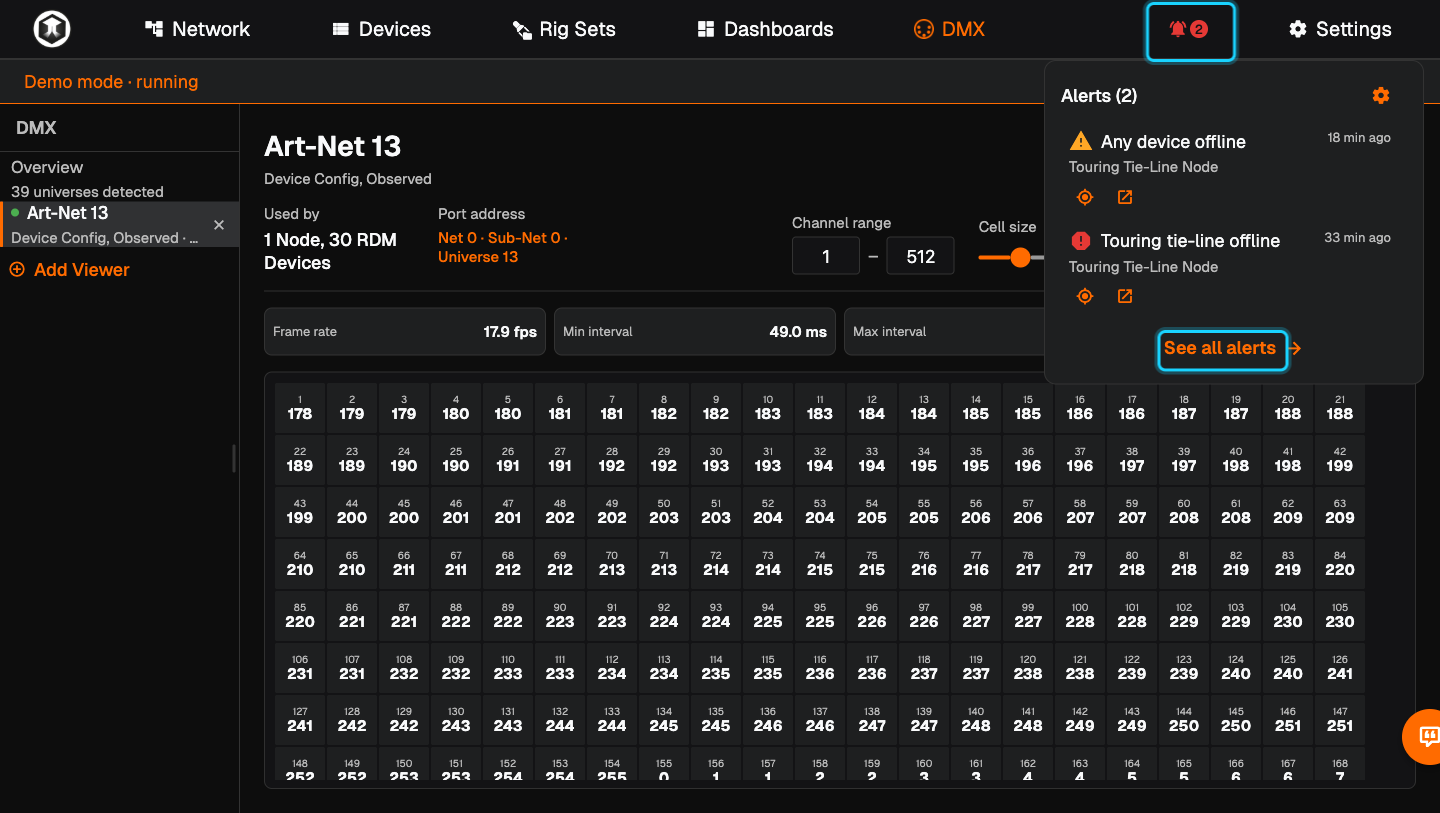
Open the alerts. Click the bell in the top bar. The list shows active alerts, newest first. Press "See all alerts" to open the Alert Center. The bell is the only way in.
-
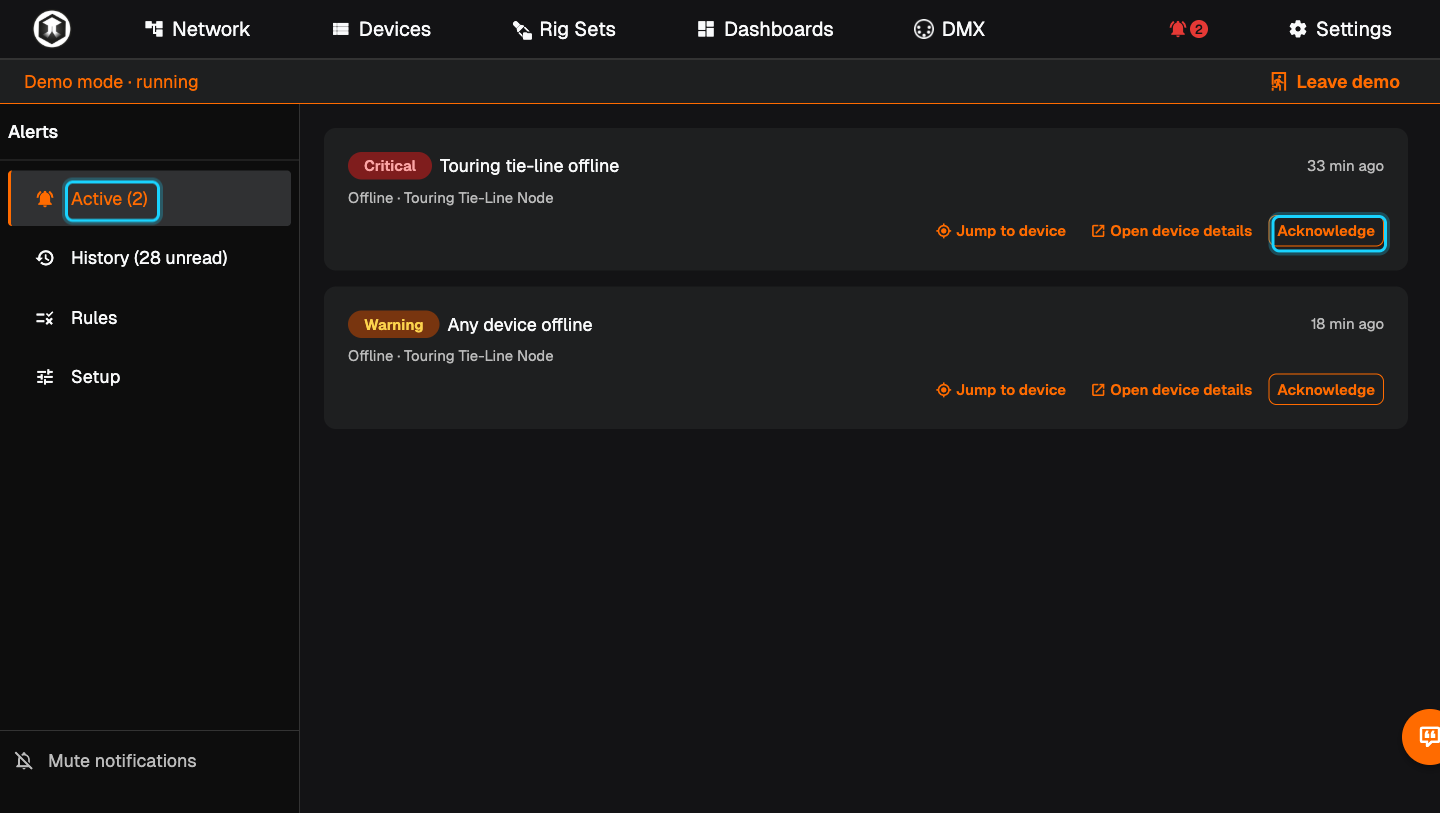
Read an active alert. "Active" shows each alert with its severity, what triggered it and which devices are affected. "Jump to device" shows the device on the current screen, "Open device details" opens its page. "Acknowledge" marks the alert as seen.
-
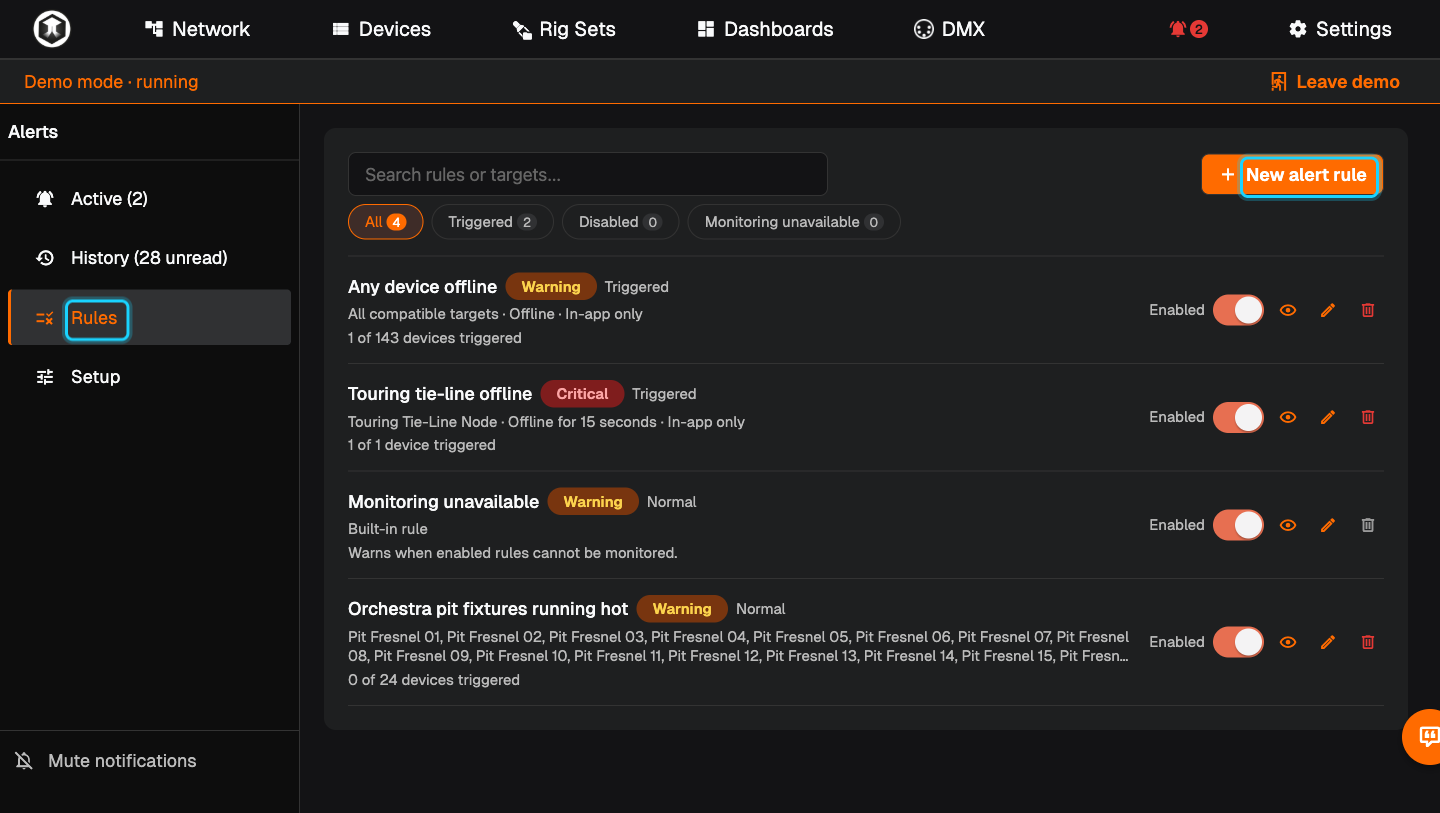
Start a rule. Go to "Rules" and press "New alert rule".
-
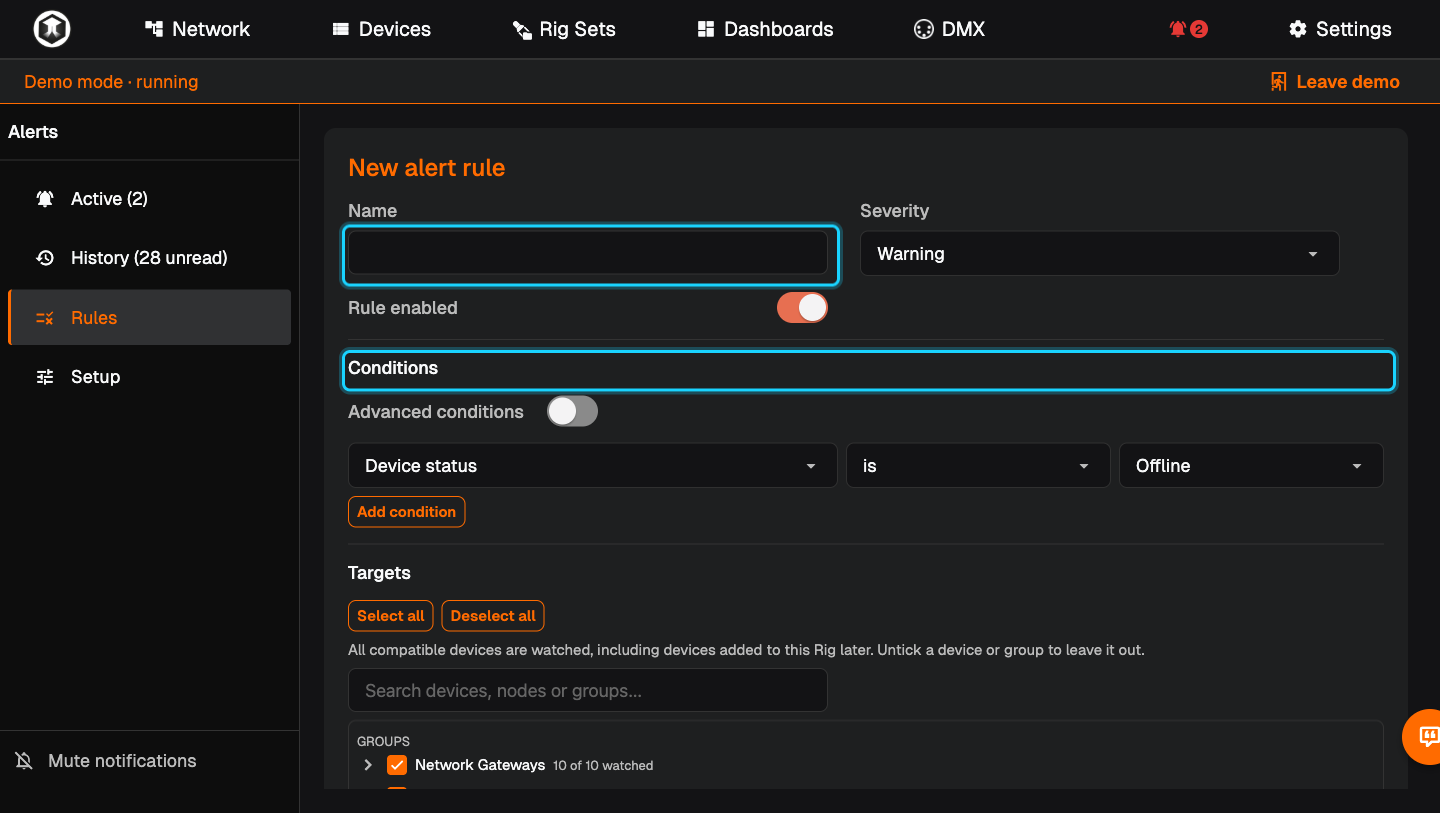
Name it and set the severity. Type a "Name" your colleagues will understand, for example "Dimmer room offline", and choose the "Severity".
-
Set the condition. Under "Conditions" the default is "Device status is Offline". Change it to a sensor value if you want a temperature limit. "Add condition" adds another one.
-
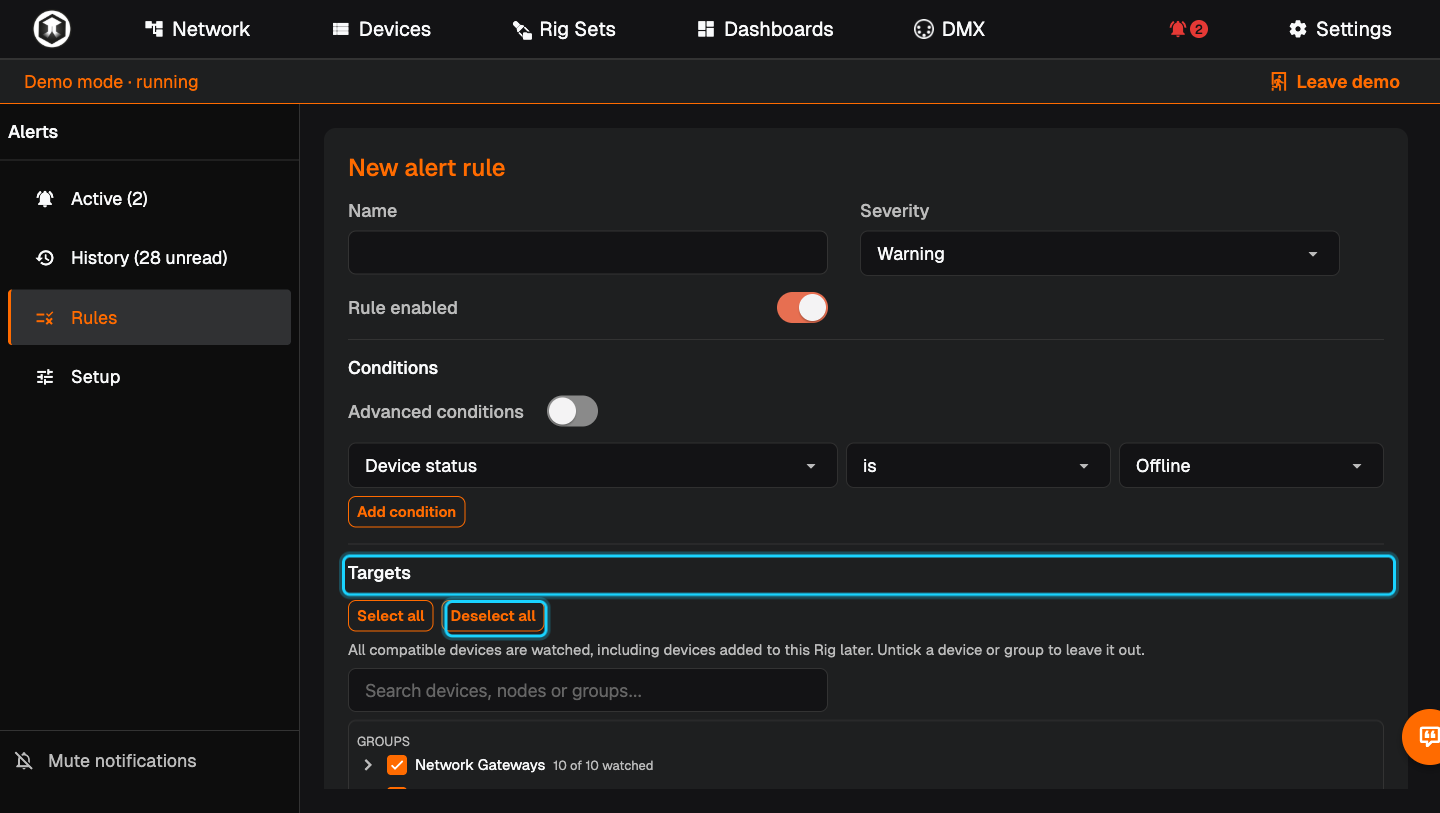
Choose the devices. Under "Targets" everything is watched to begin with, including devices added later. Untick groups, nodes or single devices to leave them out. "Select all" and "Deselect all" help.
-
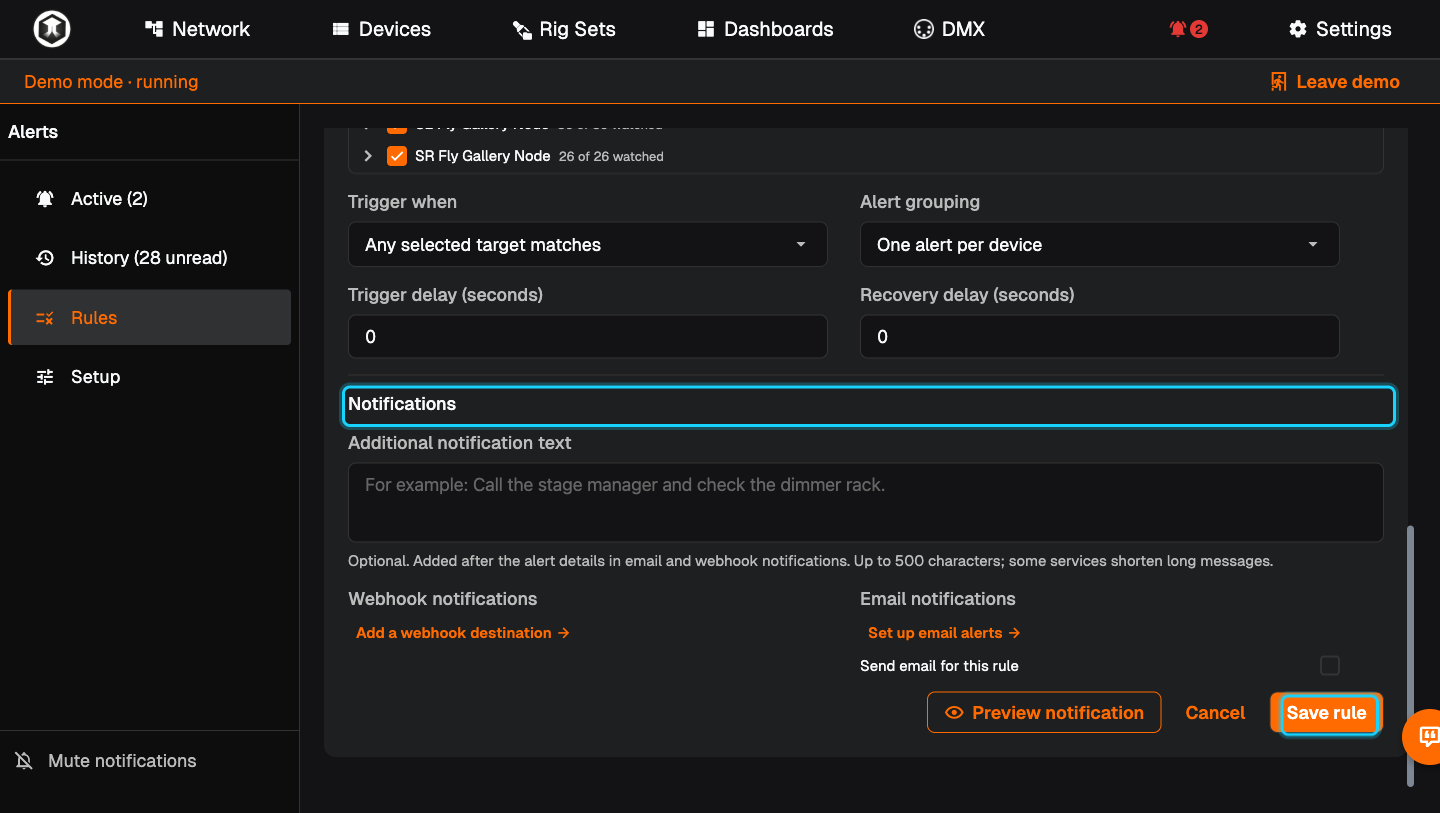
Avoid false alarms. "Trigger delay (seconds)" is how long the condition must last before the alert opens. "Recovery delay (seconds)" is how long it must be gone before the alert closes.
-
Choose how you are told. Under "Notifications" add a webhook destination or tick "Send email for this rule". "Preview notification" shows what will be sent.
-
Save. Press "Save rule". The rule appears in the list with its state: "Normal" or "Triggered", and how many devices are affected.
-
Look back. "History" lists when alerts opened, changed and resolved.
Setting up email and webhooks
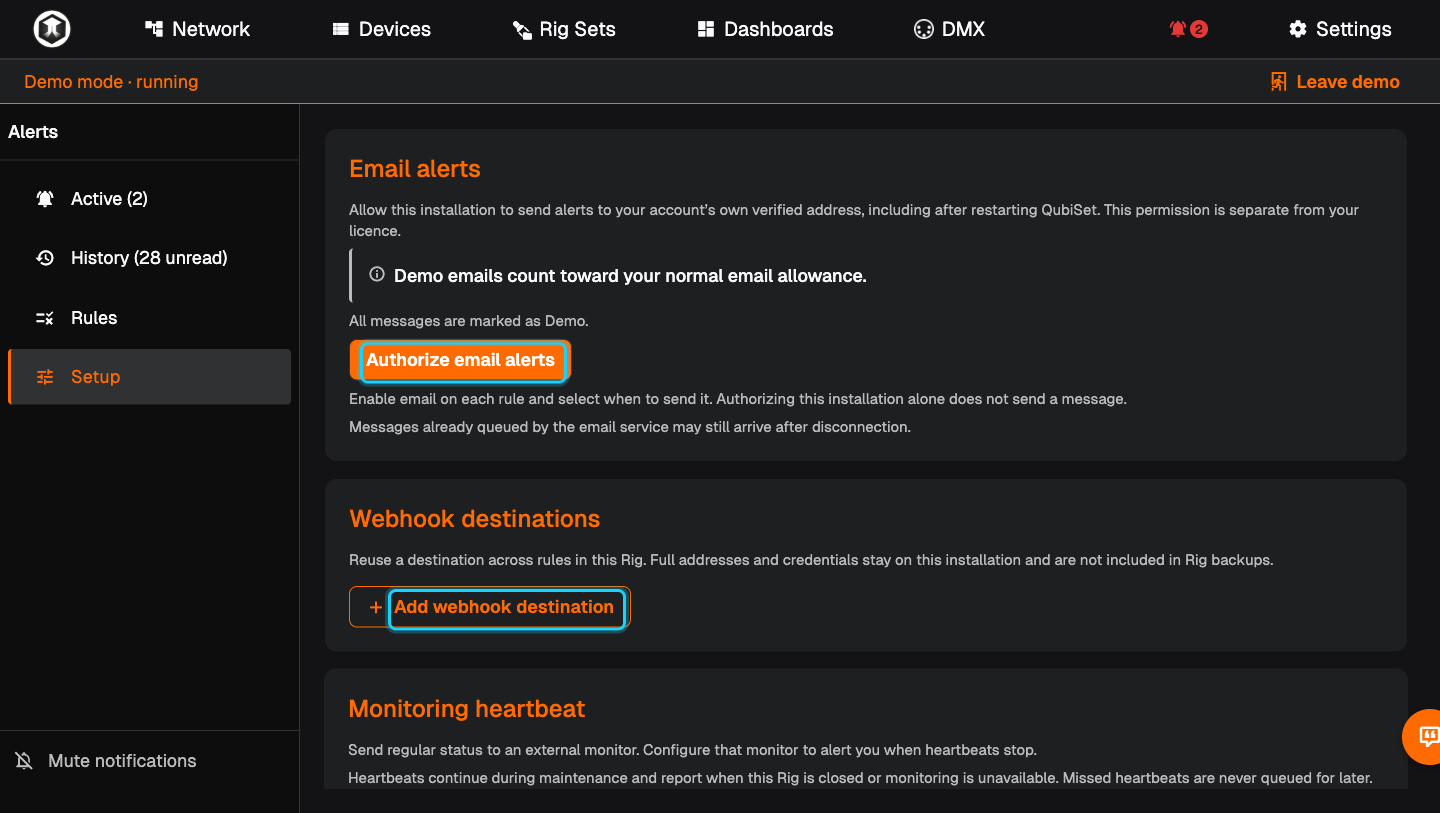
Go to "Setup" in the Alert Center.
- Email. Press "Authorize email alerts" once. Mails go to your own verified account address. Then tick "Send email for this rule" on each rule that should send one.
- Webhooks. Press "Add webhook destination" to connect a chat or monitoring service. A destination can be reused by several rules.
- Heartbeat. "Monitoring heartbeat" sends a regular sign of life to an external monitor, so you also notice when QubiSet itself stops.
If something is not as expected
- The built-in rule "Monitoring unavailable" triggers. QubiSet cannot watch one of your rules at the moment, for example because the needed protocol is disabled.
- An alert opens and closes all the time. Raise the trigger delay and the recovery delay.
- No email arrives. Check "Setup": the installation must be authorized, and the rule itself must have email switched on.
- Too many alerts during a changeover. Use "Mute notifications" at the top of the Alert Center.
Related guides
- Dashboards: the "Alert Overview" and "Alert Status" widgets show rules at a glance.
- Groups: groups make it easy to pick rule targets.
- Find a device and change its settings
Still stuck?
Ask us on Discord or write to support@qubicast.com. Tell us what you did and what you saw, and we will help.