

Plans and license
Which QubiSet plan do I have, and how do I use a license on a computer without internet?
Settings, Account, "License & Usage" shows your plan and its limits; for a computer without internet, copy "This computer's code", download a license file in your account area and import it.
Plan: All plans
On this page
Short answer
Open Settings, Account. "License & Usage" shows the plan. "License file" is for computers that stay offline.
What this is for
Your plan decides which features are unlocked and how much you can use. The plan belongs to your account and is picked up when you sign in. For a show computer that never goes online, a license file gives that computer a paid plan without an account being signed in.
What each plan includes
| Free | Freelance or higher | |
|---|---|---|
| Network, Devices, device configuration | yes | yes |
| Rig Sets, including MVR import | yes | yes |
| DMX viewer | yes | yes |
| Saved Rigs | 1 | unlimited |
| Universes | up to 4 | 16 on Freelance, unlimited on higher plans |
| Alert rules | 3, in-app only | unlimited, with email and webhooks |
| Dashboards | starter dashboard, no editing | editable, several dashboards |
| Groups | no | yes |
| Bulk Edit | no | yes |
| History | last 5 minutes | 30 days or more |
For the current plans and prices, see the pricing page on the QubiSet website. The Demo Rig unlocks all features on every plan, so you can try before you buy.
See your plan
-
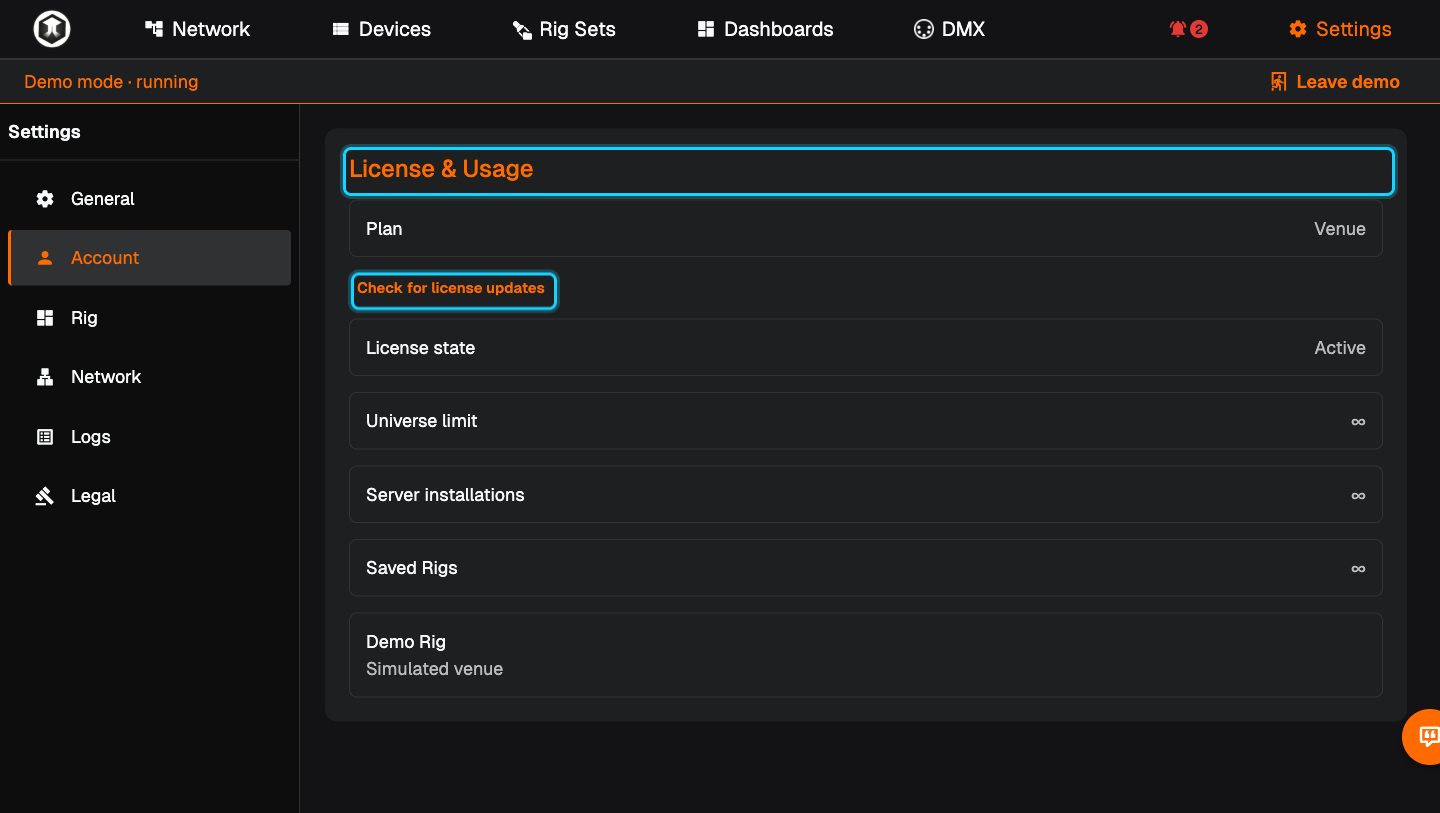
Open the account settings. Go to Settings, Account.
-
Read "License & Usage". "Plan" is your plan, "License state" tells you whether it is active, and "Universe limit", "Server installations" and "Saved Rigs" show what it allows and what you use.
-
Refresh after buying. Press "Check for license updates". A new plan applies the next time you open a Rig.
-
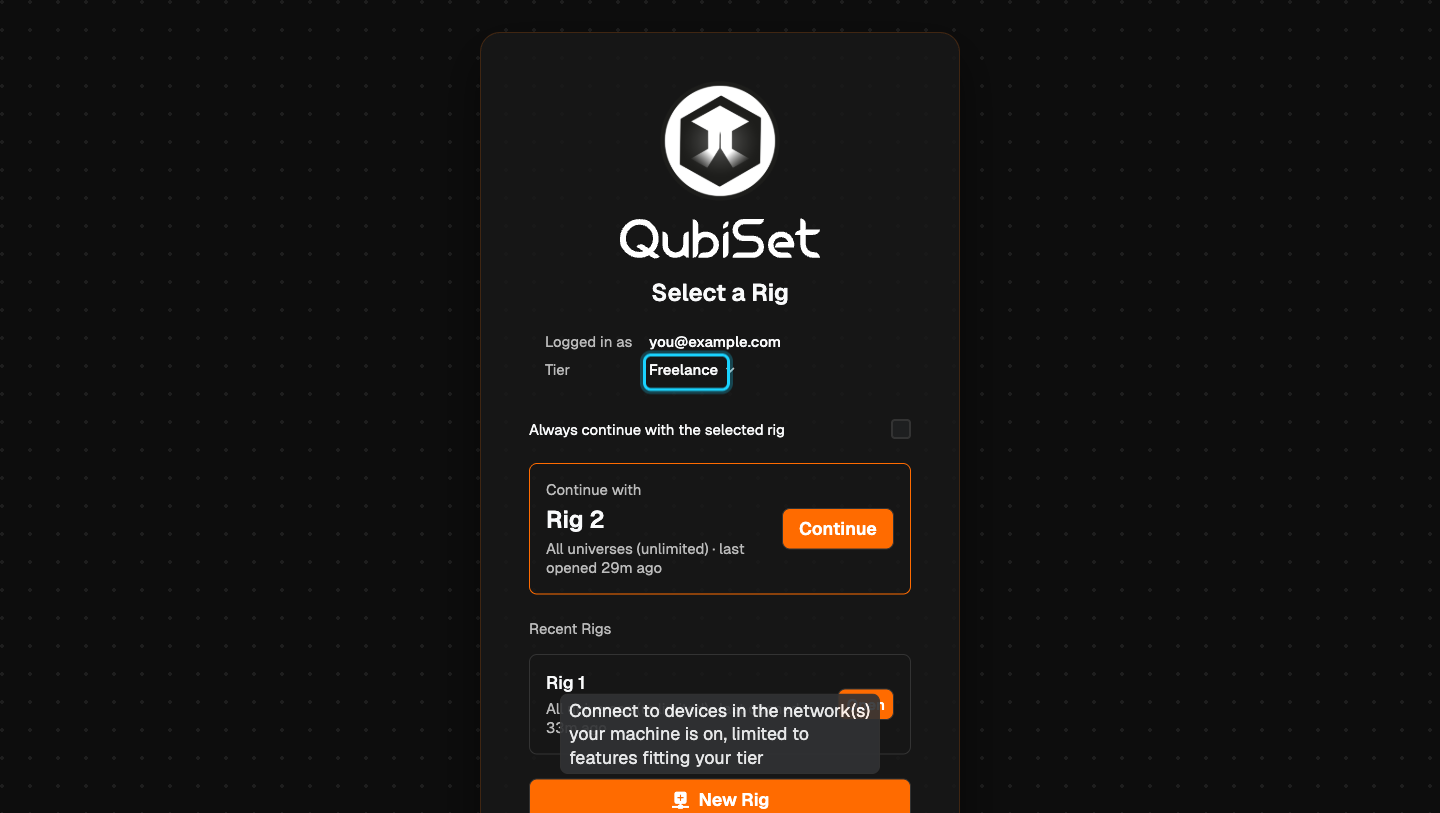
Quick look. "Select a Rig" also shows your plan under "Tier". Click it to list what the plan includes.
Use a license file on a computer without internet
- Get the computer's code. On the offline computer, open Settings, Account, "License file", and press "Copy code" under "This computer's code". Or write it down.
- Download the file. On a computer or phone with internet, open your account area on the QubiSet website, enter the code and download the license file.
- Bring it over. Copy the file to the offline computer, for example on a USB stick.
- Import it. Press "Import a license file" and choose the file.
- Open a Rig. The plan applies the next time you open a Rig. A Rig that is already running keeps the plan it started with, so a show cannot change under you.
A license file licenses the computer, not the account. It stays in place when you sign out or switch accounts.
If something is not as expected
- The plan still shows Free after buying. Press "Check for license updates", then use Settings, Rig, "Change Rig" and open the Rig again.
- A feature shows a lock. It is not part of your plan. The "Tier" list on "Select a Rig" shows what is included.
- A reminder about universes. You use more universes than your plan includes. Limit the Rig to the universes you need (see Getting started), or move to a plan that includes more.
- "No license file on this computer." Nothing has been imported yet. The account's plan is used when you are signed in.
Related guides
Still stuck?
Ask us on Discord or write to support@qubicast.com. Tell us what you did and what you saw, and we will help.