
Bulk Edit
How do I change the DMX address, DMX mode or IP address of many devices at once?
Press "Bulk Edit", tick the devices, choose DMX Mode, DMX Start Address or IP Address, check the preview and press "Apply to ... devices".
Plan: Freelance or higher
Short answer
"Bulk Edit" in the sidebar, select devices, "Bulk Edit", pick the tab, "Apply to ... devices".
What this is for
Bulk Edit readdresses a whole run of fixtures in one go: type the first DMX start address and QubiSet lines the fixtures up one after another by their footprint. It also sets the same DMX mode on many fixtures, or gives a row of nodes consecutive IP addresses. You see a preview before anything is sent.
Before you start
- Plan: Freelance or higher. Bulk Edit is not part of Free. You can try it in the Demo Rig on any plan.
- The devices are discovered and answer RDM (for DMX settings).
- Tip: save a Rig Set first. Then you can put everything back if the result is not what you wanted.
Steps
-
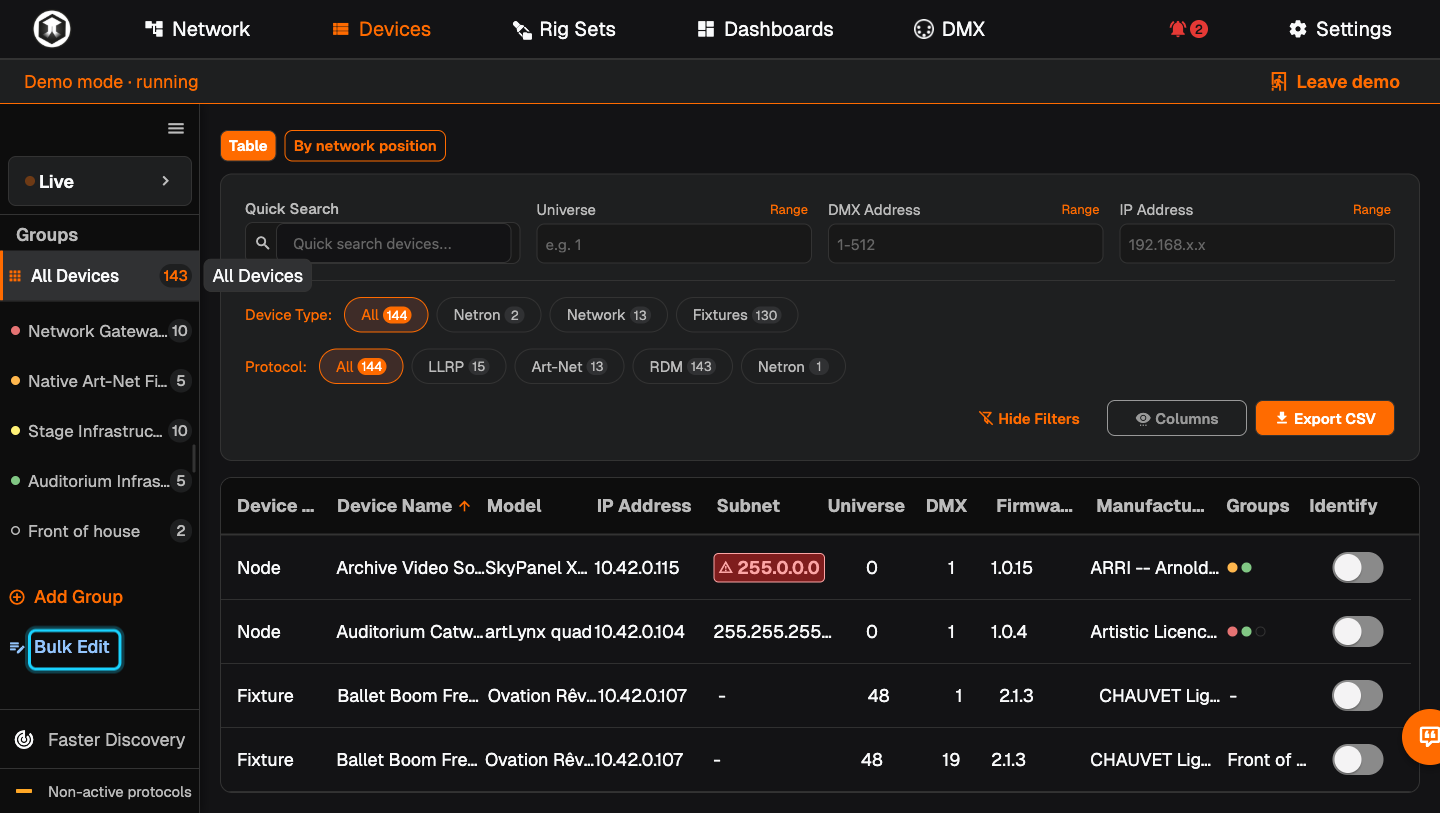
Open Bulk Edit. Press "Bulk Edit" in the sidebar of Network or Devices. From Devices, QubiSet switches to the Network page. "Device Search" opens.
-
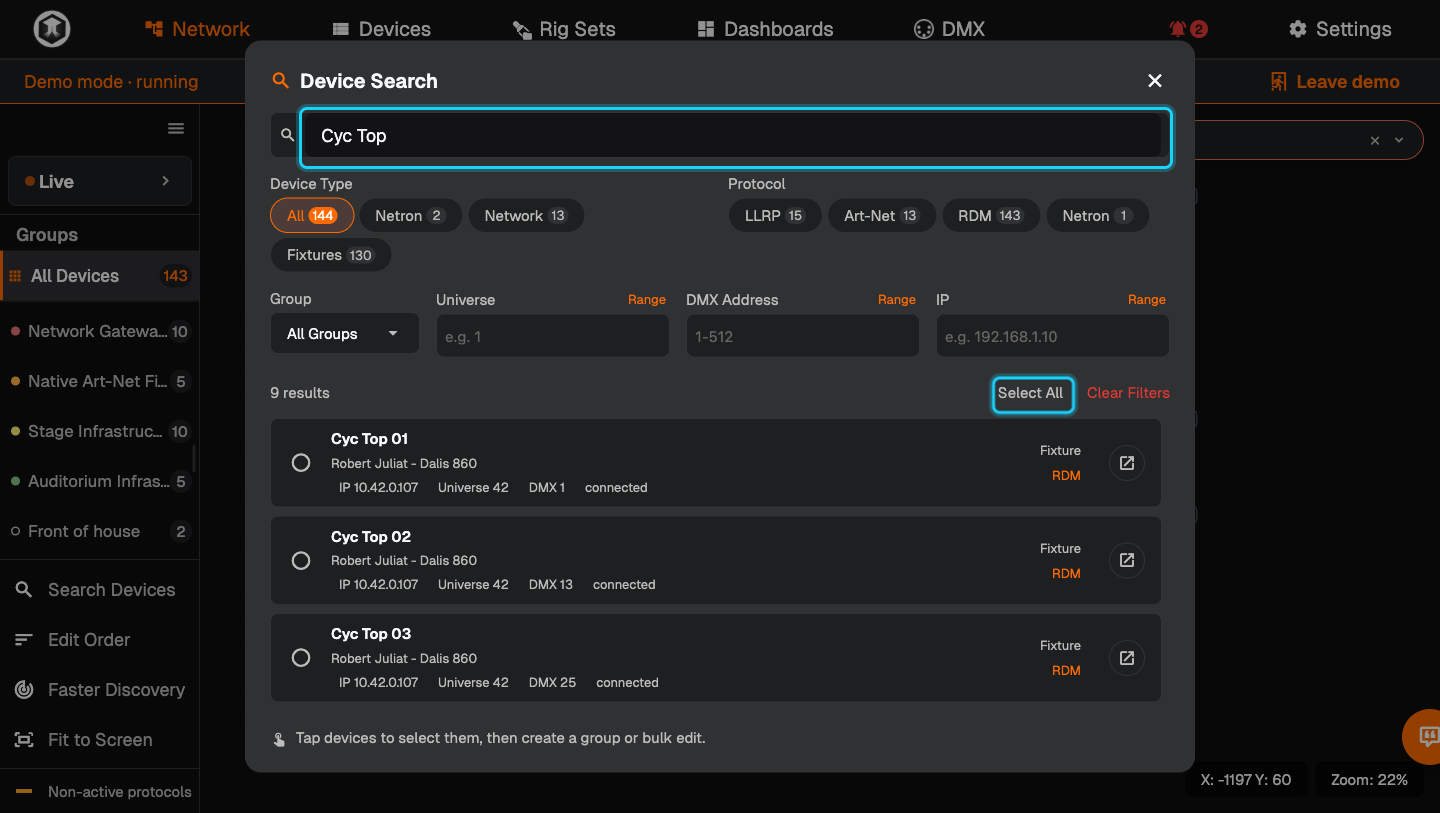
Find the devices. Filter by "Device Type", "Protocol", "Group", "Universe", "DMX Address" or "IP", or type into "Search devices". If a group is selected in the sidebar, only its devices are listed.
-
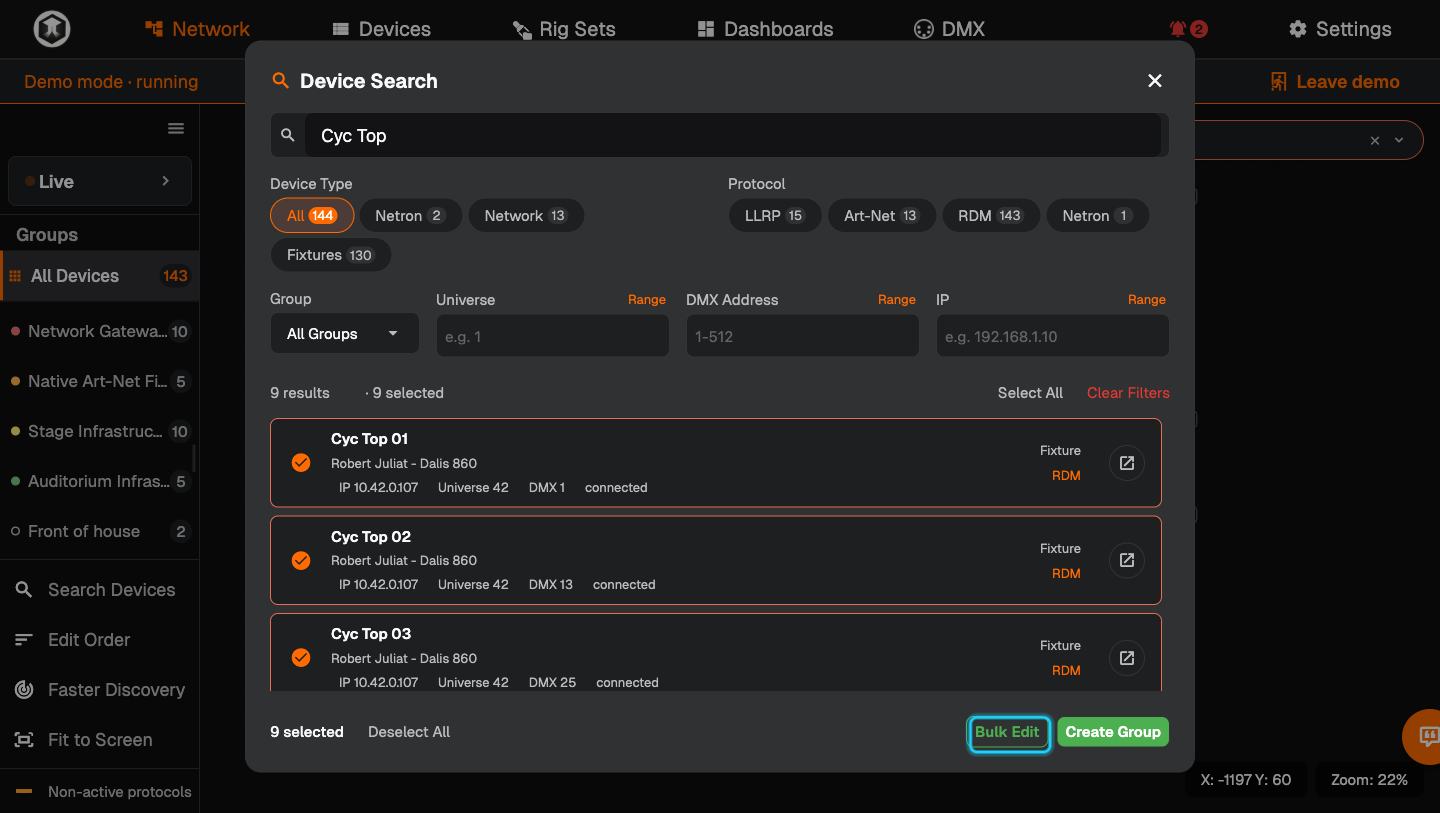
Select them. Tick each device, or press "Select All". The footer counts "... selected".
-
Start the edit. Press "Bulk Edit" at the bottom. The panel shows "Selection" on the left and three tabs on the right: "DMX Mode", "DMX Start Address" and "IP Address".
-
Clear out what does not fit. If "Incompatible devices" lists some, read the reason and press "Remove all". A tab stays "Blocked" until they are removed.
-
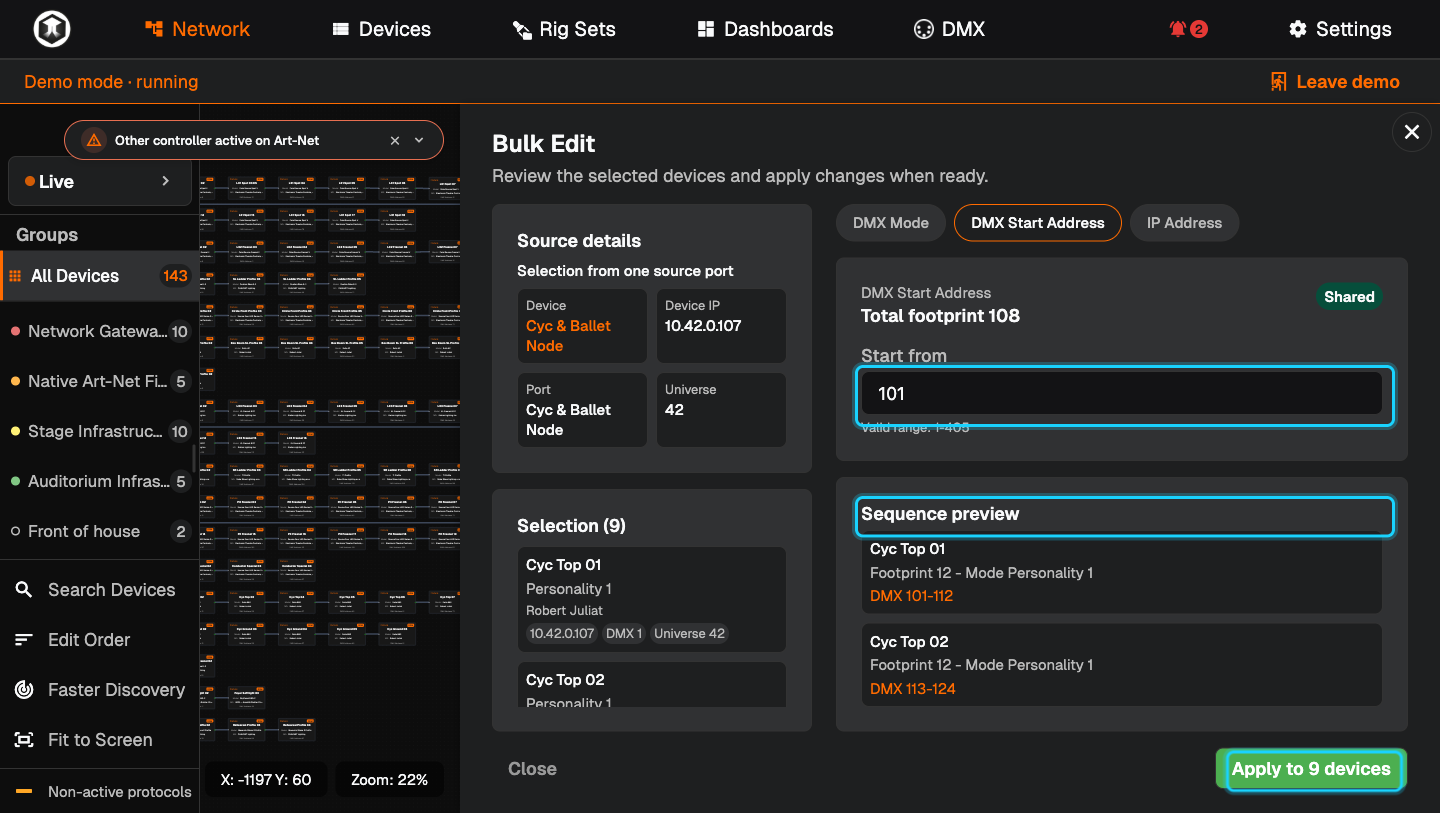
Set the new values. On "DMX Start Address", type the first address into "Start from". "Sequence preview" shows every device with its new address range, for example "DMX 101-118".
-
Apply. Press "Apply to ... devices". A message such as "DMX start address applied to 1 device." confirms it, and the devices show their new values.
-
Finish. Press "Close".
If something is not as expected
- "Unavailable for current selection". At least one selected device cannot take this setting. Check "Incompatible devices".
- "Source devices cannot be bulk patched". A node is in the selection. Nodes have no DMX start address; remove it.
- "Only one DMX personality". That fixture has a single mode, so there is nothing to change on the "DMX Mode" tab.
- The "Start from" range is smaller than 1 to 512. QubiSet leaves room so that the last fixture still fits into the universe.
- Fixtures on different ports. Addresses are lined up per node port. Select one port's fixtures at a time for a predictable result.
Related guides
Still stuck?
Ask us on Discord or write to support@qubicast.com. Tell us what you did and what you saw, and we will help.