
Troubleshooting
What can I do when QubiSet does not install or does not behave as expected?
If Windows SmartScreen stops the installer, choose "More info" and then "Run anyway"; for a problem inside QubiSet, look up the feature in the list on this page, and report a fixture that misbehaves with the feedback form in the app.
Plan: All plans
On this page
Short answer
On Windows, click "More info" and then "Run anyway" when SmartScreen stops the installer. Inside QubiSet, find your feature under "By feature" below. If a fixture reacts badly, report it with the feedback form in the app.
What this is for
This page collects what to do when something goes wrong: installing on Windows, fixtures that react to being discovered, how to report a problem, and how to reach us. Below that, "By feature" lists the answers from every guide in one place, so you can search this one page for the message you see on screen.
Installing on Windows
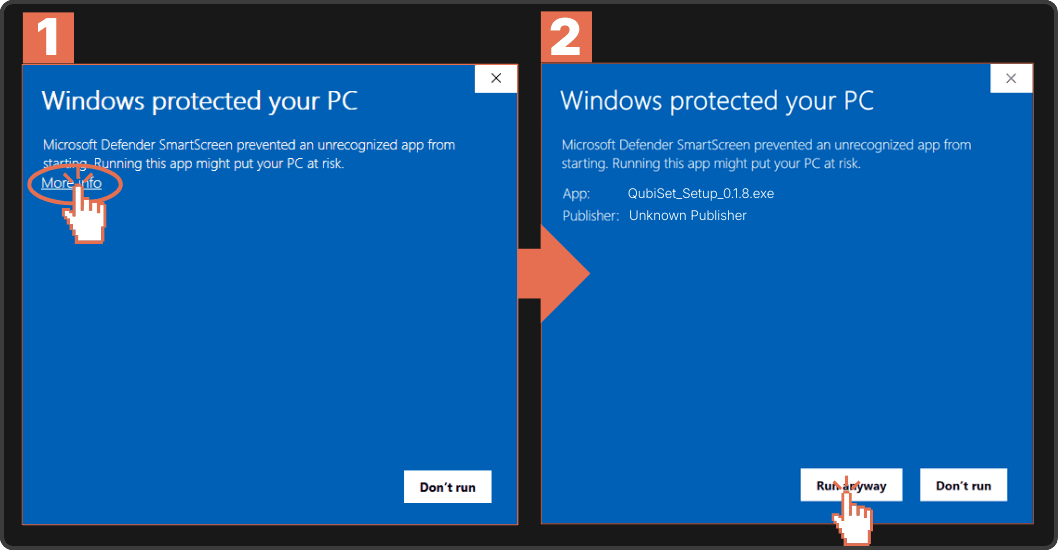
Windows SmartScreen may stop the installer with a blue "Windows protected your PC" window. The installer is signed, and the window names QubiCast GmbH as the publisher. Windows can still show the warning for a new release until enough people have installed it. QubiSet can be installed as normal.
-
Start the installer. Wait for the SmartScreen window to appear.
-
Show the details. Click "More info" and check that the publisher is QubiCast GmbH.
-
Install anyway. Click "Run anyway". The installer continues as normal.
Fixtures that react to being discovered
QubiSet only changes a setting on a fixture when you ask it to. Finding and monitoring devices uses standard RDM read requests, which only ask a device for information.
Some fixtures still react to these read requests in ways they should not:
- they reboot or reset,
- they drop off the network for a moment,
- their DMX output is interrupted briefly.
This comes from how the fixture's manufacturer has implemented RDM, not from a setting being changed. If you are working on a running show, test with one fixture type at a time before you let QubiSet discover the whole rig.
Report a problem from inside QubiSet
If a fixture reboots, disconnects or behaves strangely during discovery or monitoring, tell us from inside the app. QubiSet adds the fixture's technical data to the report for you.
-
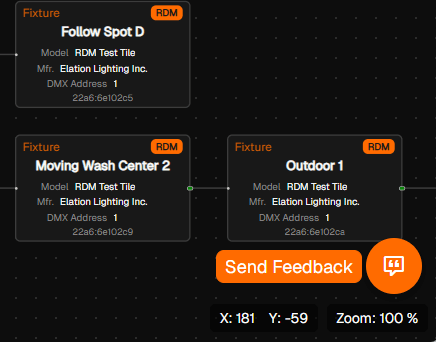
Open the feedback form. Press the feedback button at the bottom right of QubiSet.
-
Pick the fixture. Select the affected fixture in the network map.
-
Choose the type. Select "Fixture Issue" as the feedback type.
-
Describe what happened. Say what you did and what the fixture did.
-
Send it. Submit the form.
Your reports help us build workarounds and keep a list of fixtures that need special handling.
Contact support
Write to support@qubicast.com with any question or problem. Tell us which version of QubiSet you use, what you did and what you saw, and we will get back to you as soon as we can.
Related guides
By feature
What each guide says to do when something is not as expected.
Getting started
- "Discovering..." stays and no device appears
The wrong network interface is enabled, or your computer is in a different IP range than the devices. Check Settings, Network, "Network Interfaces".
- "Other controller active on Art-Net" appears
Another console or tool is sending on the network. This is information, not an error.
- "Demo Rig · unavailable"
The Demo Rig needs a signed-in account with a verified email address.
- There is no "Load Rig" button
You have only one Rig. See the note above.
Demo mode
- "Demo Rig · unavailable"
Sign in and verify your email address.
- "Other controller active on Art-Net"
Expected. The demo venue contains a lighting console that sends DMX.
- Counts look wrong right after entering
Discovery is not finished. Wait for "Faster Discovery" in the sidebar.
- "Demo mode has ended"
The simulated venue stopped. Press "Try again".
- A device says its firmware is not supported
One demo node is set up that way on purpose.
Device details and configuration
- The device is not in the list
Press "Faster Discovery" in the sidebar and check that its protocol is not set to "Disabled" in Settings, Network.
- A red subnet mask with a warning sign
The device's subnet mask does not match your network interface. It may be reachable only partly until you correct it.
- "This device is running firmware ..., which is not supported"
QubiSet can show the device but not manage it until its firmware is updated with the manufacturer's tool.
- There is no pencil next to a value
The device does not allow that value to be changed remotely.
- You are viewing a Rig Set
If the banner shows a Set name, press "Leave Set view" first to see live devices.
Rig Sets
- "Comparing live devices…" does not finish, or the numbers look too low
Discovery is still running. Wait until the sidebar shows "Faster Discovery", then press "Compare again".
- "Nothing can be applied"
The live devices already match the Set in everything that can be written.
- The main screens look empty or unfamiliar
You are still viewing a Set. Press "Leave Set view".
- The selector menu stays open
Click anywhere outside it.
Rig Sets from an MVR file
- "Not found on the network"
No discovered device has that model. Check the fixture is powered, connected and answering RDM.
- "Fixture type unknown"
The plan names a fixture type QubiSet cannot pair with an RDM model. Patch this one by hand.
- "On the network, not in the plan"
Devices the plan does not mention. They are left alone.
- A planned universe warning on a device that looks correct
Compare the numbers with the MVR and Art-Net counting above before moving anything.
DMX viewer
- "Unmonitored"
QubiSet knows the universe from a device's settings but is not watching it. Press "Open Viewer" to start.
- "Waiting"
A viewer is open but no data has arrived. Check that the console is sending and that the universe number matches. Art-Net counts from 0, sACN from 1.
- A low or jumpy frame rate
Look at "Max interval". Long gaps point to a busy network or a source that sends irregularly.
- The sidebar is missing
In a narrow window it collapses. Widen the window or use the menu icon.
Alerts and alert rules
- The built-in rule "Monitoring unavailable" triggers
QubiSet cannot watch one of your rules at the moment, for example because the needed protocol is disabled.
- An alert opens and closes all the time
Raise the trigger delay and the recovery delay.
- No email arrives
Check "Setup": the installation must be authorized, and the rule itself must have email switched on.
- Too many alerts during a changeover
Use "Mute notifications" at the top of the Alert Center.
Dashboards
- "Sensor data unavailable"
The device has not reported that sensor yet, or sensor polling is set to "On demand". Open the device's "Sensors" page once, or change "Sensor polling" in Settings, Network.
- "No alert rules selected"
Open the widget's settings and choose the rules it should show.
- A DMX widget shows nothing
Nothing is sending on that universe. Check it on the DMX page.
- "Edit Dashboard" is locked
Your plan does not include editing.
Groups
- You only see coloured dots and numbers
The sidebar is collapsed. Click the menu icon at its top to open it.
- The icons for edit, colour and delete are missing
They only show on the group that is selected.
- Group counts show 0
You are viewing a Rig Set. Press "Leave Set view".
- "Add Group" shows a lock
Your plan does not include groups.
Bulk Edit
- "Unavailable for current selection"
At least one selected device cannot take this setting. Check "Incompatible devices".
- "Source devices cannot be bulk patched"
A node is in the selection. Nodes have no DMX start address; remove it.
- "Only one DMX personality"
That fixture has a single mode, so there is nothing to change on the "DMX Mode" tab.
- The "Start from" range is smaller than 1 to 512
QubiSet leaves room so that the last fixture still fits into the universe.
- Fixtures on different ports
Addresses are lined up per node port. Select one port's fixtures at a time for a predictable result.
Plans and license
- The plan still shows Free after buying
Press "Check for license updates", then use Settings, Rig, "Change Rig" and open the Rig again.
- A feature shows a lock
It is not part of your plan. The "Tier" list on "Select a Rig" shows what is included.
- A reminder about universes
You use more universes than your plan includes. Limit the Rig to the universes you need (see Getting started), or move to a plan that includes more.
- "No license file on this computer."
Nothing has been imported yet. The account's plan is used when you are signed in.
Still stuck?
Ask us on Discord or write to support@qubicast.com. Tell us what you did and what you saw, and we will help.