
Demo mode
How can I try QubiSet without any lighting hardware?
Open the Demo Rig: a simulated theatre with about 140 devices where every feature of every plan works and nothing reaches your real network.
Plan: Free
On this page
Short answer
On "Select a Rig", press "Demo Rig" and confirm with "Switch to Demo Mode". You get a simulated venue to practise on.
What this is for
The Demo Rig is a complete simulated venue: nodes, fixtures, DMX traffic, alerts, a dashboard and three ready-made Rig Sets. All features of all plans are unlocked in it, and no command is sent to devices on your real network. It is the safest place to learn Bulk Edit, Rig Sets or alert rules.
Before you start
- Plan: any, including Free.
- You are signed in with an account whose email address is verified.
Steps
-
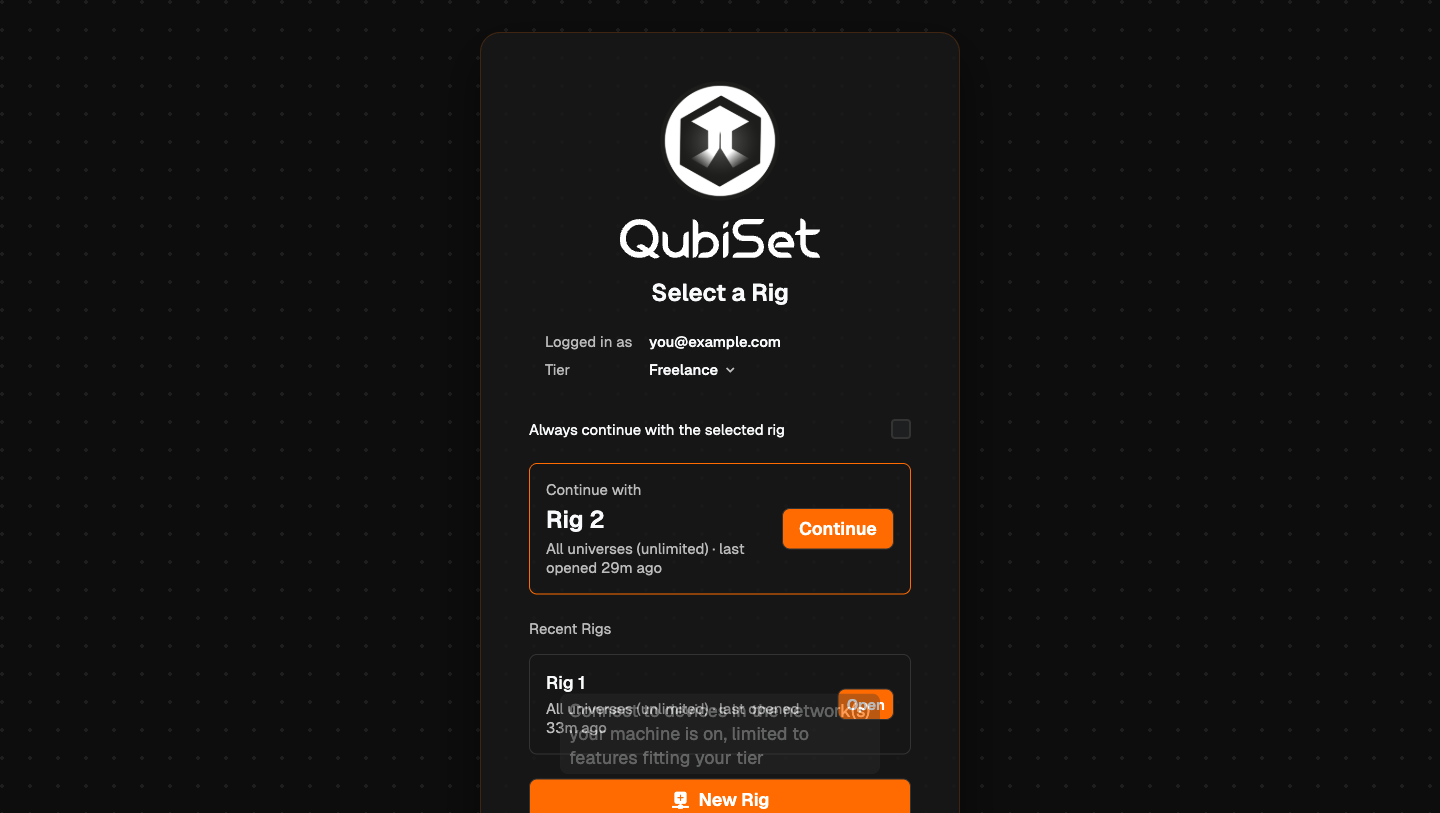
Open the Demo Rig. On "Select a Rig", press "Demo Rig". If a Rig is already open, go to Settings, Rig, "Demo Mode" and press "Enter Demo Mode".
-
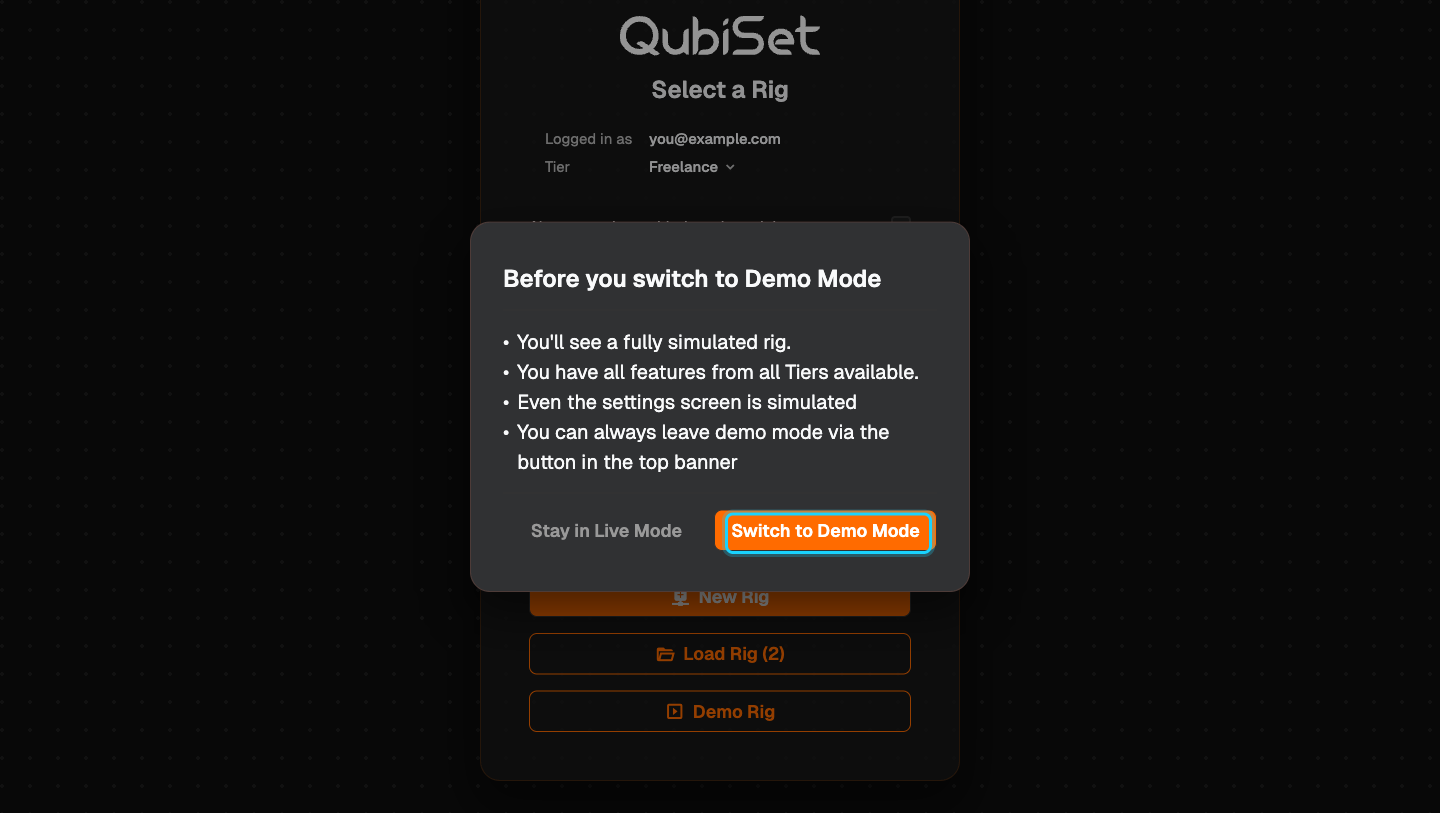
Confirm. Read "Before you switch to Demo Mode" and press "Switch to Demo Mode". "Stay in Live Mode" cancels.
-
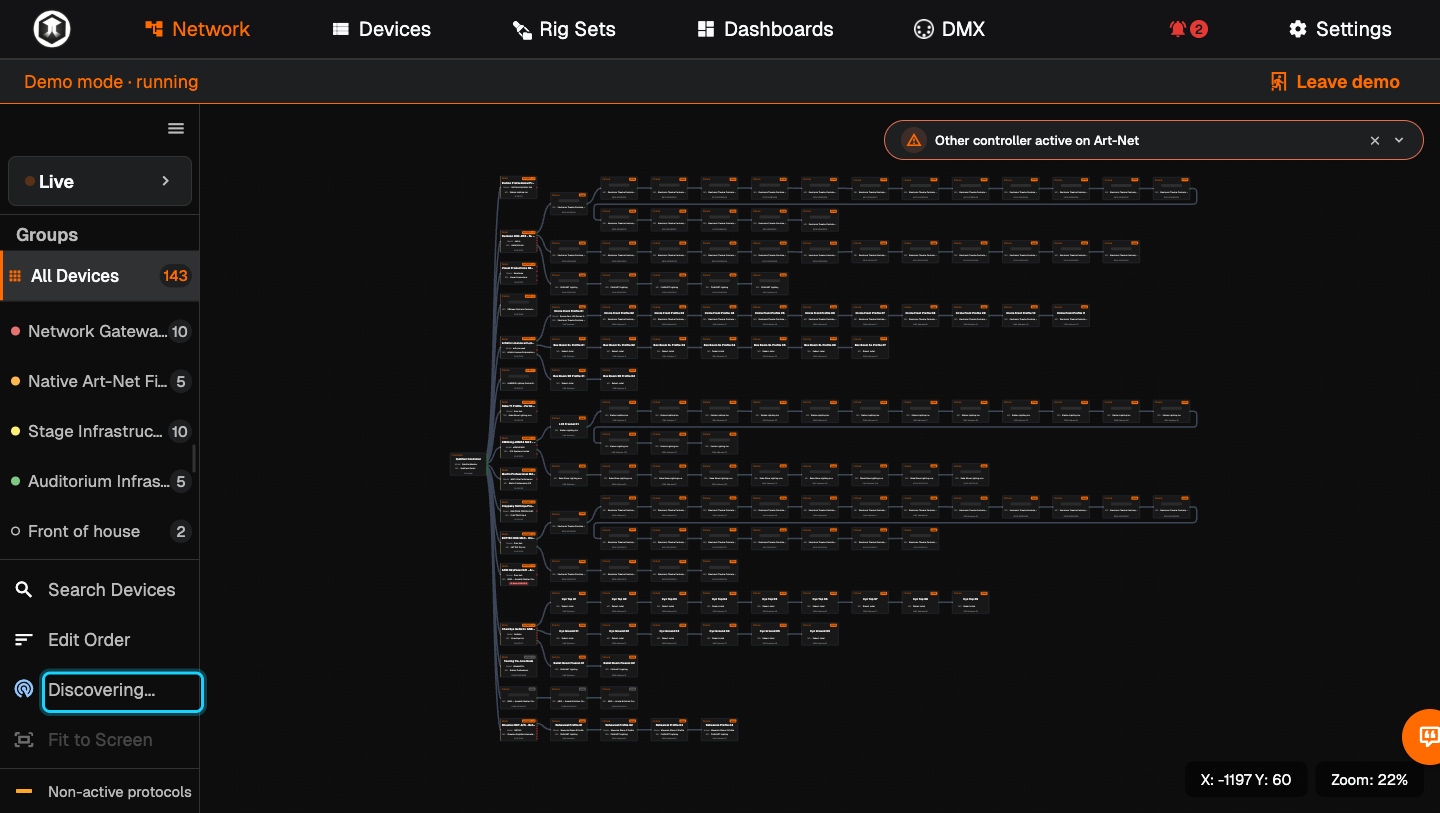
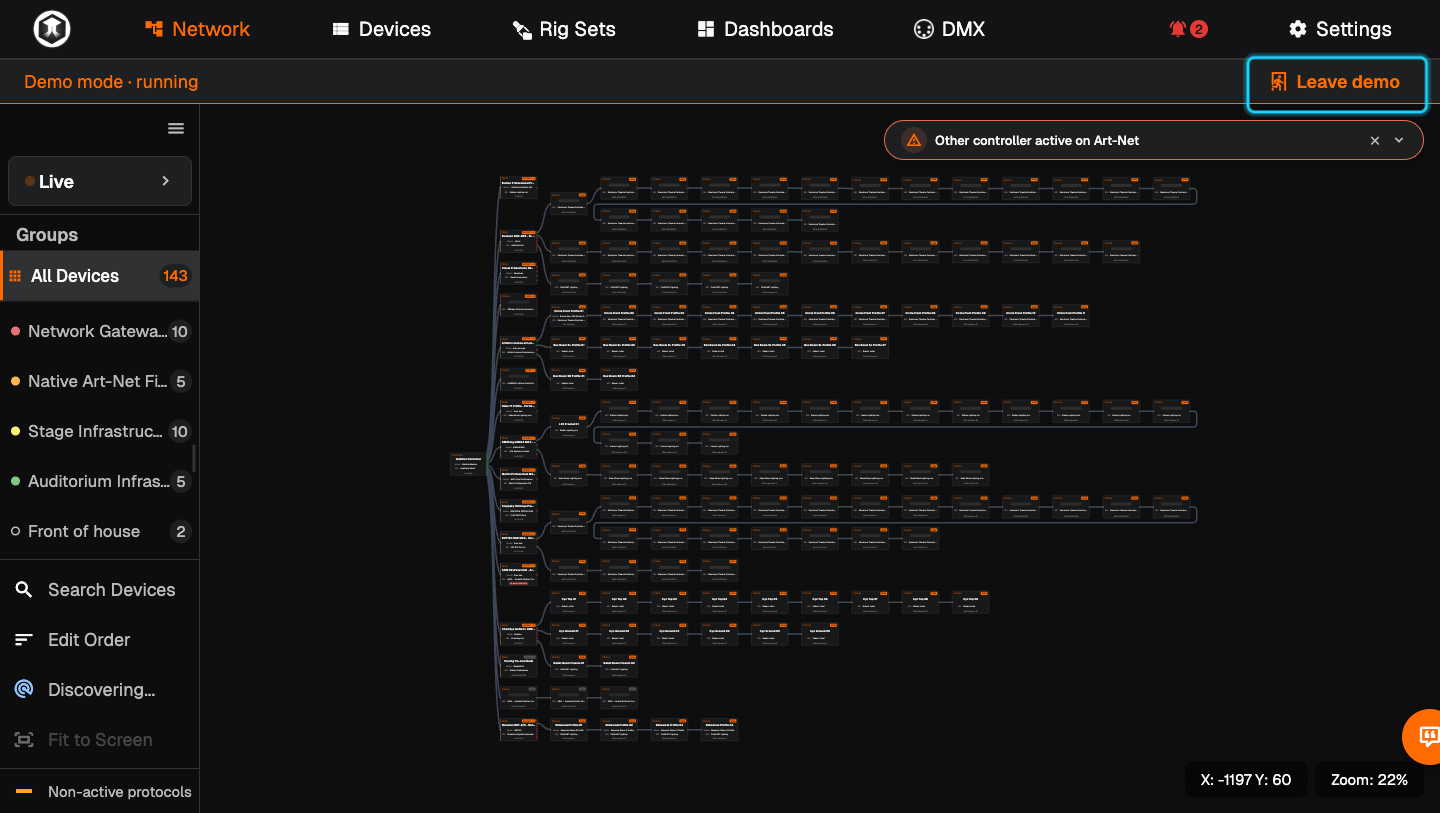
Give it a minute. The Network page fills with devices. While the sidebar shows "Discovering...", device counts and Rig Set comparisons are still settling. Wait until it reads "Faster Discovery".
-
Try things. Rename a fixture, change a DMX address, create a group, open a Rig Set. The simulated devices answer like real ones.
-
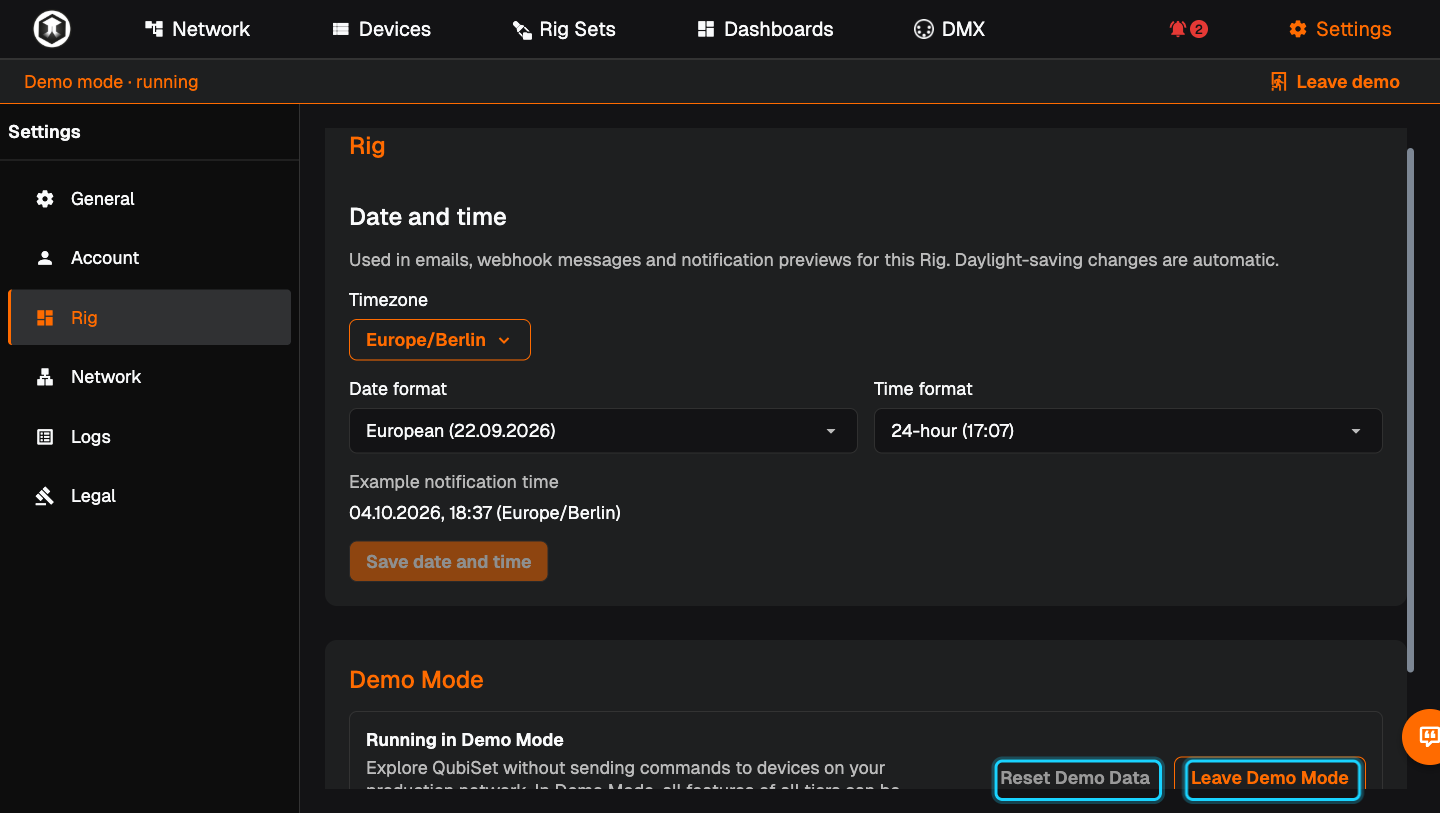
Start over. Settings, Rig, "Demo Mode", "Reset Demo Data" puts the venue back to its starting state and discards your changes.
-
Leave. Press "Leave demo" in the banner at the top, or Settings, Rig, "Leave Demo Mode". You return to "Select a Rig".
What is in the demo venue
- About 140 devices: Art-Net and sACN nodes with RDM fixtures behind them, in four groups.
- Three Rig Sets to compare with: "Mixed Patch – Two Changes", "Stage Subset – Many Changes" and "Full Venue + Touring Rig".
- A dashboard called "Venue Overview".
- Two alert rules that are already triggered, so the bell shows active alerts.
If something is not as expected
- "Demo Rig · unavailable". Sign in and verify your email address.
- "Other controller active on Art-Net". Expected. The demo venue contains a lighting console that sends DMX.
- Counts look wrong right after entering. Discovery is not finished. Wait for "Faster Discovery" in the sidebar.
- "Demo mode has ended". The simulated venue stopped. Press "Try again".
- A device says its firmware is not supported. One demo node is set up that way on purpose.
Related guides
Still stuck?
Ask us on Discord or write to support@qubicast.com. Tell us what you did and what you saw, and we will help.