

Offline license file
How do I use QubiSet on a computer that never has internet?
On the offline computer, press "Use a license file" on the sign-in screen and note the code; on a device with internet, enter it at qubicast.com/account/library/offline, download the license file, bring it over and import it.
Plan: Freelance or higher
On this page
Short answer
Get a license file for that computer. QubiSet shows the computer's code, the QubiSet website turns the code into a file, and the file gives the computer your plan without internet and without signing in.
What this is for
Signing in needs the internet at least once. A show computer on a closed lighting network may never get that. A license file is made for one computer and carries your plan to it on a USB stick. It licenses the computer, not an account, so nobody has to sign in on it.
If the computer can go online once, you do not need this: sign in there once, and after that you can sign in without internet for six months.
Before you start
- Plan: Freelance or higher. QubiSet Free does not need a license file.
- A second device with internet, for example a laptop or a phone, and your QubiSet account.
- A way to carry a small file to the offline computer, for example a USB stick.
- Each offline computer uses one of your plan's installations.
Steps
-
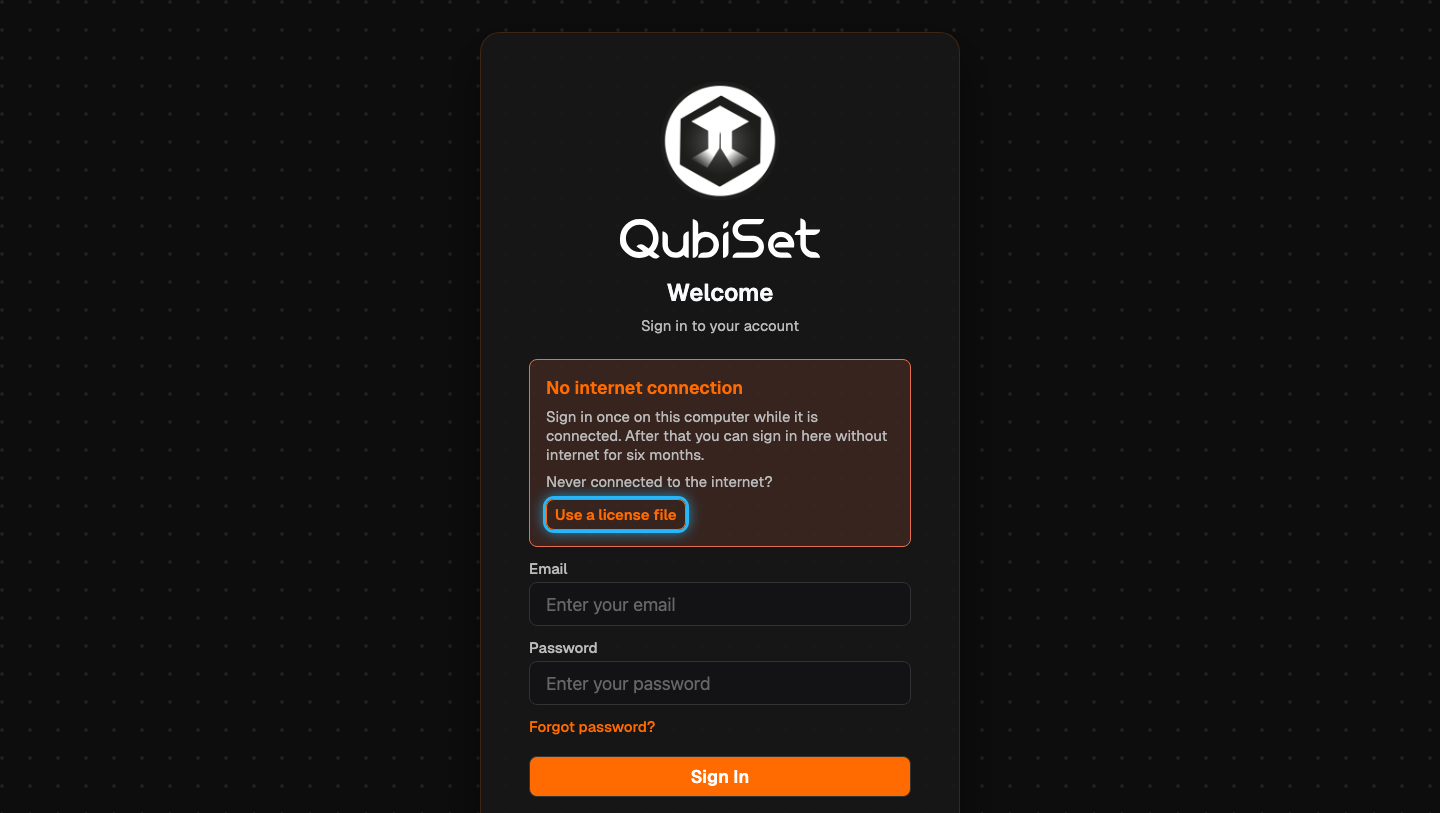
Open the license file steps. On the offline computer, start QubiSet. The sign-in screen shows "No internet connection". Press "Use a license file".
-
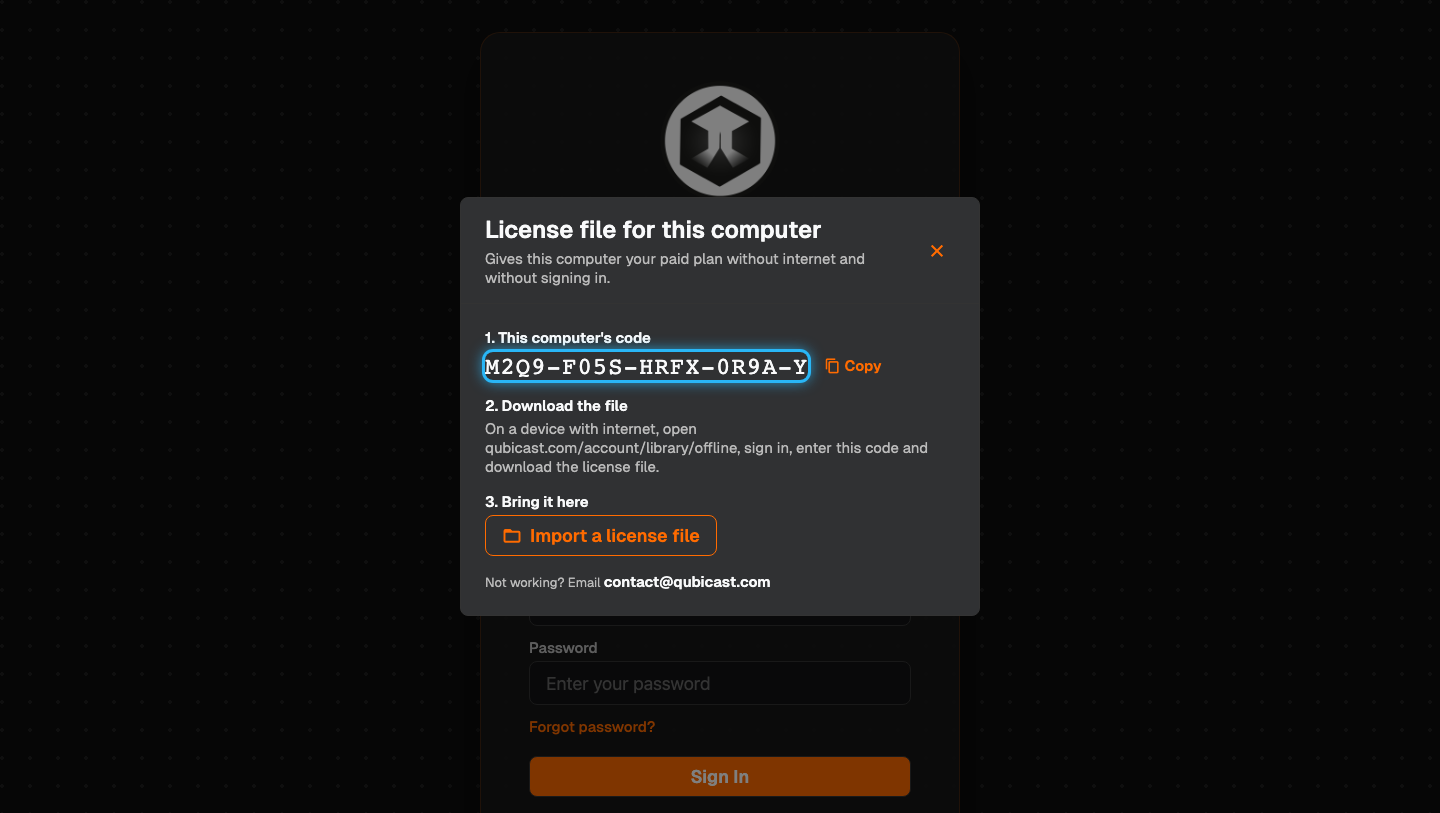
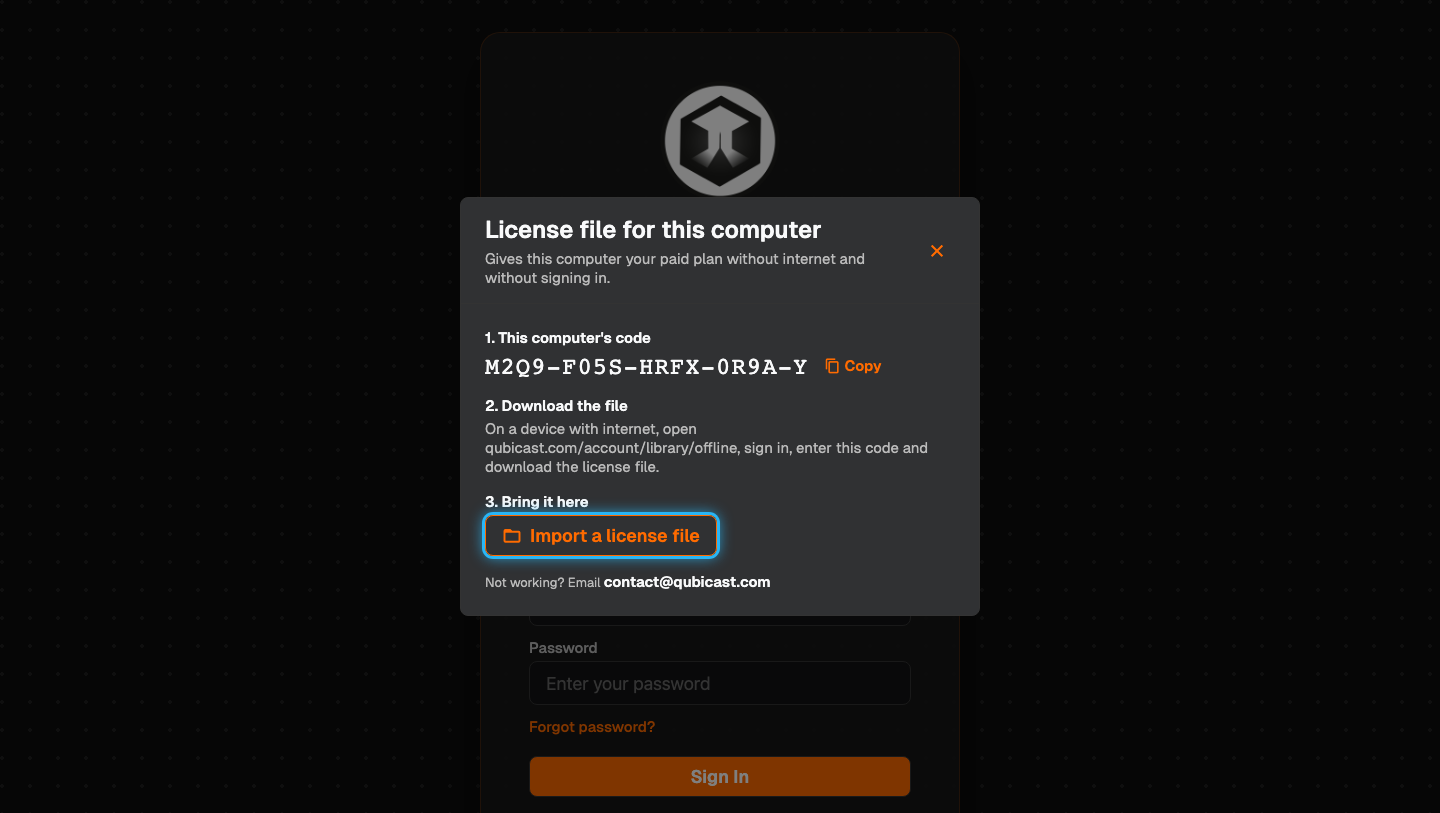
Note the code. Under "This computer's code" is a code of 17 characters in five groups. Write it down or take a photo. Leave this window open.
-
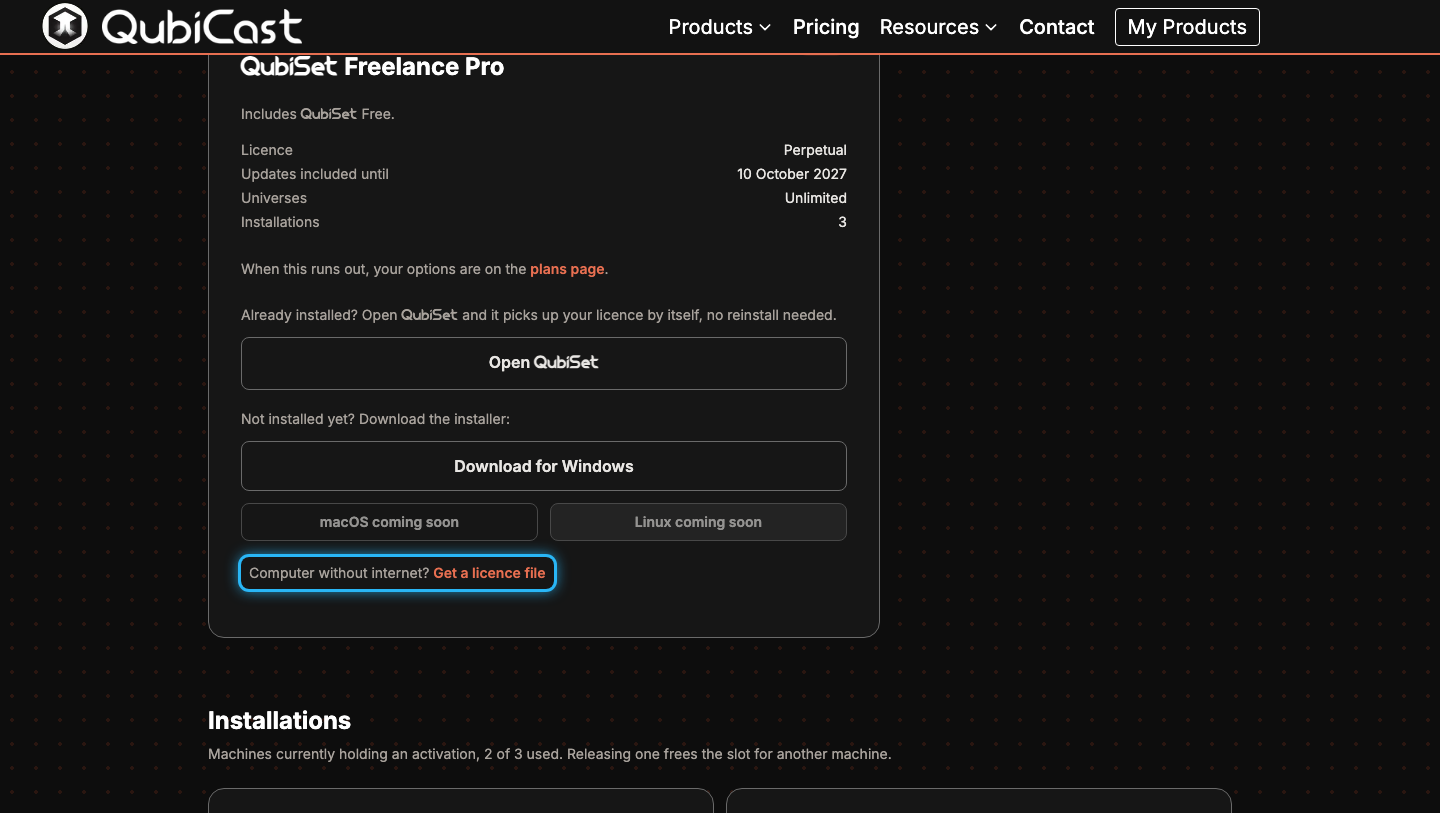
Open the page on the website. On the device with internet, open qubicast.com/account/library/offline and sign in. You also get there from "My Products": in your QubiSet plan, press "Get a licence file".
-
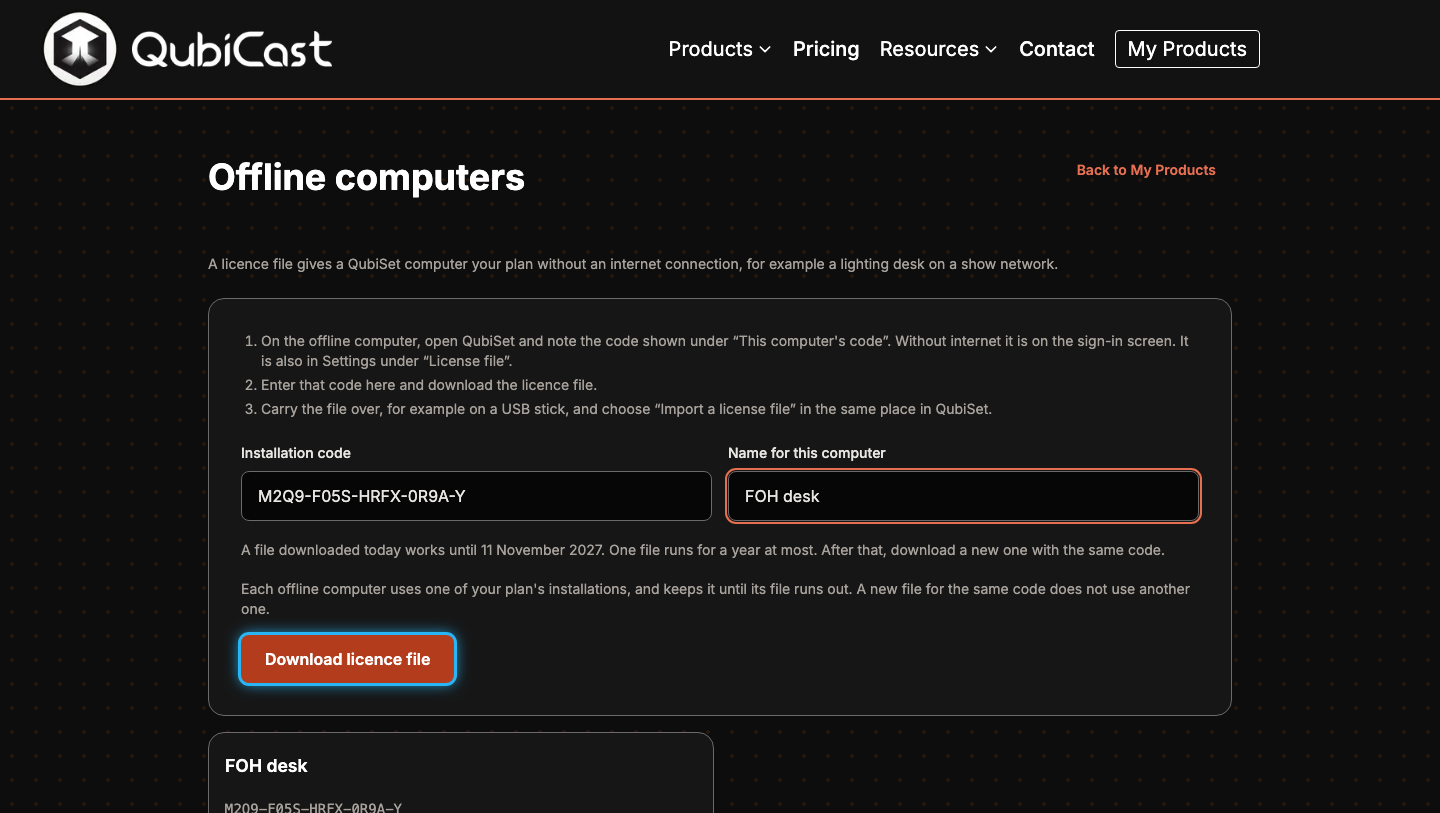
Enter the code and download. Type the code into "Installation code" and give the computer a name under "Name for this computer", for example "FOH desk". The page tells you until when the file will work. Press "Download licence file".
-
Bring the file over. Copy the downloaded file to the offline computer, for example on a USB stick. Its name ends in ".qubilic".
-
Import it. Back in the window from step 2, press "Import a license file" and choose the file.
-
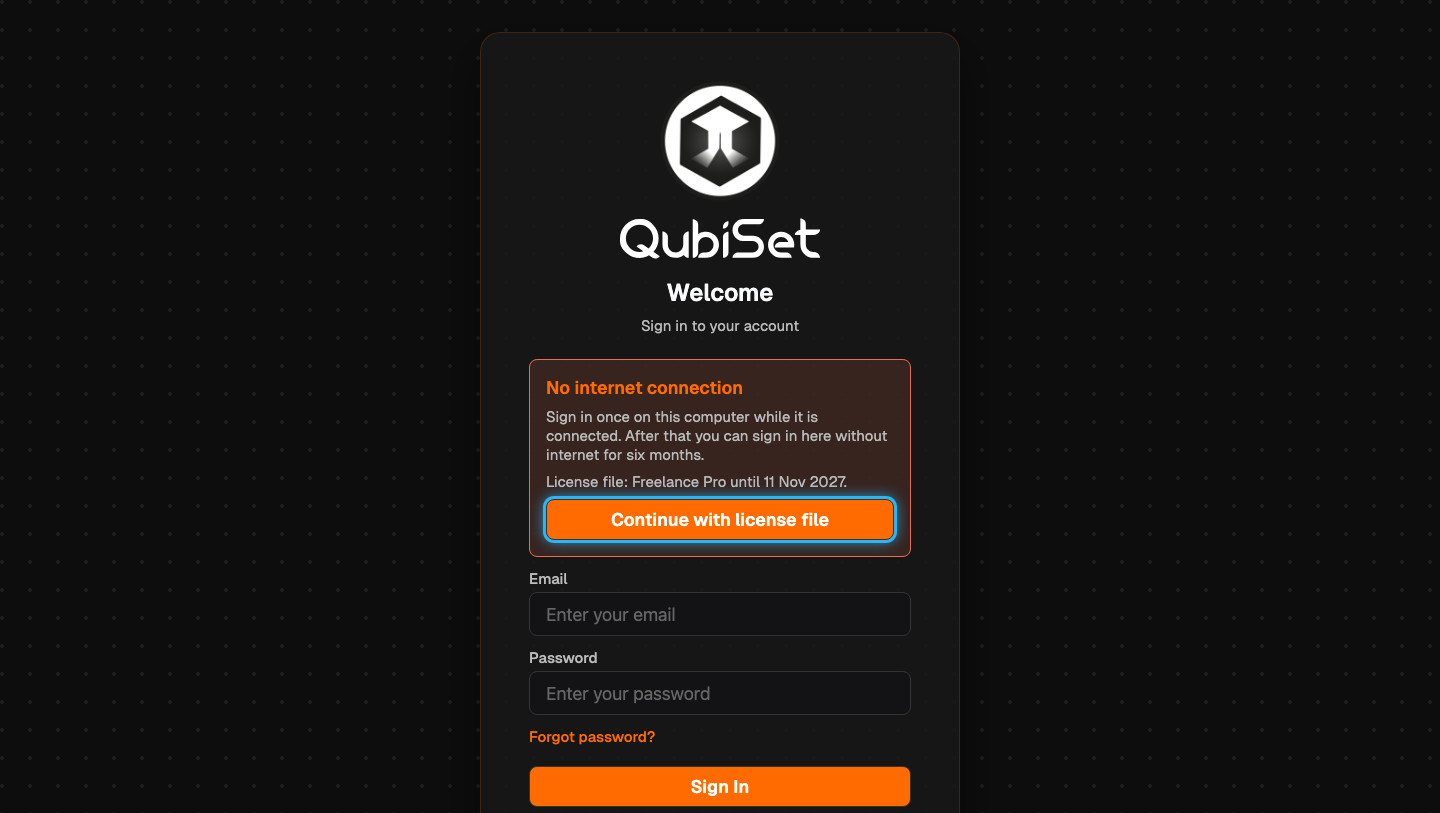
Continue. The window closes and the sign-in screen shows your plan and how long the file works. Press "Continue with license file".
-
Open a Rig. You land on "Select a Rig" with your plan under "Tier". The next time you start QubiSet on this computer, press "Continue with license file" again.
How long a file works
- The website shows the date before you download, and QubiSet shows it after the import.
- On a plan you pay monthly, the file works until the end of the paid month plus a short reserve. Download a new file after each renewal.
- On a plan you bought once, or one that runs longer than a year, one file works for a year plus a short reserve. Then download a new one.
- A new file for the same code does not use another installation. On the "Offline computers" page, press "Download a new file" next to the computer, bring the file over and import it. You can import it under Settings, Account, "License file" as well.
- A license file cannot be taken back once it is downloaded. The computer keeps its installation until the file runs out, and "Installations" on the website shows that date.
On a computer where you can sign in
The code and the import are also under Settings, Account, "License file". Use that when a computer signs in with one account but should keep a paid plan when nobody is signed in, or to import a newer file. While the computer has internet, QubiSet asks you to sign in and the sign-in screen does not offer the license file.
If something is not as expected
- There is no "Use a license file" button on the sign-in screen. The computer has internet. Sign in with your account instead. The code is then under Settings, Account, "License file".
- "This code contains a typing mistake." One character is wrong. Compare the code with the one QubiSet shows. The letter O and the digit 0 are treated the same, as are I, L and 1, and the dashes are optional.
- "This file was made for a different computer." The code entered on the website belongs to another computer, or QubiSet was reinstalled and has a new code. Download a file for the code this computer shows now.
- "This file expired". Download a new file with the same code.
- "This computer's clock is behind." Set the date and time of the offline computer, then import again.
- "All installations of your plan are in use." Every installation of your plan is taken. In "My Products" on the website, release an installation you no longer use, then download again. A computer with a license file keeps its installation until its file runs out.
- "Someone is signed in on this computer." QubiSet is in use by an account on that computer. Restart QubiSet, then press "Continue with license file".
- It still does not work. Email contact@qubicast.com and include this computer's code.
Related guides
Still stuck?
Ask us on Discord or write to support@qubicast.com. Tell us what you did and what you saw, and we will help.