

Rig Sets from an MVR file
How do I import an MVR file and patch my fixtures from it?
Import the MVR file as a Rig Set, let QubiSet match the planned fixtures to the devices it found, review the changes, and apply DMX modes and start addresses over RDM.
Plan: Free
On this page
Short answer
Rig Sets, "Choose an MVR file to import", "Create set from MVR". Then on "Compare and apply": match, "Review changes", "Apply changes to ... devices".
What this is for
MVR files carry a fixture plan out of lighting design and visualisation software. QubiSet reads the plan, pairs each planned fixture with a real device on your network, and sets the DMX mode and start address from the plan. Device names can be set from the plan as well. MVR import is marked experimental.
Before you start
- Plan: Free.
- An
.mvrfile exported from your planning software. - A Rig is open, the fixtures are connected and discovered, and they answer RDM.
Steps
-
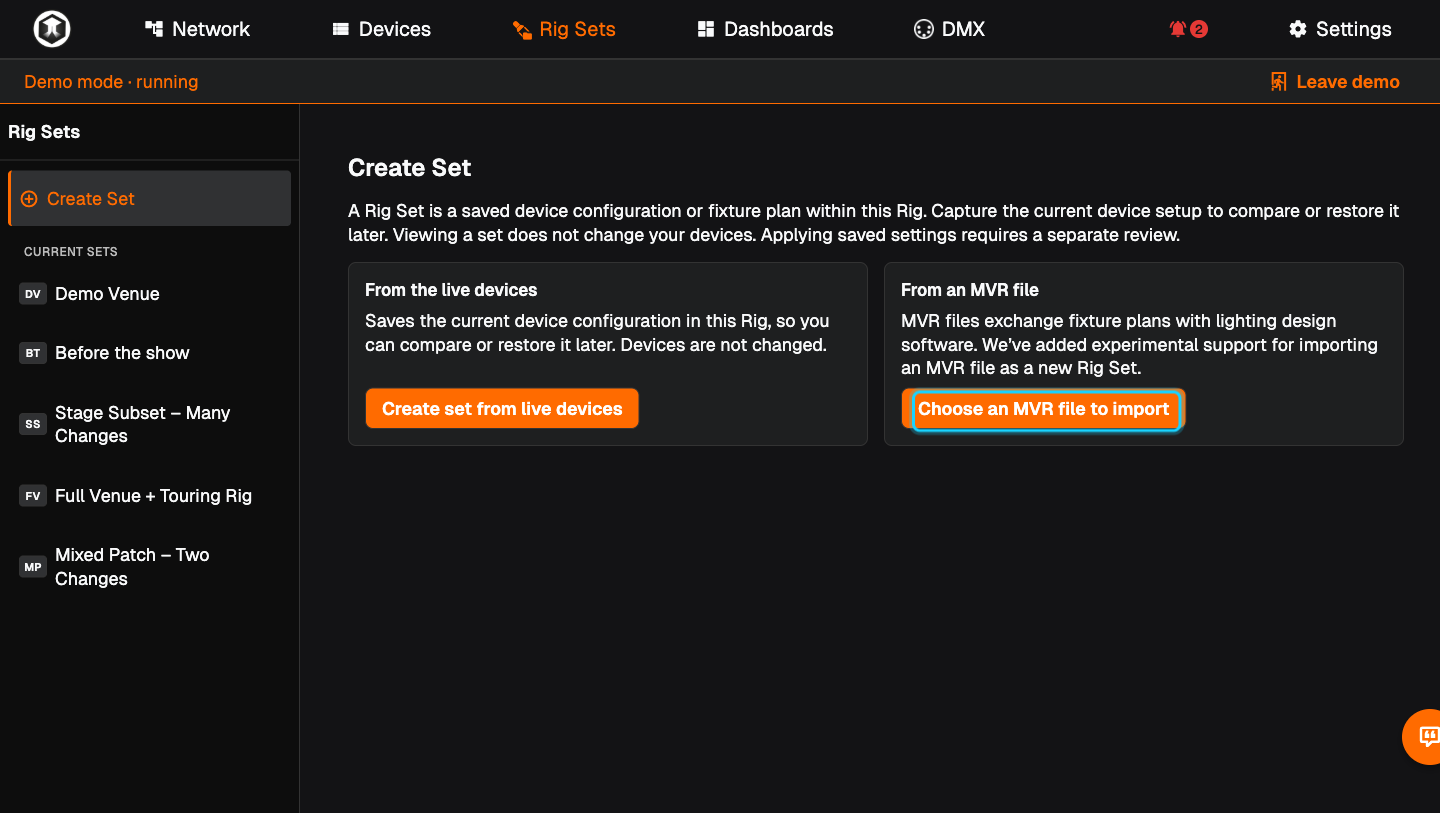
Choose the file. Go to Rig Sets. Under "From an MVR file" press "Choose an MVR file to import" and pick the file.
-
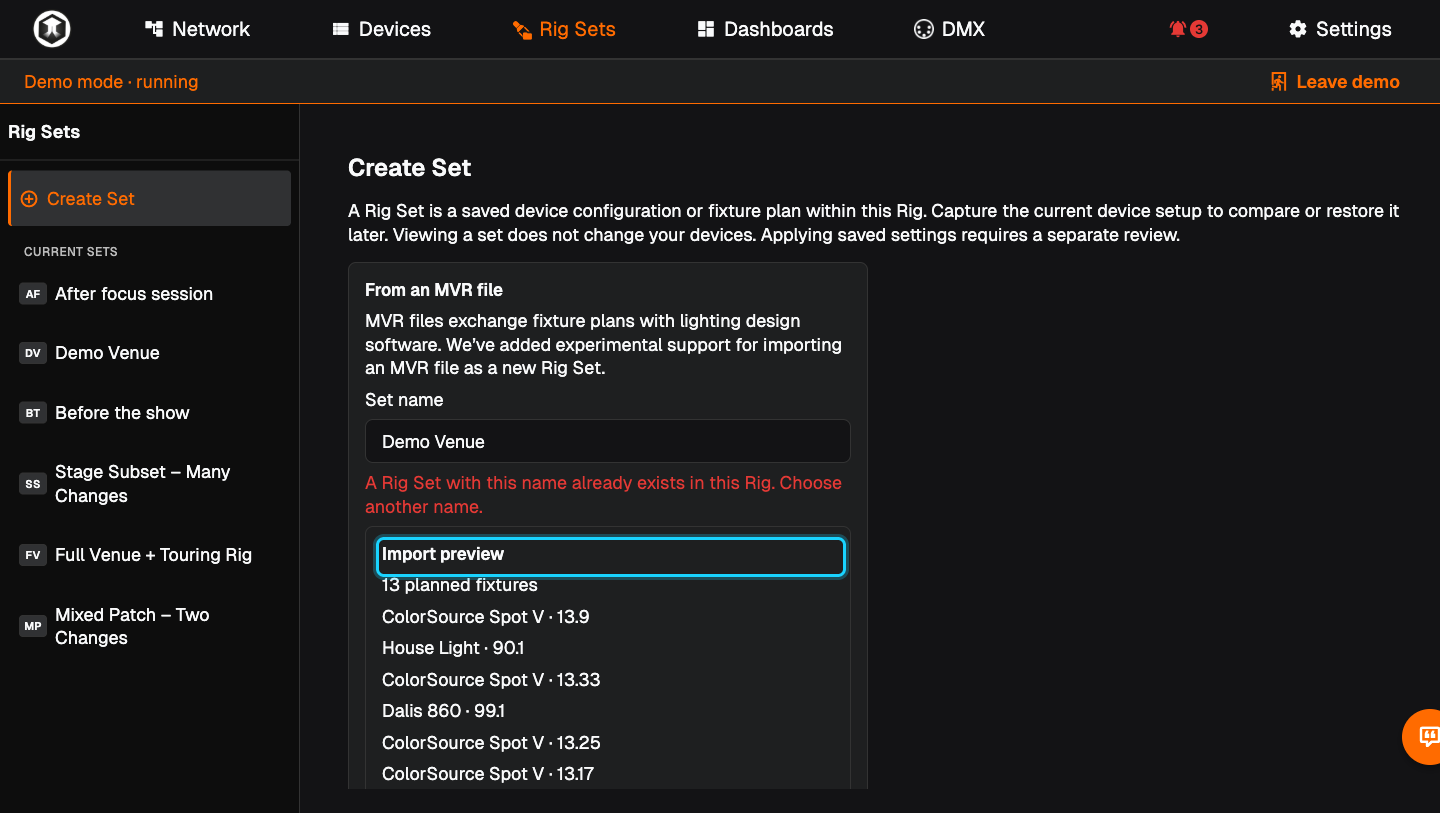
Check the preview. "Import preview" lists the planned fixtures with their universe and address, for example "ColorSource Spot V · 13.33". Adjust the "Set name" if you like and press "Create set from MVR". "Cancel import" stops here.
-
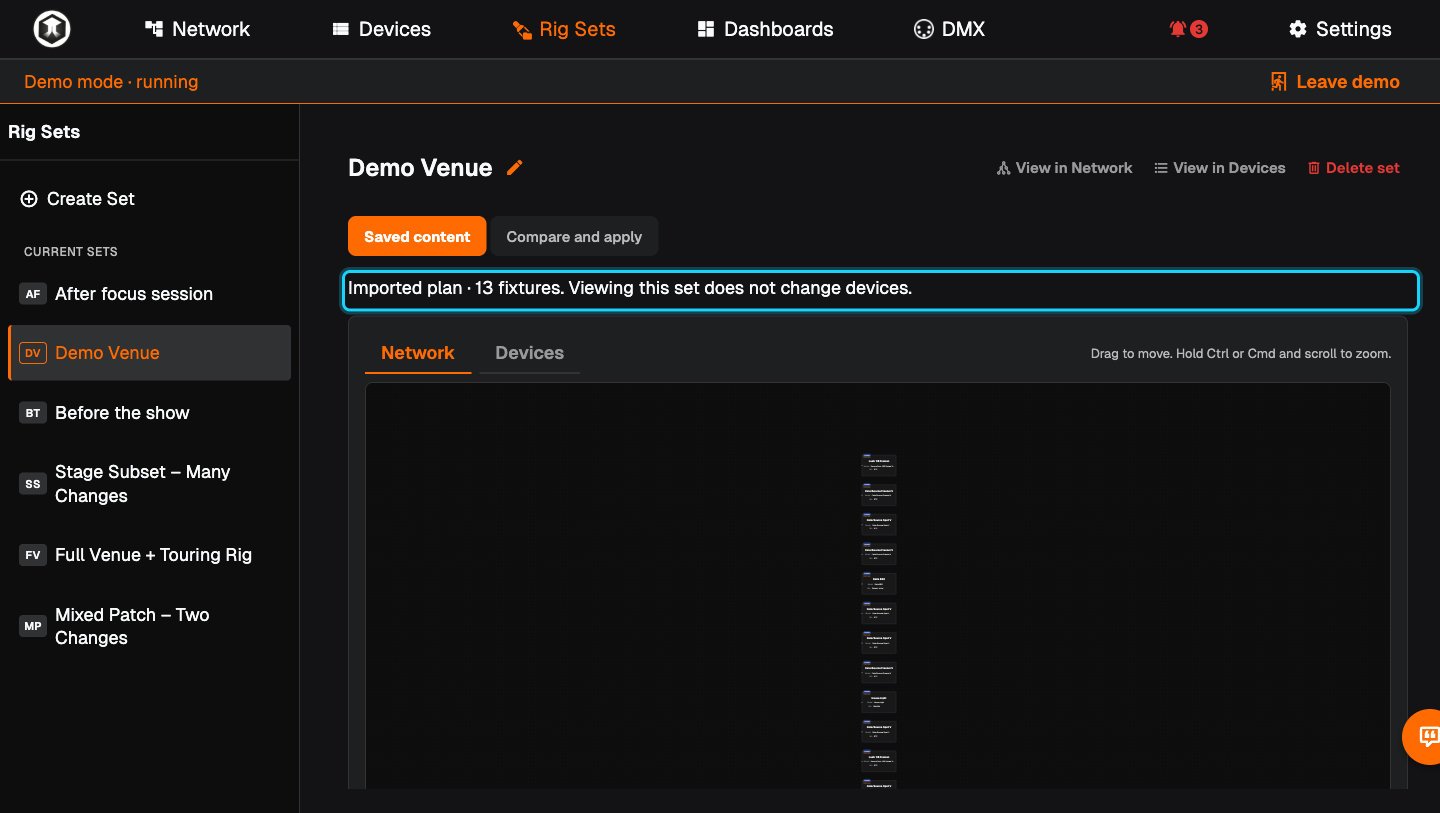
Look at the plan. The Set opens on "Saved content" and says "Imported plan · ... fixtures". The fixtures are marked "Planned". Nothing has been sent to any device.
-
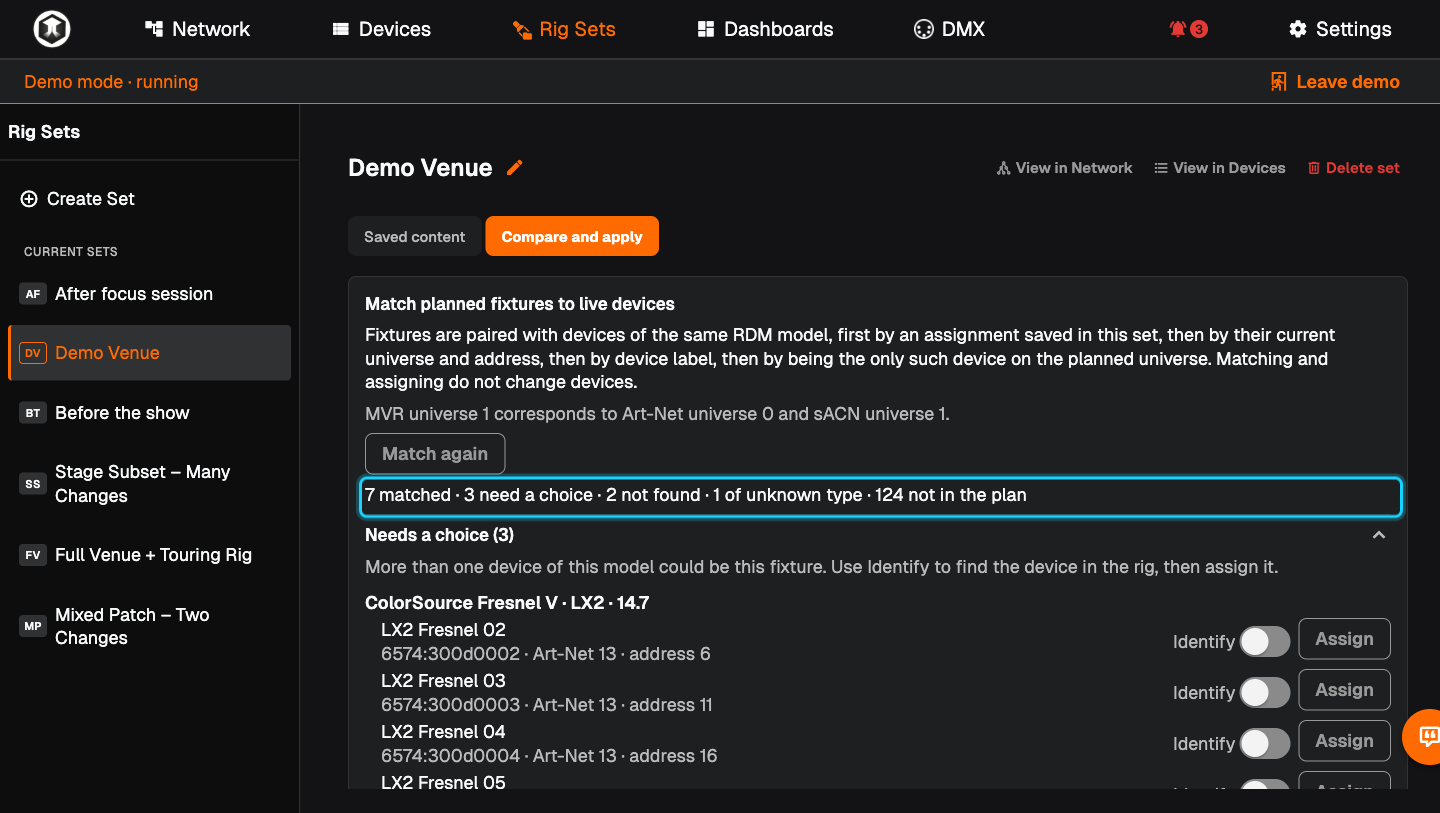
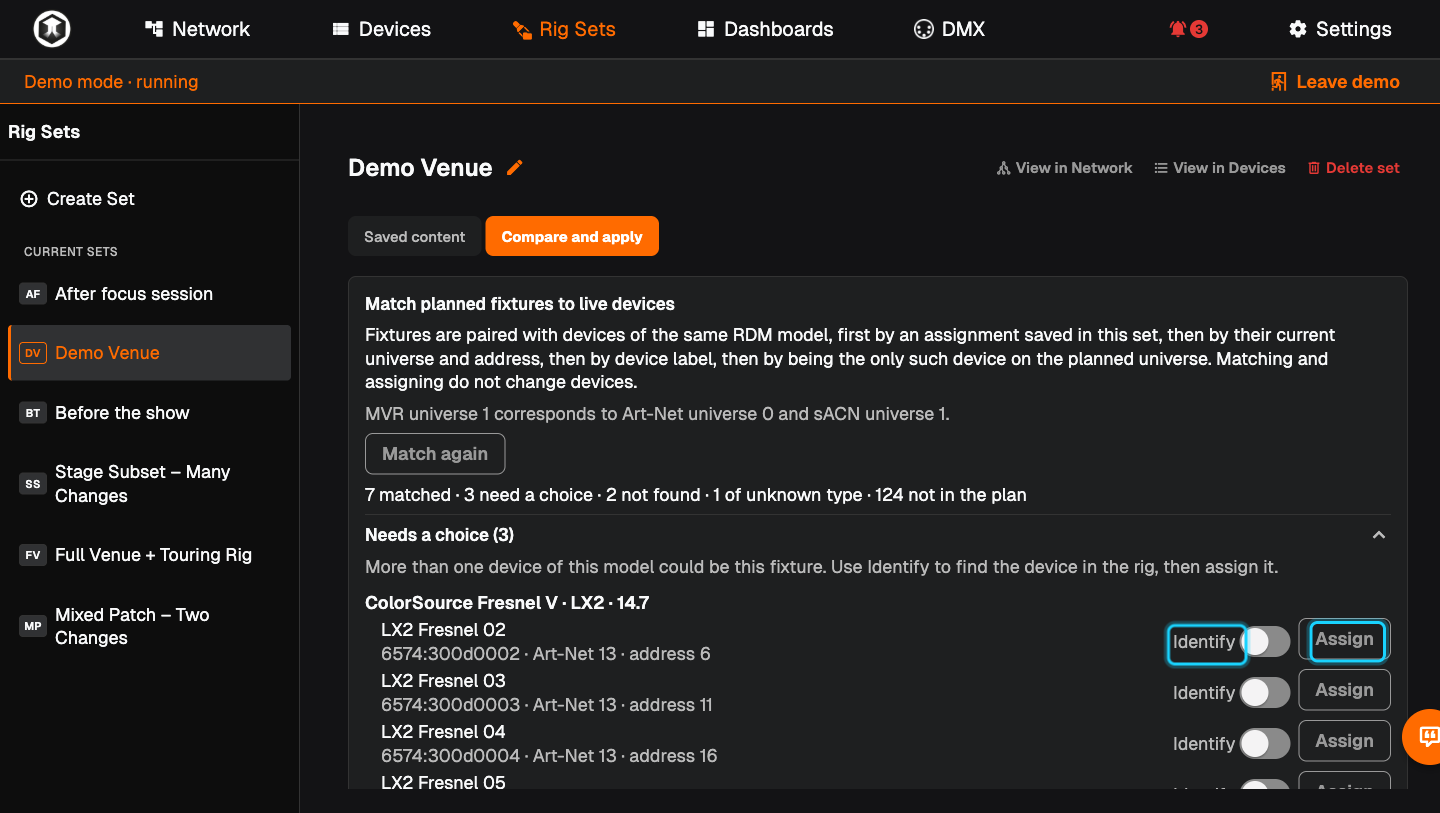
Match plan and rig. Go to "Compare and apply". QubiSet pairs fixtures with devices of the same model and shows a line such as "7 matched · 3 need a choice · 2 not found".
-
Resolve the unclear ones. Under "Needs a choice", several devices could be the planned fixture. Press "Identify" to see which one it is in the rig, then "Assign".
-
Accept the automatic pairings. Press "Keep automatic pairings". Each pairing now reads "Assigned"; "Unassign" undoes one.
-
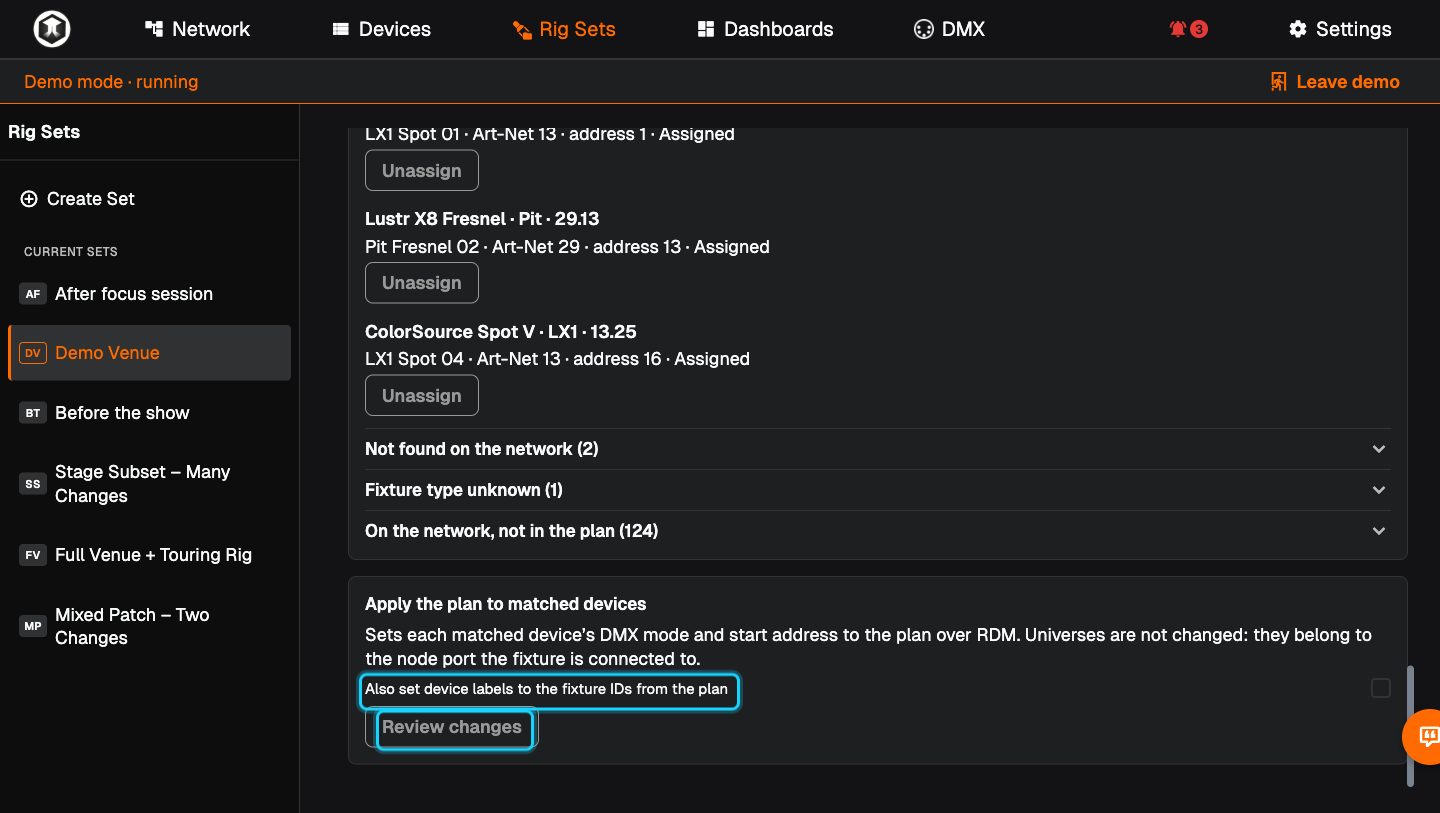
Decide about names. Tick "Also set device labels to the fixture IDs from the plan" if the fixtures should be renamed too.
-
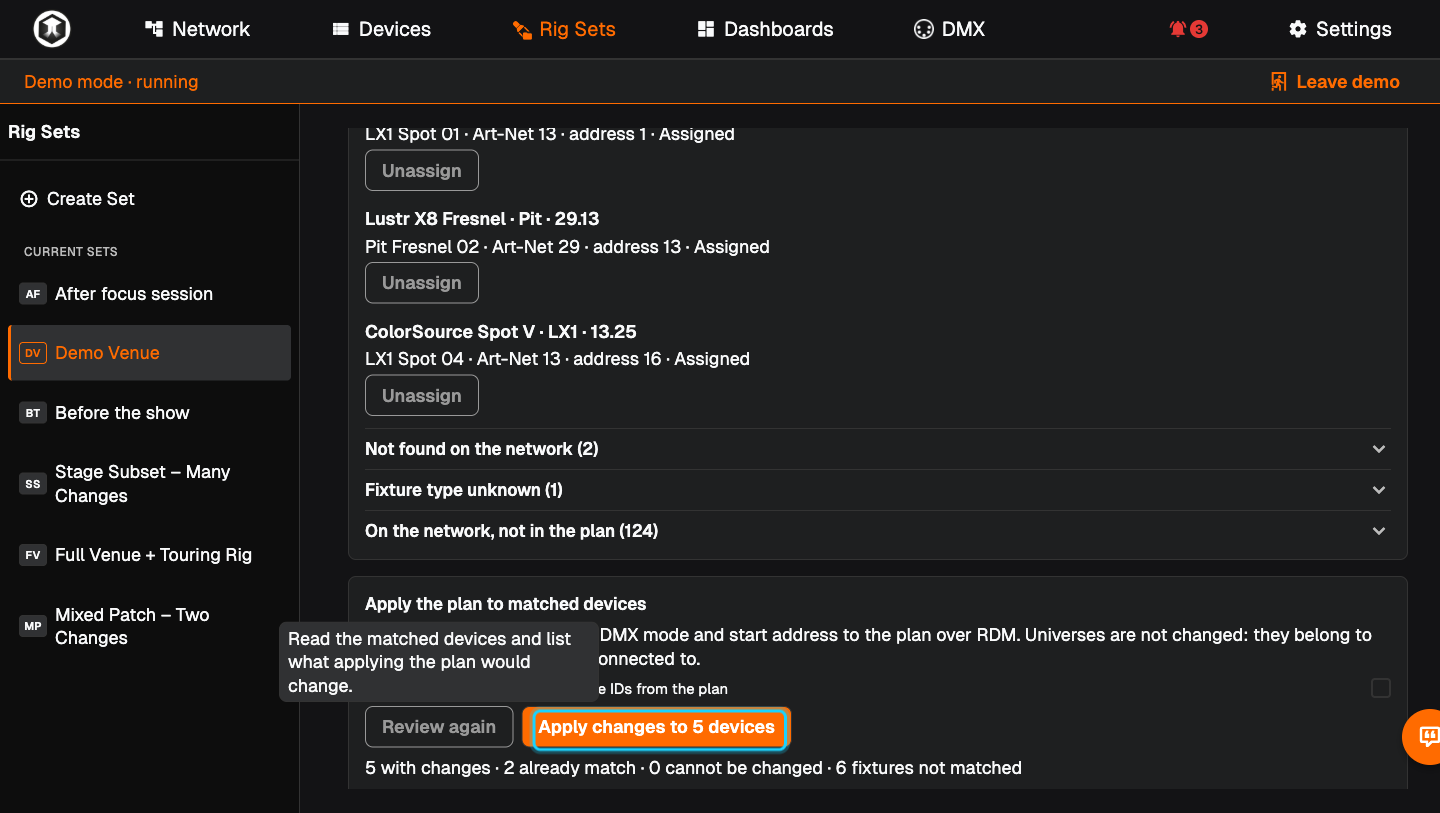
Review. Press "Review changes". QubiSet lists each device with its current and planned value, for example "DMX address: 21 → 33".
-
Apply. Press "Apply changes to ... devices" and wait for "All changes were applied."
Good to know
- Matching and assigning do not change devices. Only step 9 does.
- Universes are not changed. A fixture's universe is decided by the node port it is plugged into. If the plan expects another universe, QubiSet tells you and you change the node port or move the fixture.
- MVR counts universes from 1, Art-Net from 0. QubiSet shows the note "MVR universe 1 corresponds to Art-Net universe 0 and sACN universe 1."
- "Match again" repeats the pairing after you changed something in the rig.
If something is not as expected
- "Not found on the network". No discovered device has that model. Check the fixture is powered, connected and answering RDM.
- "Fixture type unknown". The plan names a fixture type QubiSet cannot pair with an RDM model. Patch this one by hand.
- "On the network, not in the plan". Devices the plan does not mention. They are left alone.
- A planned universe warning on a device that looks correct. Compare the numbers with the MVR and Art-Net counting above before moving anything.
Related guides
Still stuck?
Ask us on Discord or write to support@qubicast.com. Tell us what you did and what you saw, and we will help.