
Device details and configuration
How do I find a device, identify it and change its settings?
Search for the device on the Devices page, click it, switch on "Identify" to make it flash, and use "Full Device Info" to change its DMX address, mode, name or IP settings.
Plan: Free
On this page
Short answer
Devices page, "Quick Search", click the row. The panel on the right has "Identify" and "Full Device Info".
What this is for
Every node and fixture QubiSet finds can be looked up, made to identify itself in the rig, and configured from your desk: DMX start address, DMX mode, name, and for nodes the IP settings and ports.
Before you start
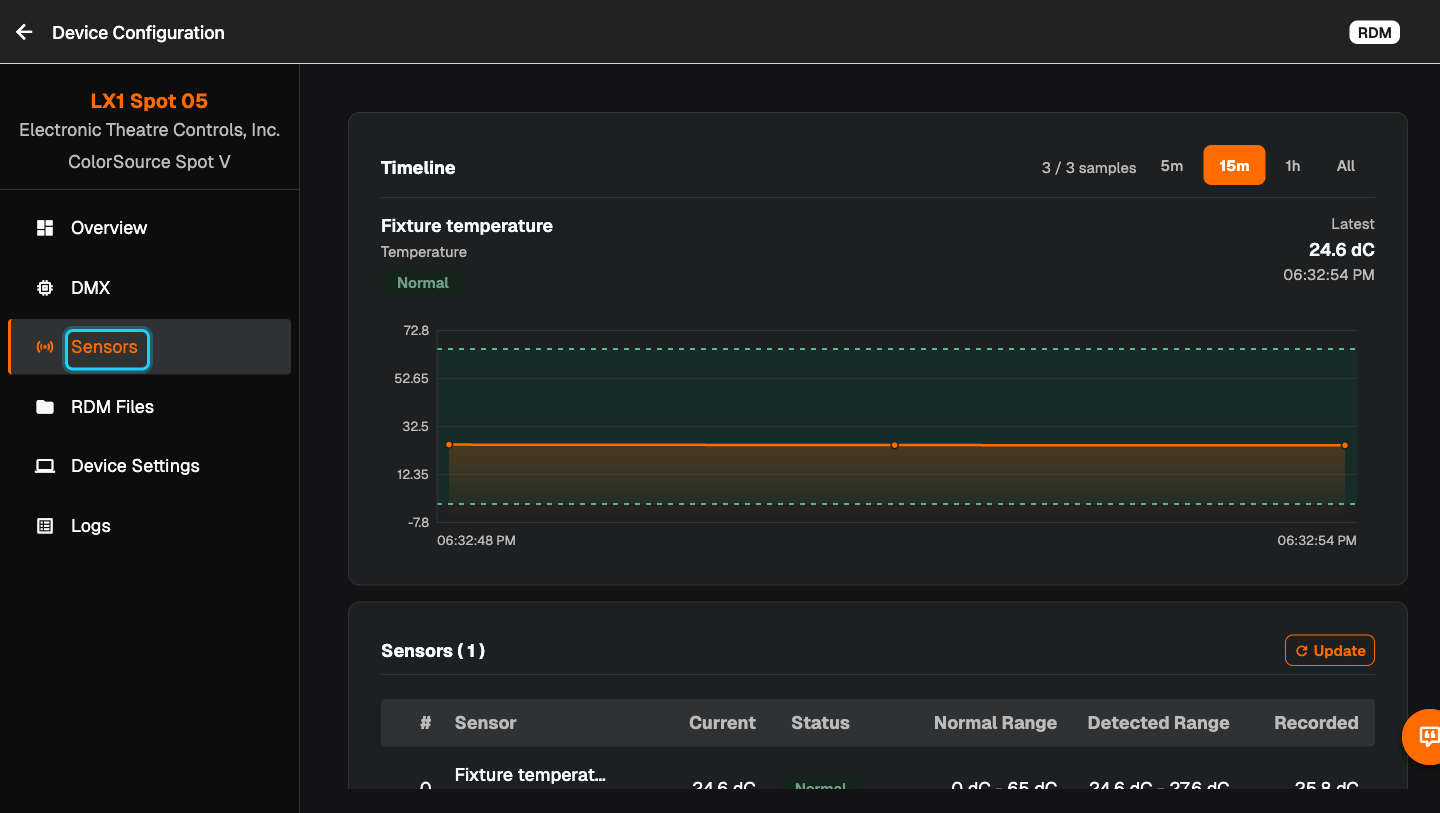
- Plan: Free. On Free, sensor history covers the last 5 minutes.
- A Rig is open and the device has been discovered. Fixtures need RDM, and the node they hang on must pass RDM through.
Steps
-
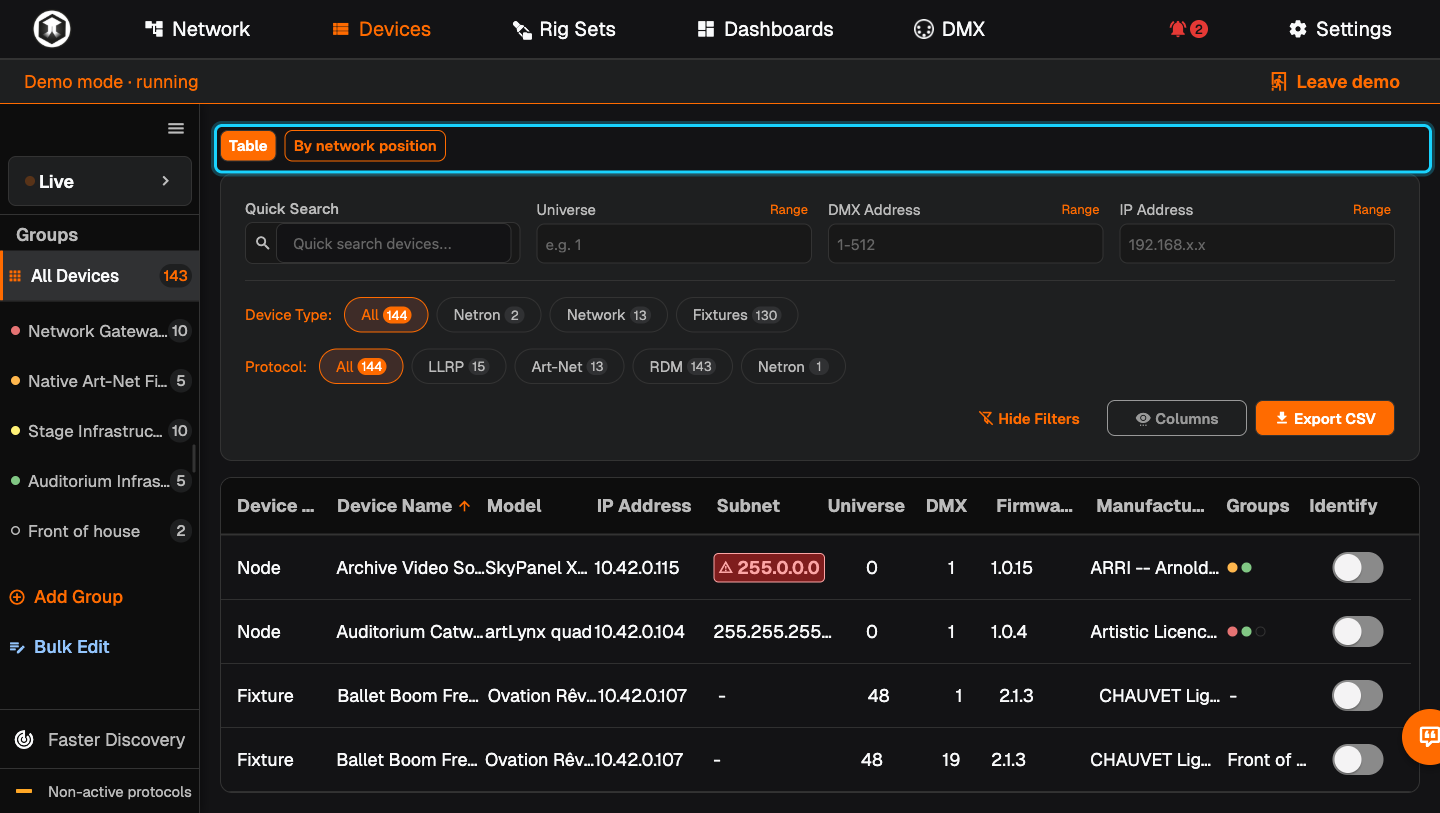
Open the device list. Go to Devices. "Table" lists everything, "By network position" lists devices under the node and port they are connected to.
-
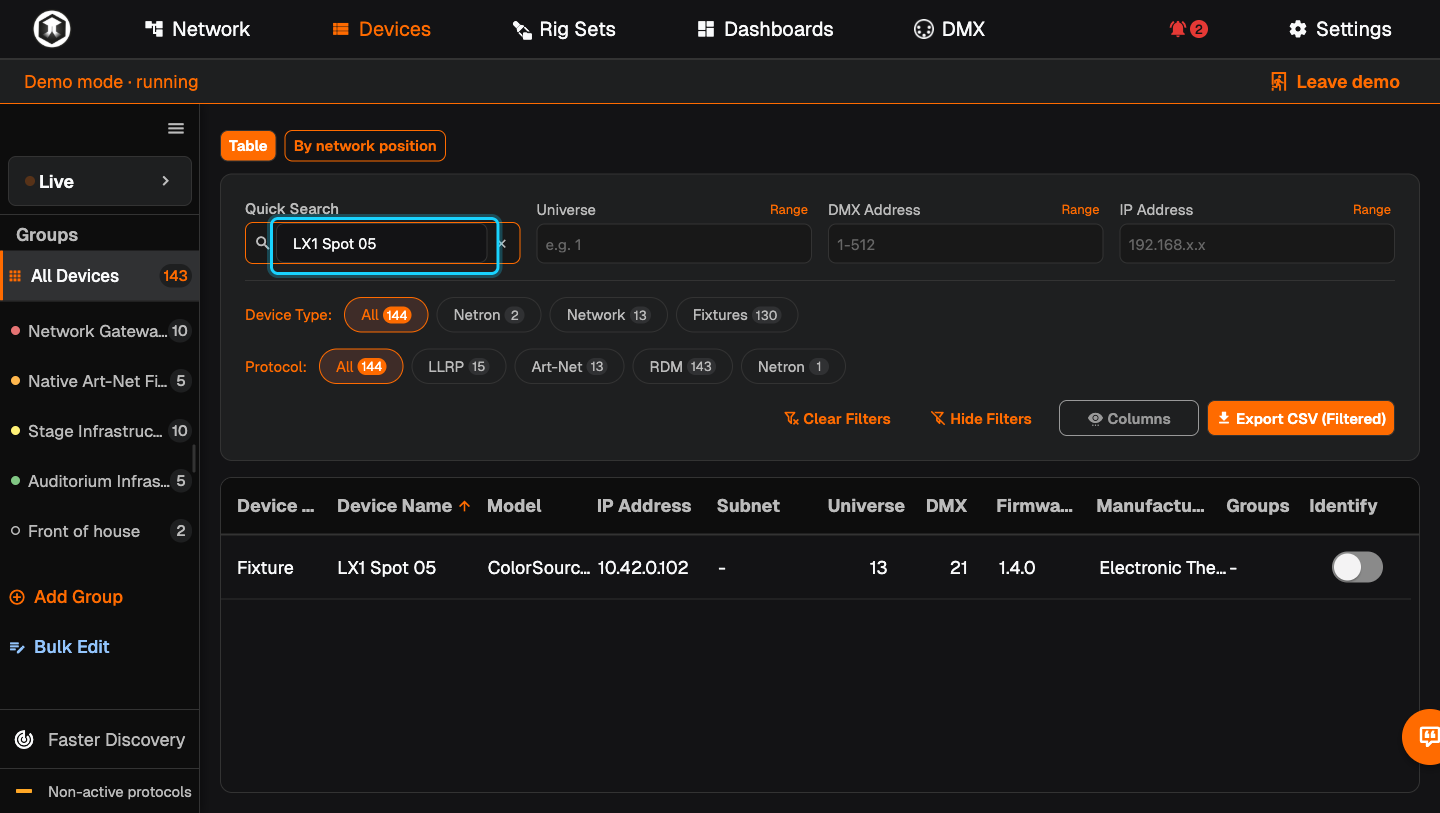
Search. Type a name, model or address into "Quick Search". You can also filter by "Universe", "DMX Address", "IP Address", "Device Type" and "Protocol". "Columns" chooses what the table shows.
-
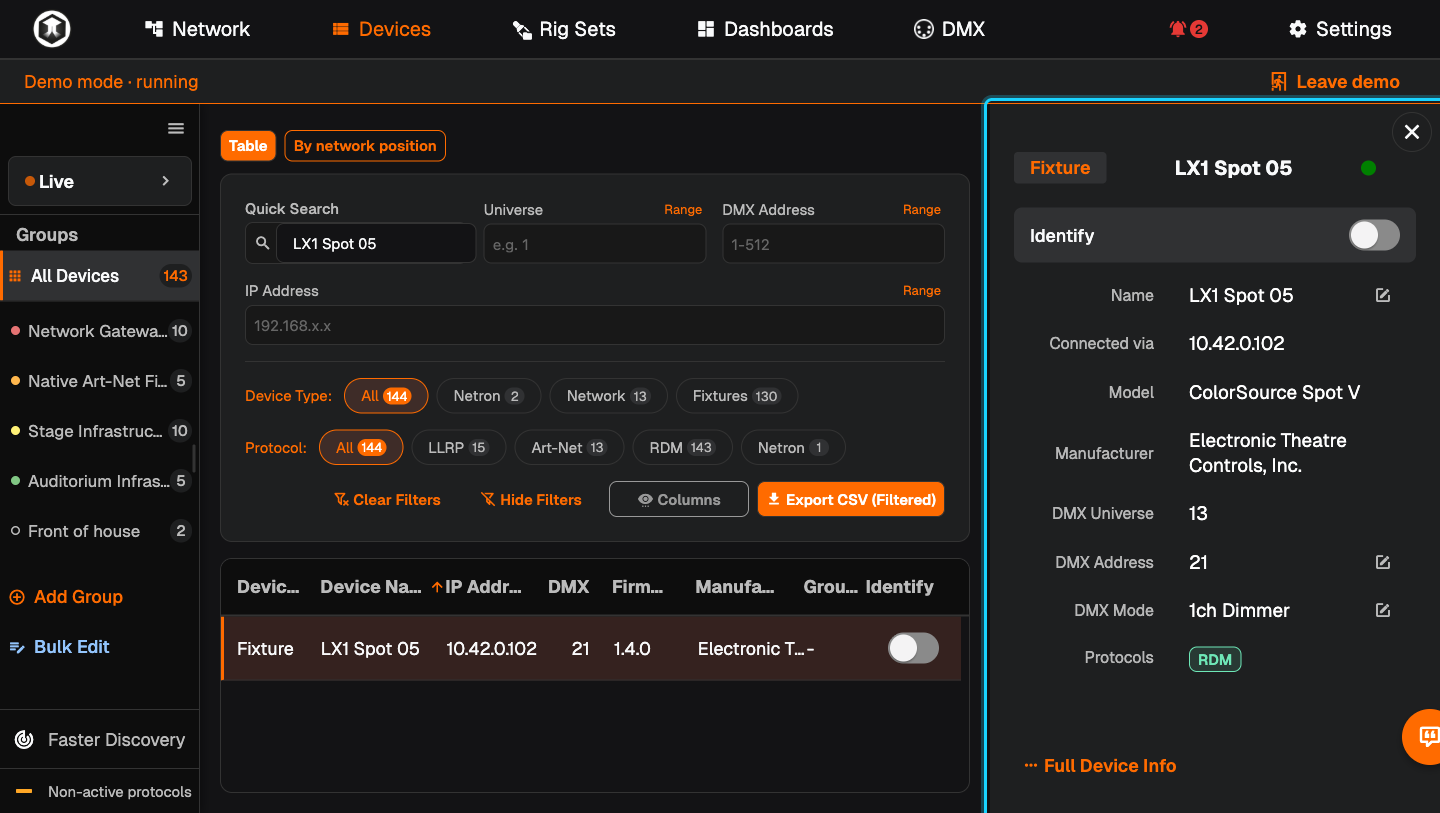
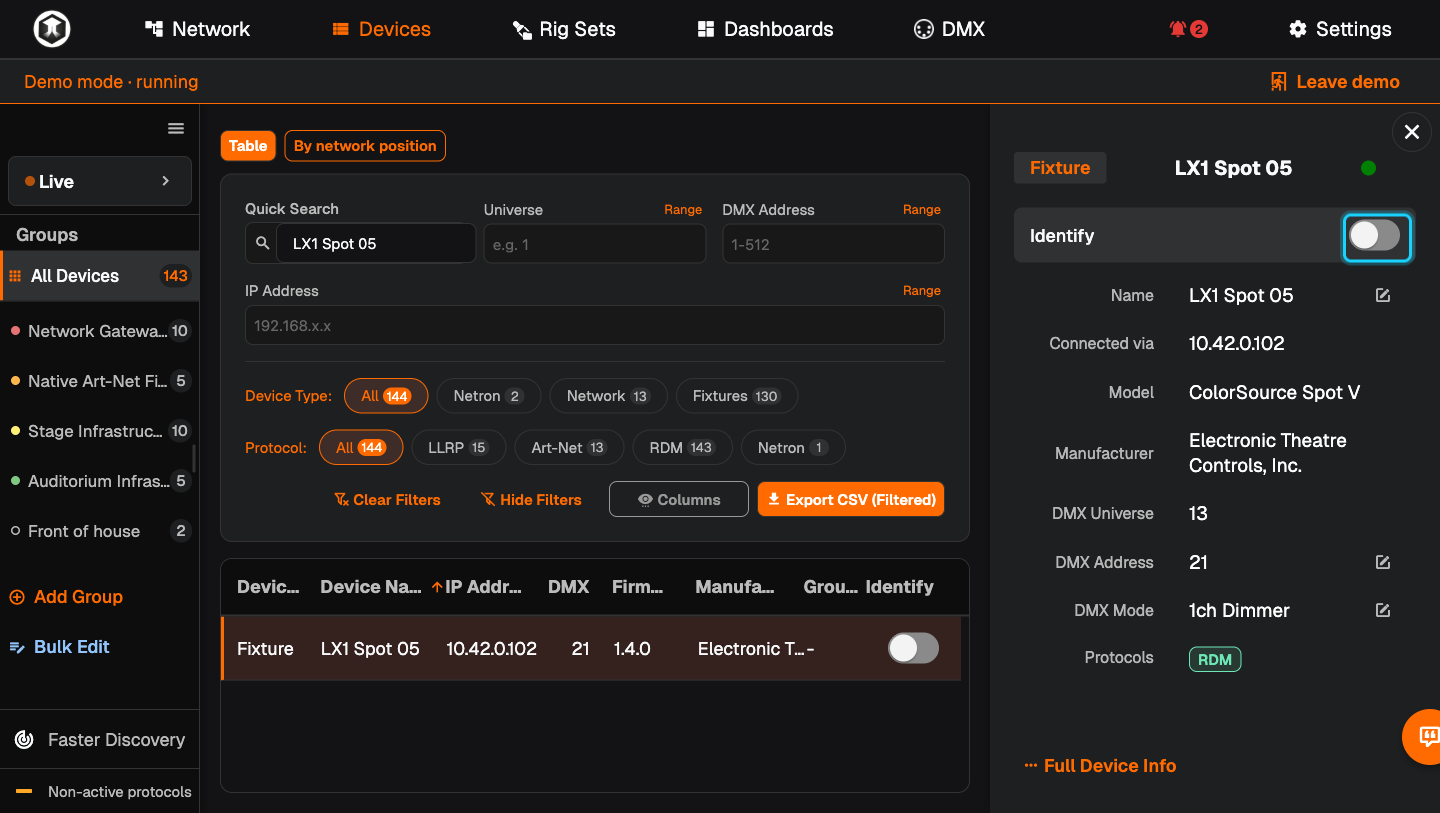
Select the device. Click its row. A panel opens on the right with name, model, manufacturer, universe, DMX address and DMX mode.
-
Find it in the rig. Switch on "Identify" in the panel, or in the "Identify" column of the table. The fixture flashes or shows its identify state. Switch it off again when you have found it.
-
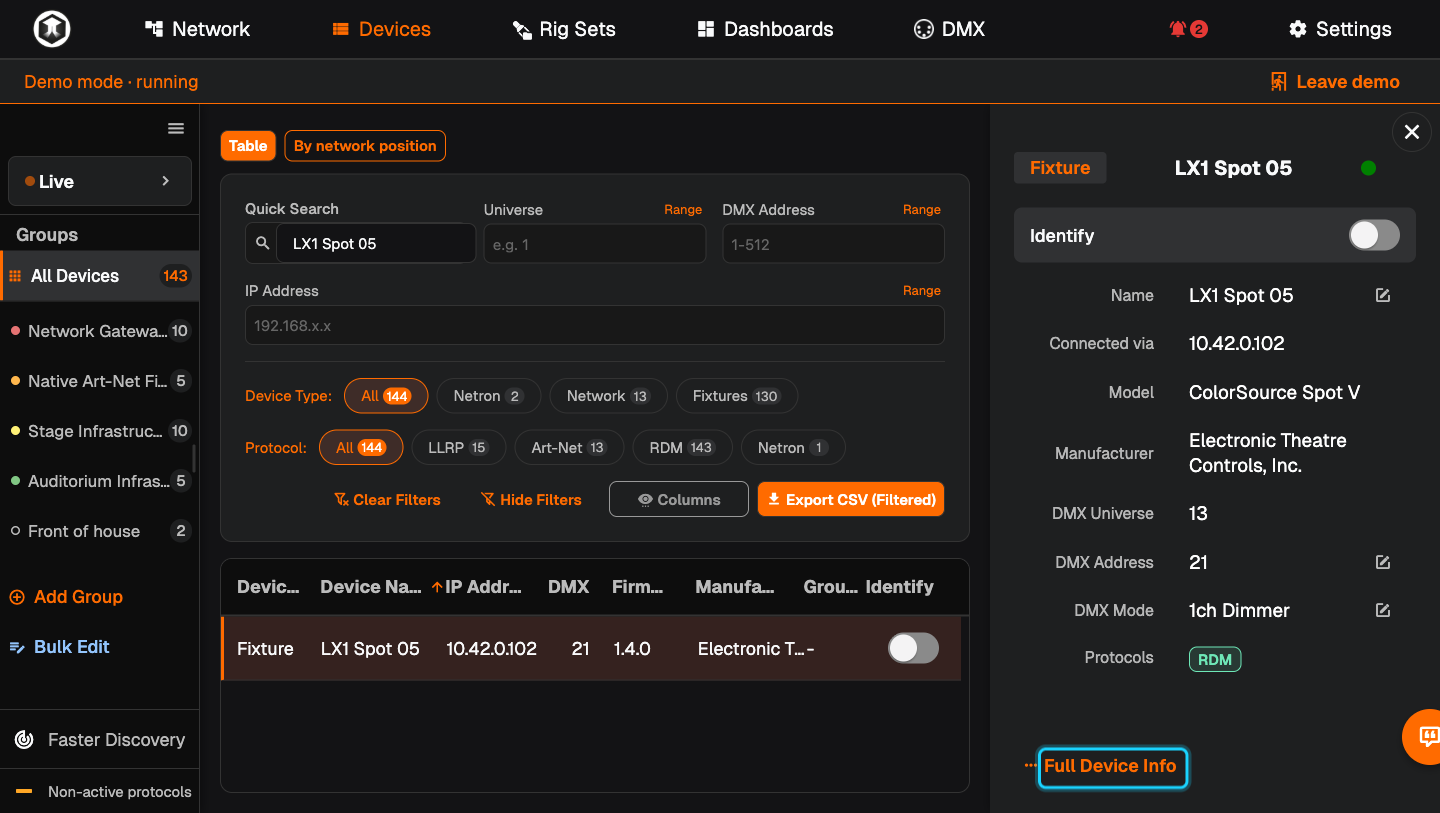
Open the full page. Press "Full Device Info" at the bottom of the panel. "Device Configuration" opens with a menu on the left.
-
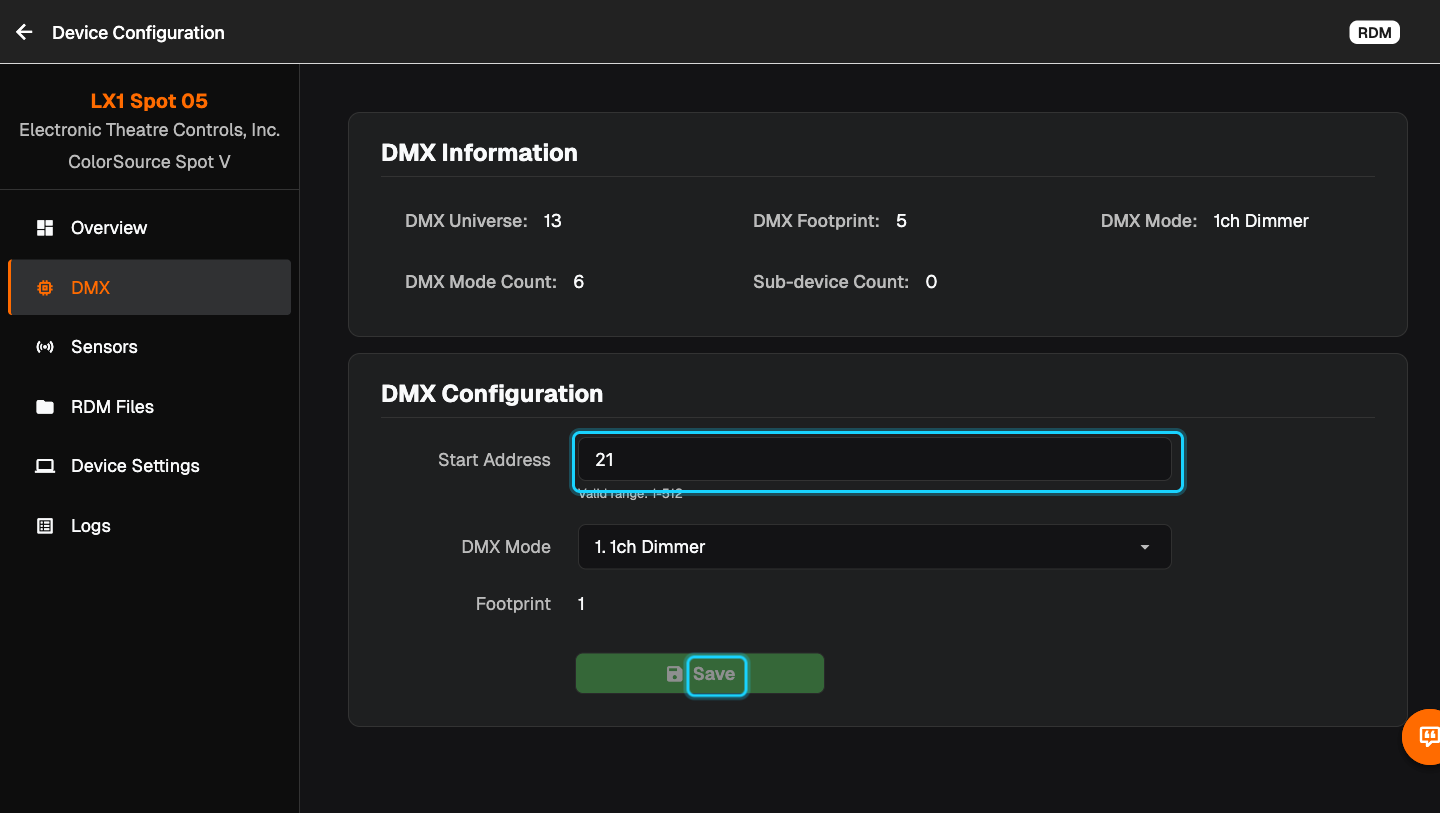
Change the DMX address or mode. Choose "DMX", type the new "Start Address" or pick a "DMX Mode", then press "Save". The pencil next to "DMX Address" in the panel takes you straight here.
-
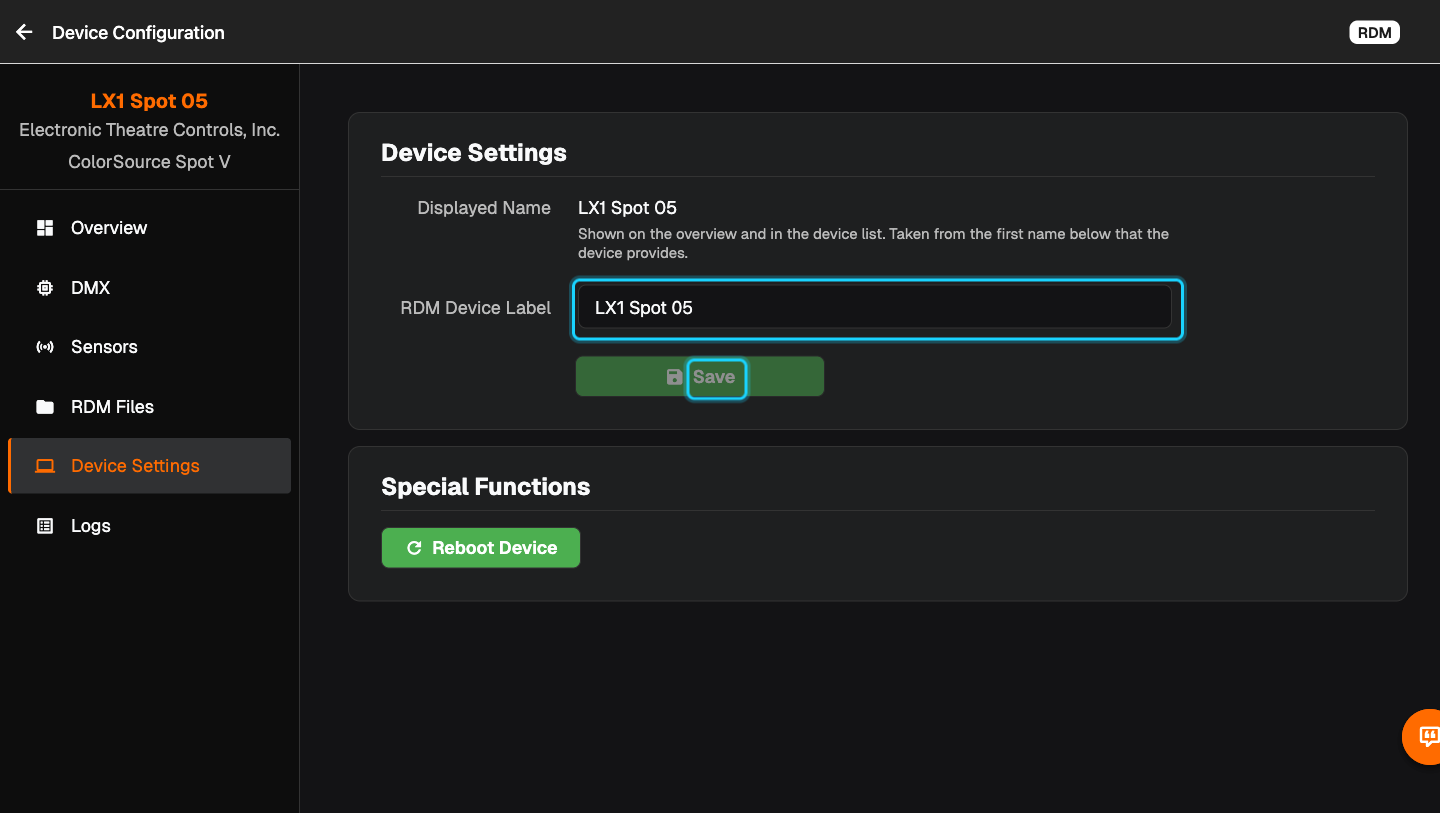
Rename it. Choose "Device Settings", type the new name into "RDM Device Label" and press "Save". This name is stored in the fixture.
-
Check sensors and history. "Sensors" shows temperatures and other readings with a timeline. "Logs" lists what happened to this device and when.
-
Go back. The arrow at the top left returns to the list.
Nodes and gateways
A node has more in its menu: "IP Settings" for address mode, IP address and subnet mask, plus ports and, for NETRON devices, "Presets", "Cues", "Inputs" and "System". "Web Interface" at the top right opens the device's own web page. "Reboot" under "Quick Actions" restarts the device.
If something is not as expected
- The device is not in the list. Press "Faster Discovery" in the sidebar and check that its protocol is not set to "Disabled" in Settings, Network.
- A red subnet mask with a warning sign. The device's subnet mask does not match your network interface. It may be reachable only partly until you correct it.
- "This device is running firmware ..., which is not supported". QubiSet can show the device but not manage it until its firmware is updated with the manufacturer's tool.
- There is no pencil next to a value. The device does not allow that value to be changed remotely.
- You are viewing a Rig Set. If the banner shows a Set name, press "Leave Set view" first to see live devices.
Related guides
Still stuck?
Ask us on Discord or write to support@qubicast.com. Tell us what you did and what you saw, and we will help.