
Rig Sets
How do I save my rig's device settings and restore them later with Rig Sets?
A Rig Set stores the names, DMX addresses and modes of all devices; "Compare and apply" shows what has changed since and writes back only the changes you tick.
Plan: Free
On this page
Short answer
Rig Sets, "Create set from live devices", name it, "Create set". Later, open the Set, go to "Compare and apply" and press "Apply ... changes".
What this is for
A Rig Set is a saved copy of your device setup inside a Rig: device names, DMX addresses, DMX modes and where each device is connected. Save one when the rig is right. After a changeover, a hire fixture swap or an accident, QubiSet shows exactly what differs and puts it back. Looking at a Set never changes a device.
Before you start
- Plan: Free.
- A Rig is open and discovery has finished (the sidebar no longer shows "Discovering...").
Steps
-
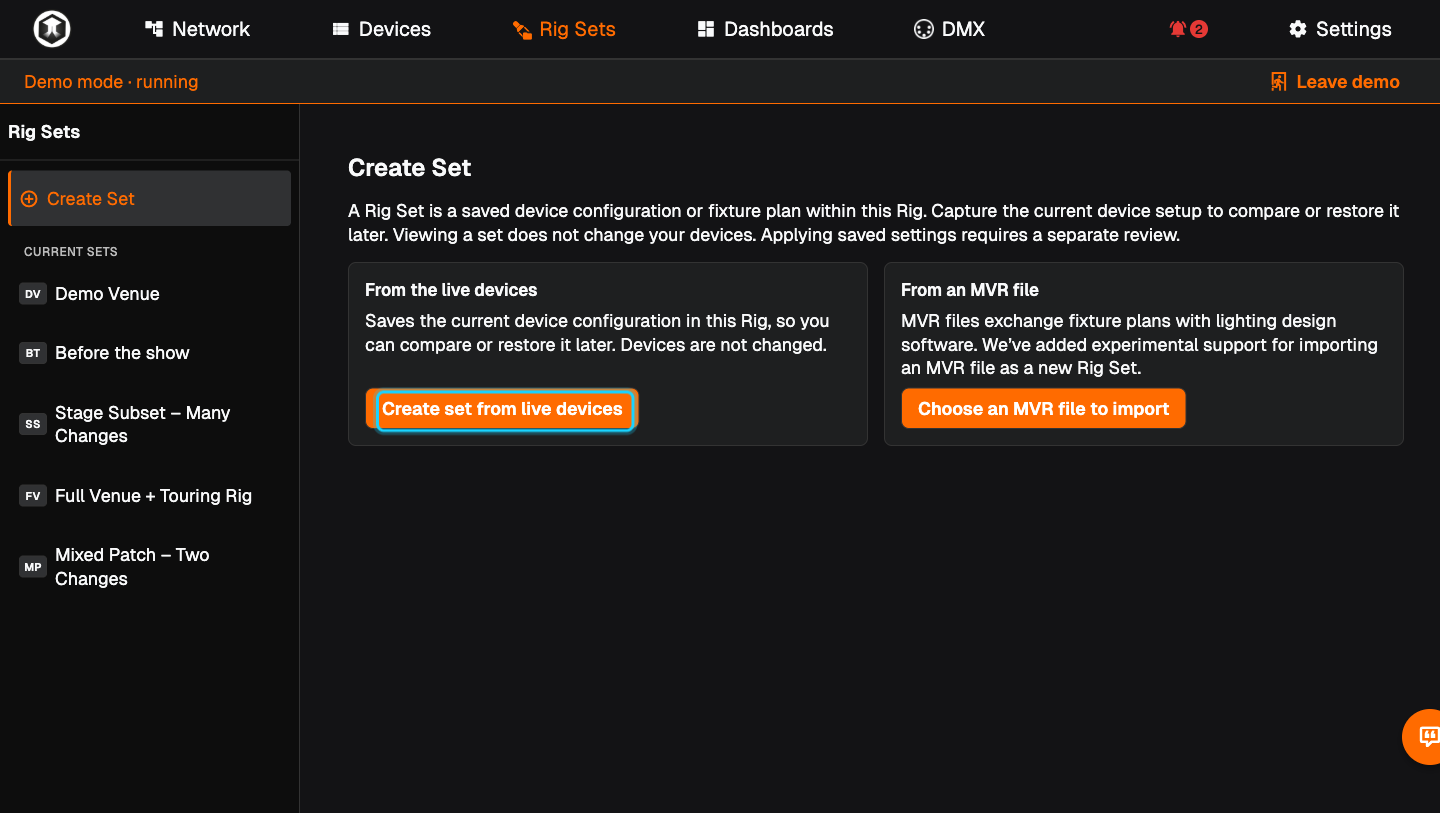
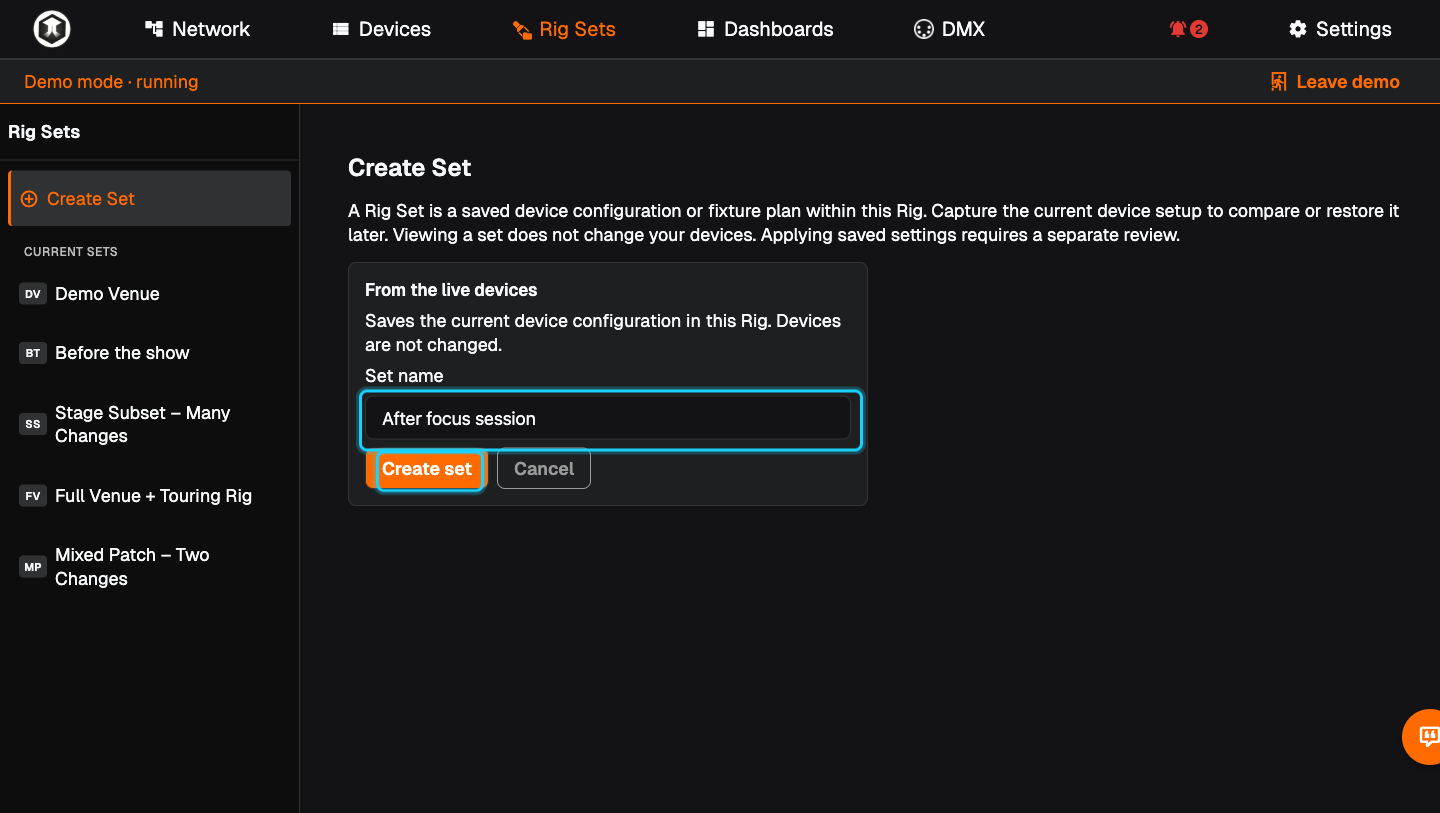
Save one. Go to Rig Sets. Under "From the live devices" press "Create set from live devices", type a "Set name" and press "Create set". Nothing on the devices changes.
-
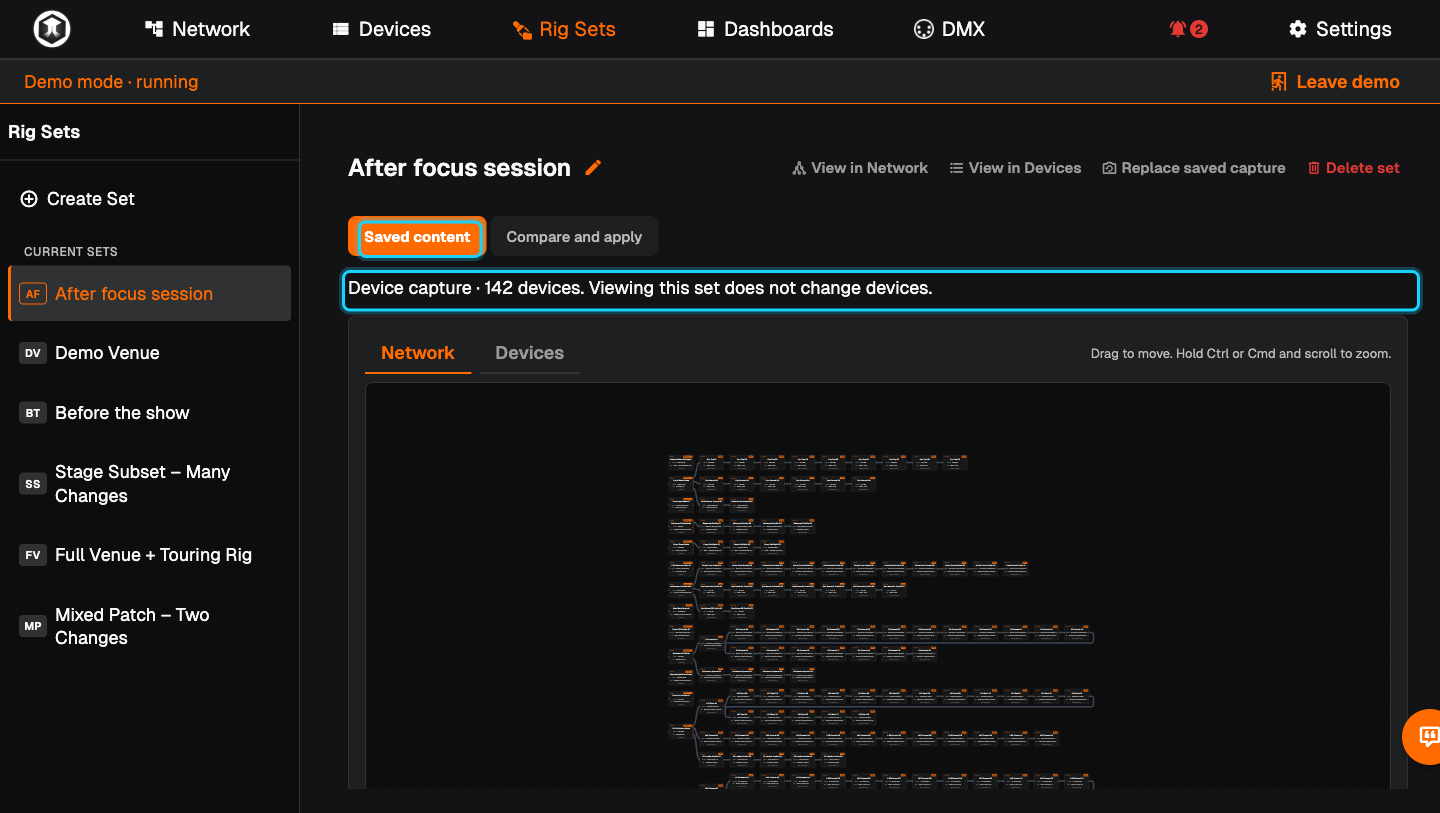
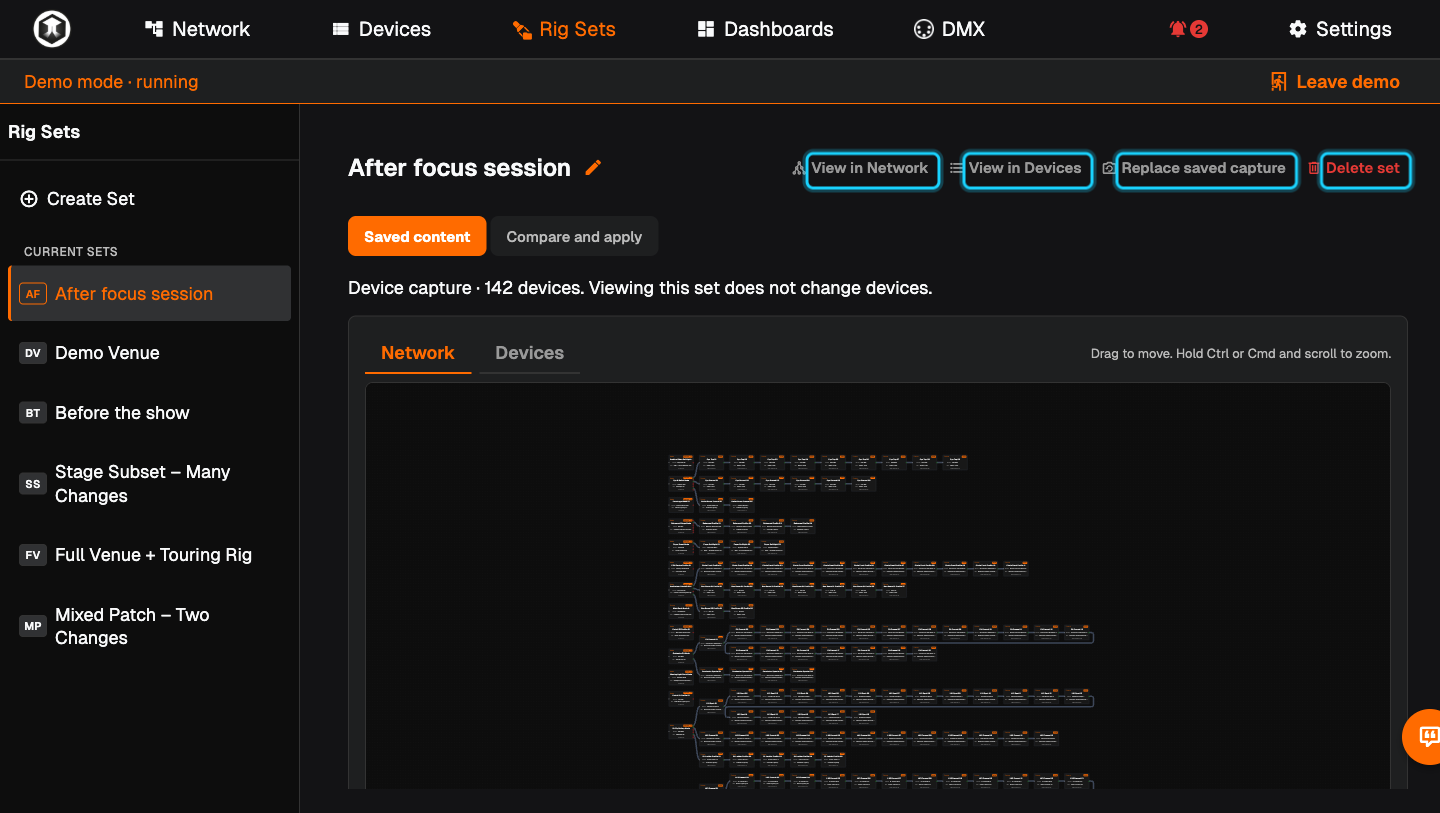
Look at what is in it. The Set opens on "Saved content". The line below the tabs tells you how many devices were saved. Switch between "Network" and "Devices" to see them as a drawing or as a table.
-
Change something on the rig. For example give a fixture a new DMX start address on the Devices page.
-
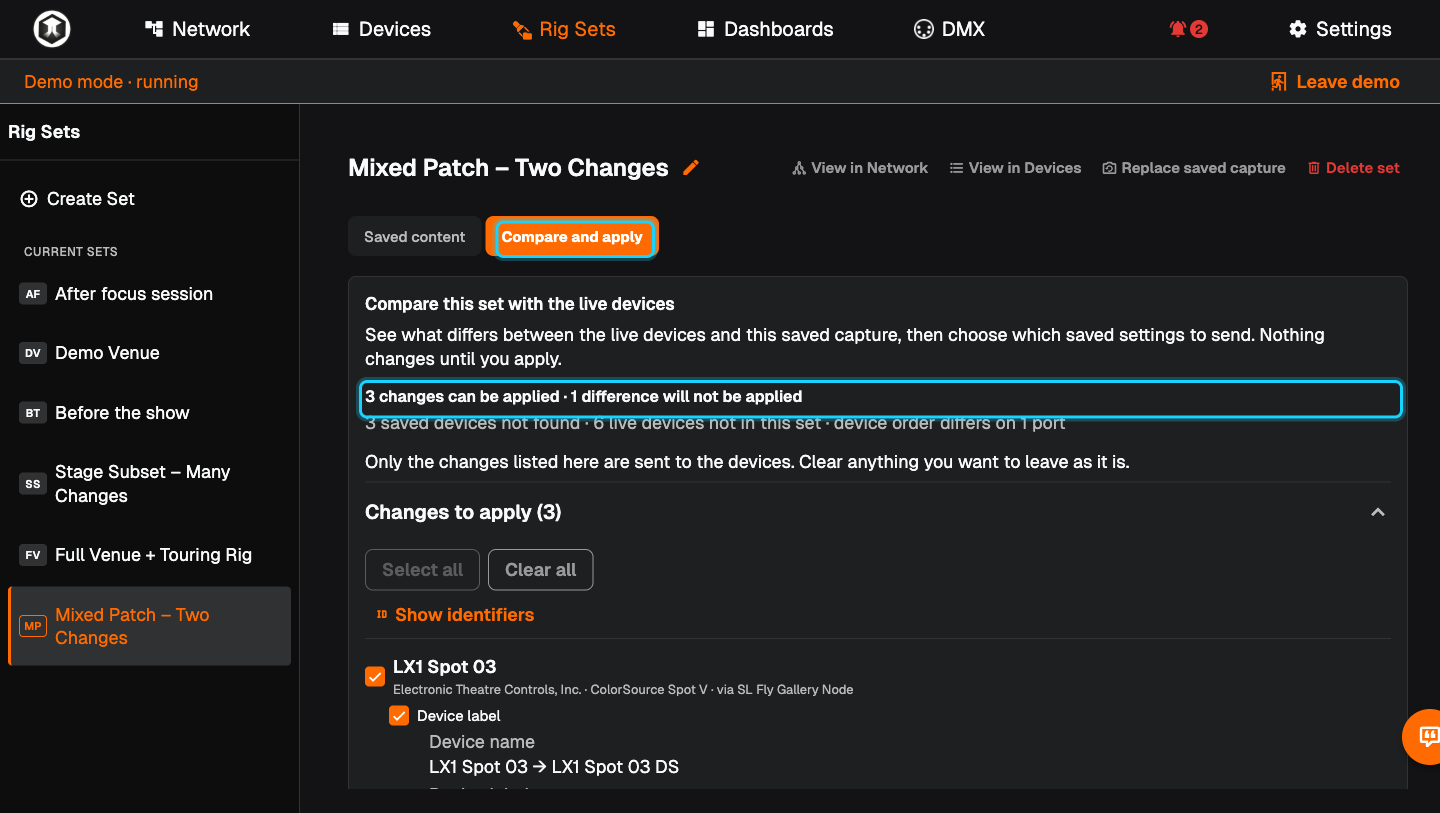
See the difference. Back in Rig Sets, open the Set and go to "Compare and apply". The top line tells you how many changes can be applied. "Changes to apply" lists each device with its live value and the saved value, for example "DMX address 11 → 111".
-
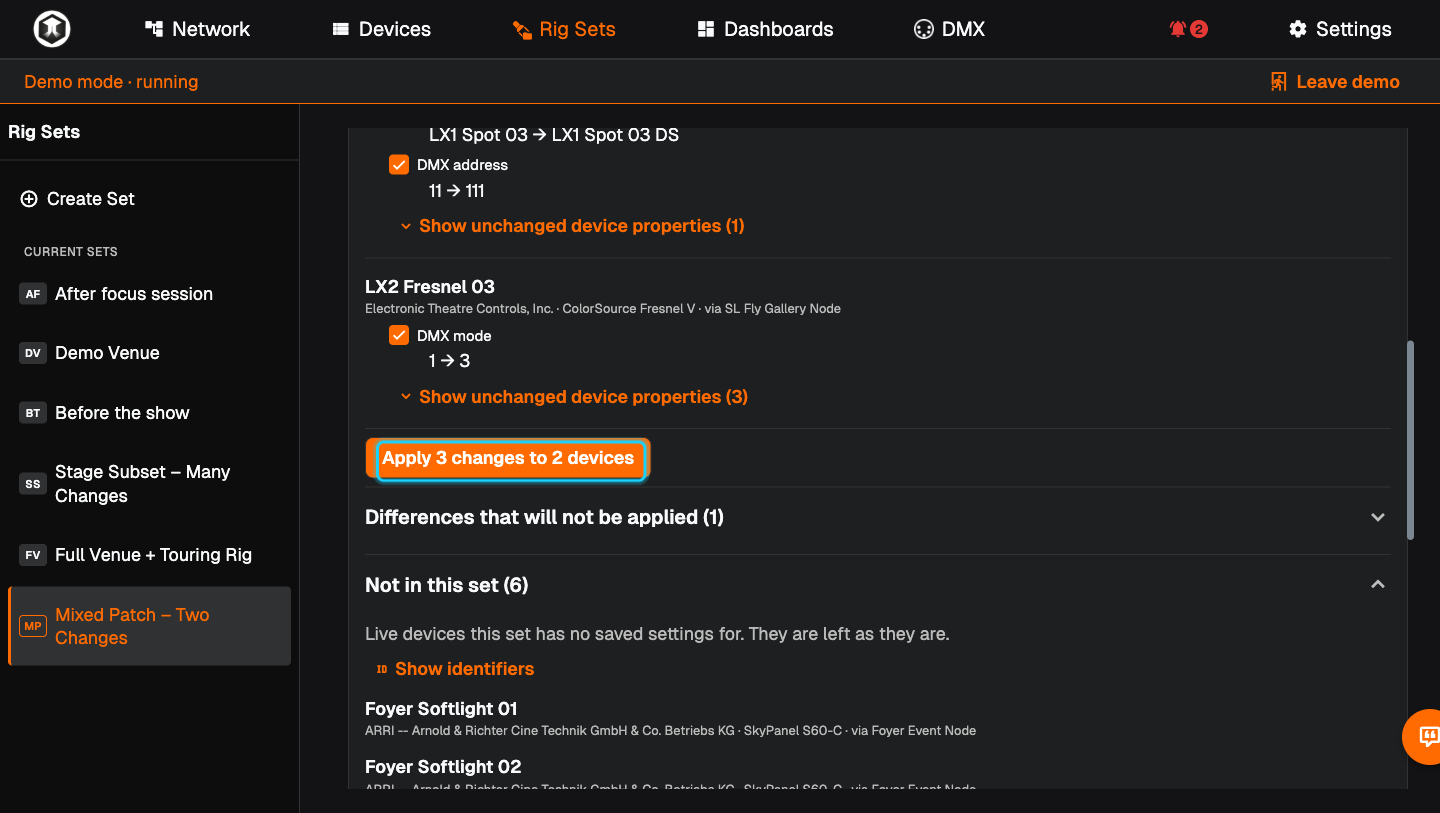
Put it back. Untick anything you want to leave alone ("Select all" and "Clear all" help), then press "Apply ... changes to ... devices". The changes are sent at once, without a further question.
-
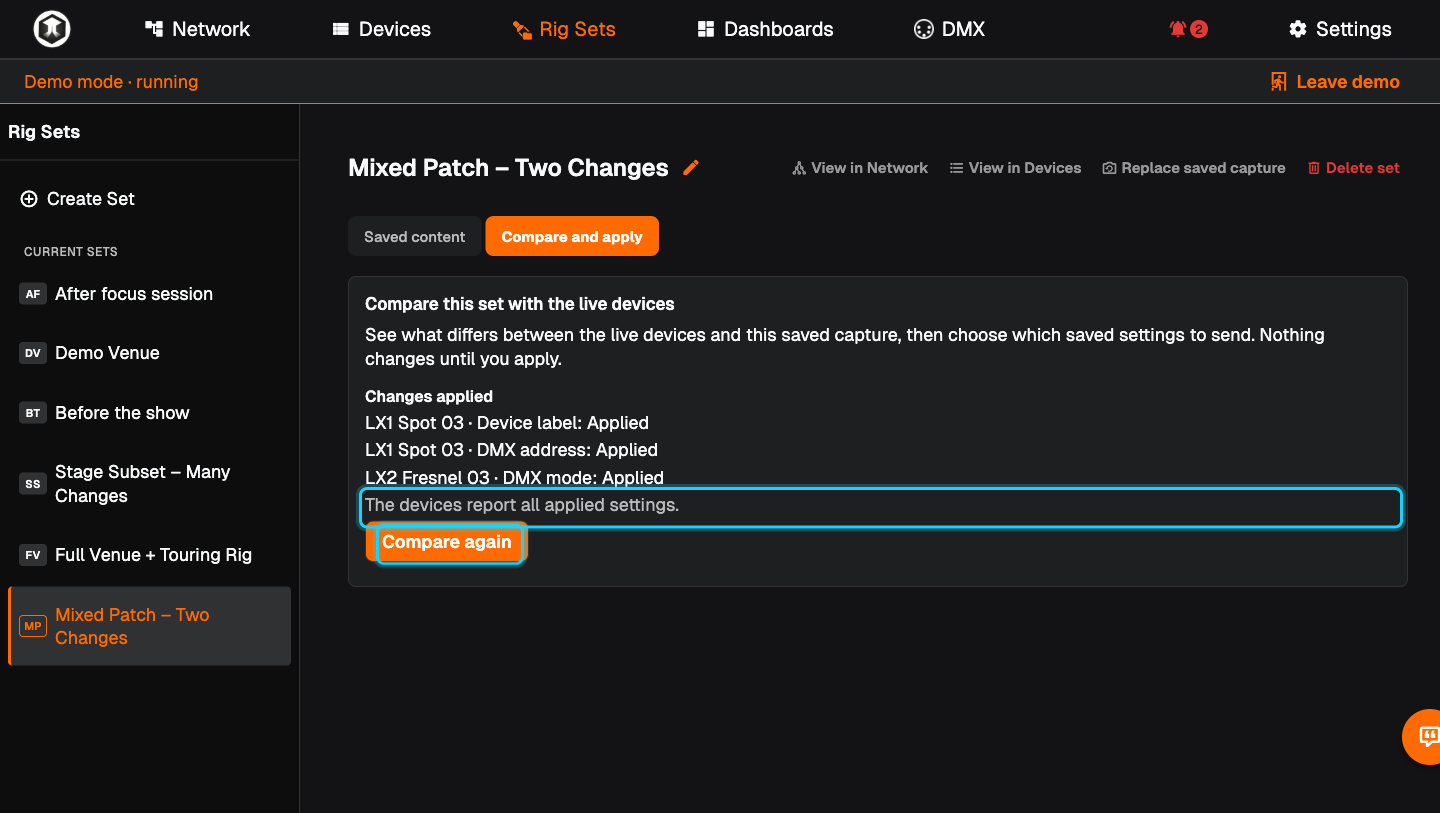
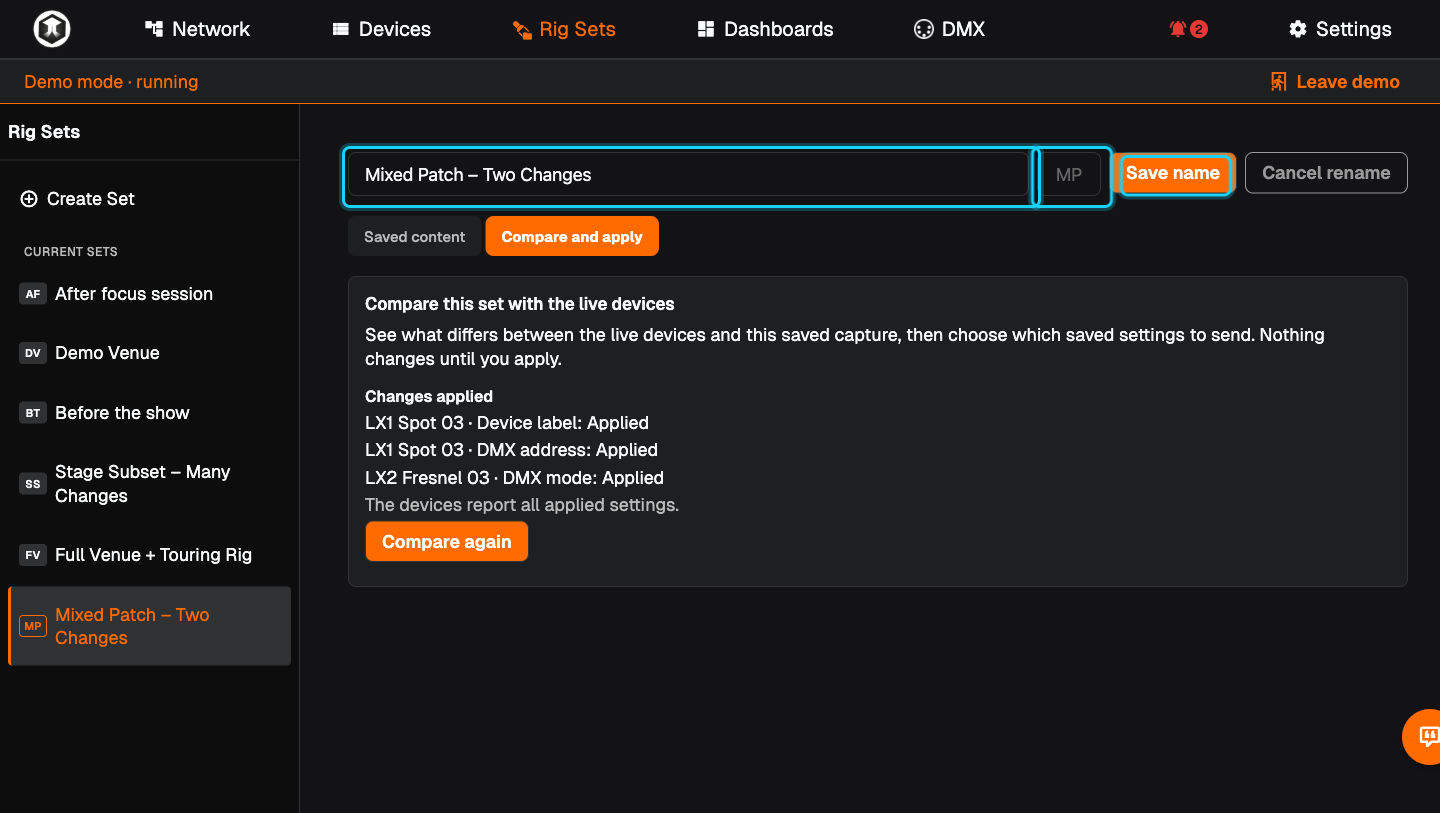
Wait for confirmation. "Changes applied" lists each setting. Wait for "The devices report all applied settings.", or press "Compare again".
-
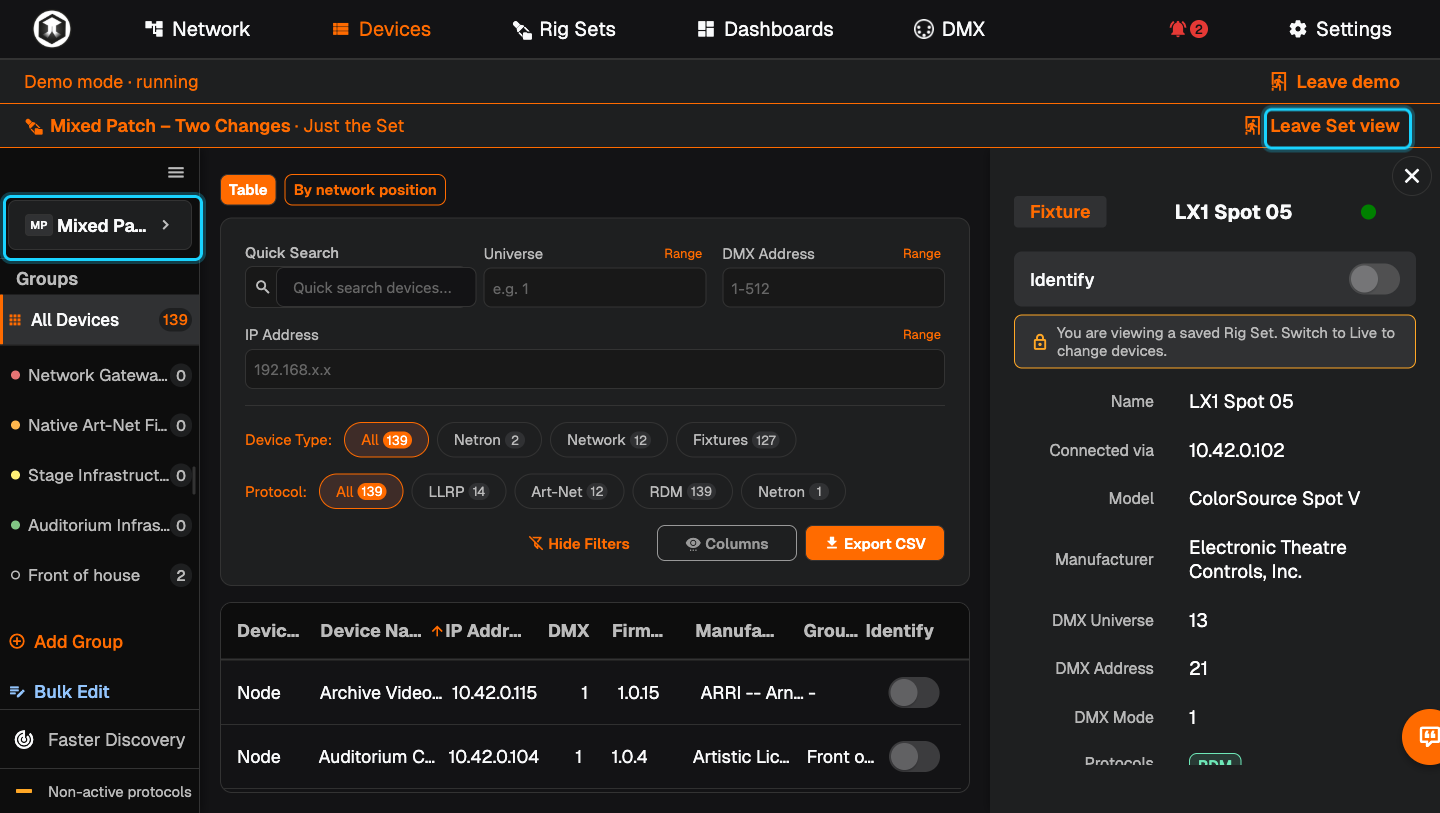
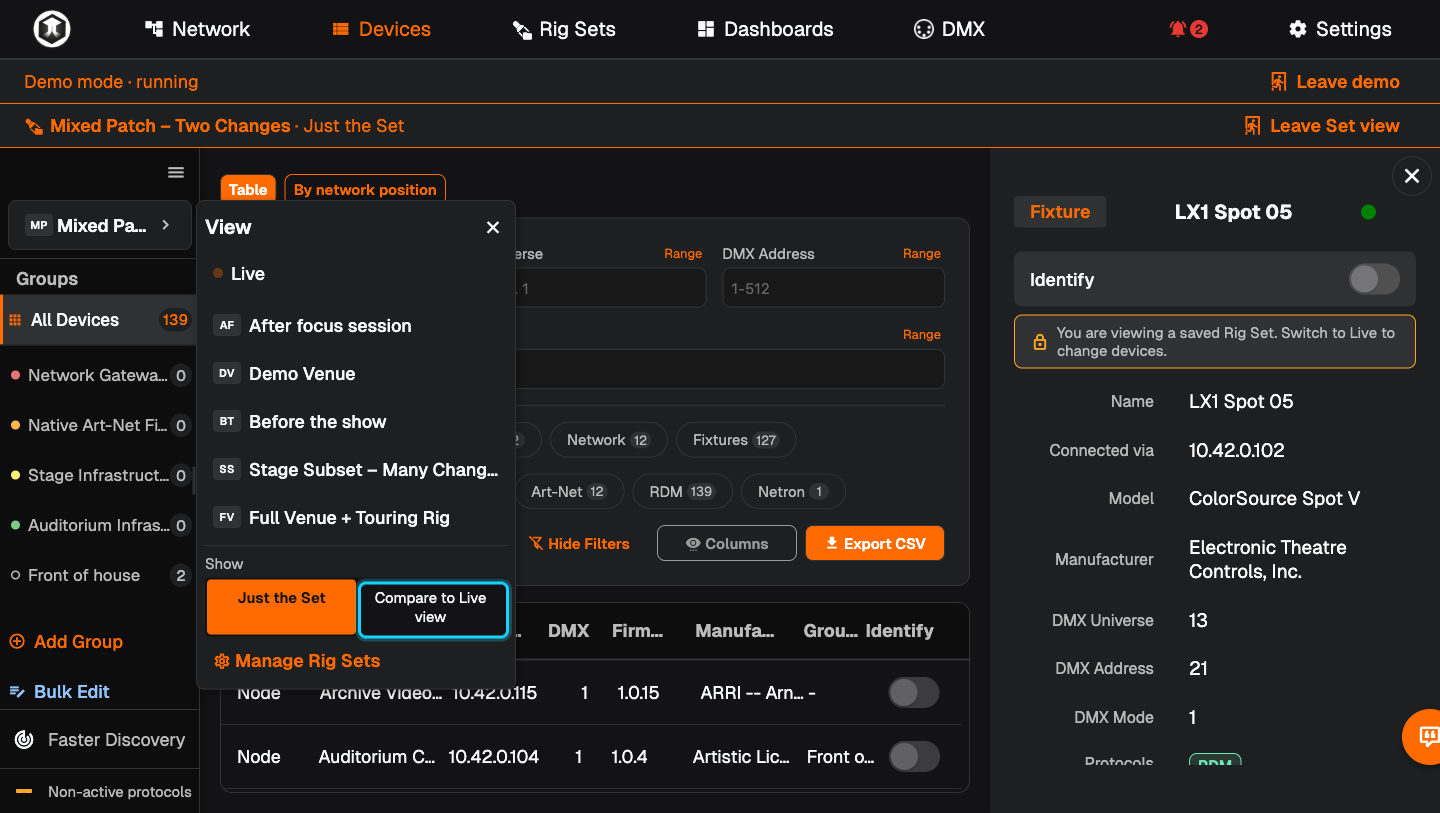
See it on the main screens. Press "View in Network" or "View in Devices" under the Set title. A banner shows the Set name and "Just the Set". The selector at the top of the sidebar now shows the Set.
-
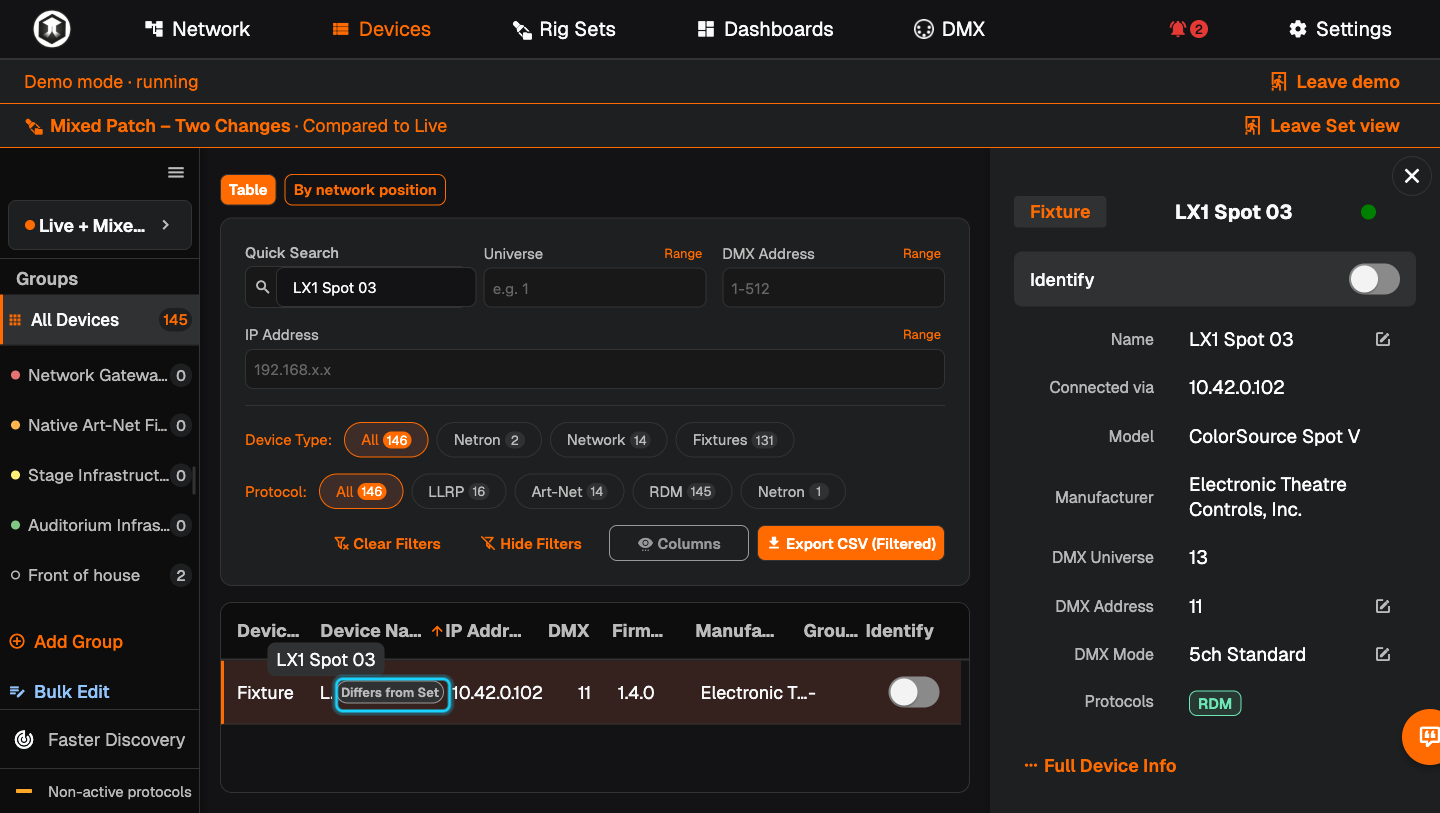
Compare on the main screens. Open the selector and choose "Compare to Live view" under "Show", then click outside the menu. Devices are marked "Differs from Set", "Not in Set" or "Missing".
-
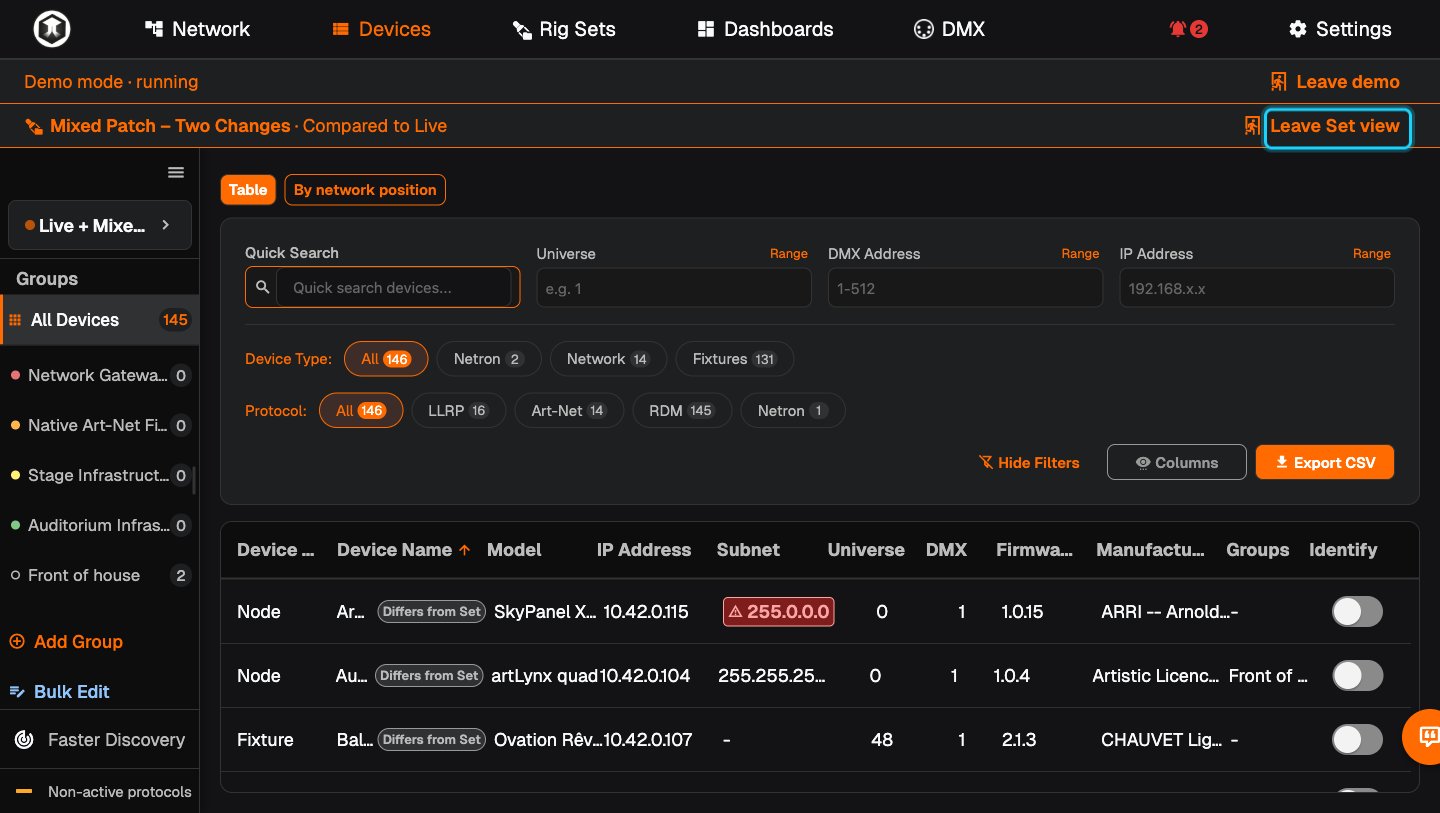
Go back to normal. Press "Leave Set view" in the banner, or pick "Live" in the selector.
-
Housekeeping. The pencil next to the title renames the Set and lets you give it your own two-letter mark; finish with "Save name". "Replace saved capture" overwrites the Set with the current devices. "Delete set" removes it.
Reading the comparison
- Changes to apply. Settings QubiSet can write back. Only ticked ones are sent.
- Differences that will not be applied. Things that differ but cannot be written, with the reason.
- Not in this set. Live devices the Set knows nothing about. They are left as they are.
- Saved but not found. Saved devices that are not on the network now. If QubiSet recognises a replacement fixture, it offers "Identify" and "Use this device".
- Devices without changes. Everything that already matches.
If something is not as expected
- "Comparing live devices…" does not finish, or the numbers look too low. Discovery is still running. Wait until the sidebar shows "Faster Discovery", then press "Compare again".
- "Nothing can be applied". The live devices already match the Set in everything that can be written.
- The main screens look empty or unfamiliar. You are still viewing a Set. Press "Leave Set view".
- The selector menu stays open. Click anywhere outside it.
Related guides
- Rig Sets from an MVR file
- Find a device and change its settings
- Try it in the Demo Rig: it contains three Sets that already differ from the live devices.
Still stuck?
Ask us on Discord or write to support@qubicast.com. Tell us what you did and what you saw, and we will help.