
Getting started
How do I get started with QubiSet?
Sign in, create a Rig with "New Rig", and QubiSet starts looking for Art-Net, sACN and RDM devices on your network straight away.
Plan: Free
On this page
Short answer
Sign in, press "New Rig", give it a name and press "Create and start". QubiSet opens the Network page and lists devices as it finds them.
What this is for
A Rig is one venue or one show. Everything QubiSet finds and stores (devices, groups, Rig Sets, alerts, history) belongs to the Rig you have open. Nothing is shown until a Rig is open, so creating one is always the first step.
Before you start
- Plan: Free is enough. Free keeps one saved Rig and includes up to 4 universes.
- Your computer is connected to the lighting network.
- You have a QubiSet account. No hardware at hand? Use the Demo Rig instead.
Steps
-
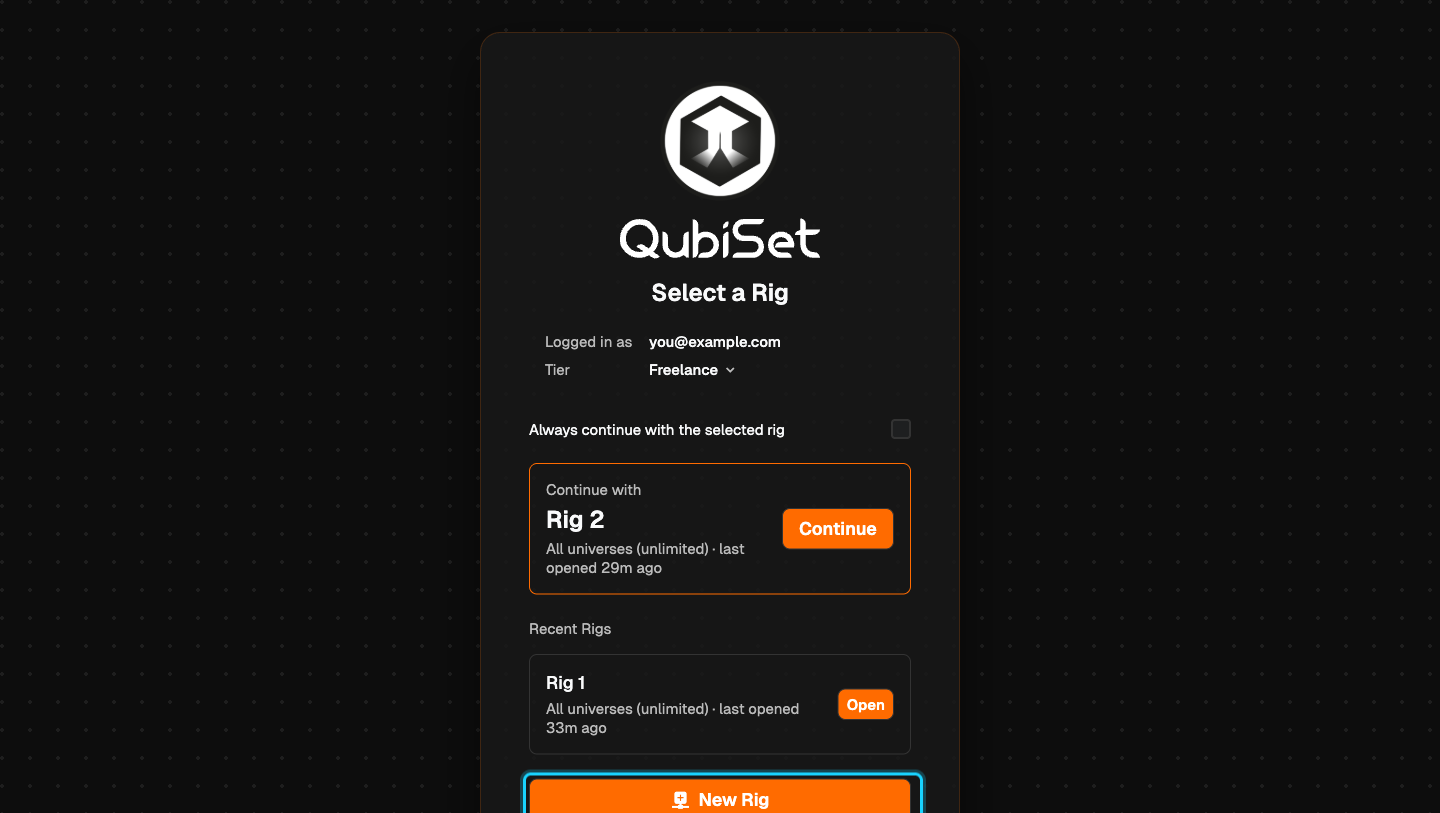
Sign in. Start QubiSet and sign in with your account. You land on "Select a Rig", which shows the account you are logged in as and your plan under "Tier".
-
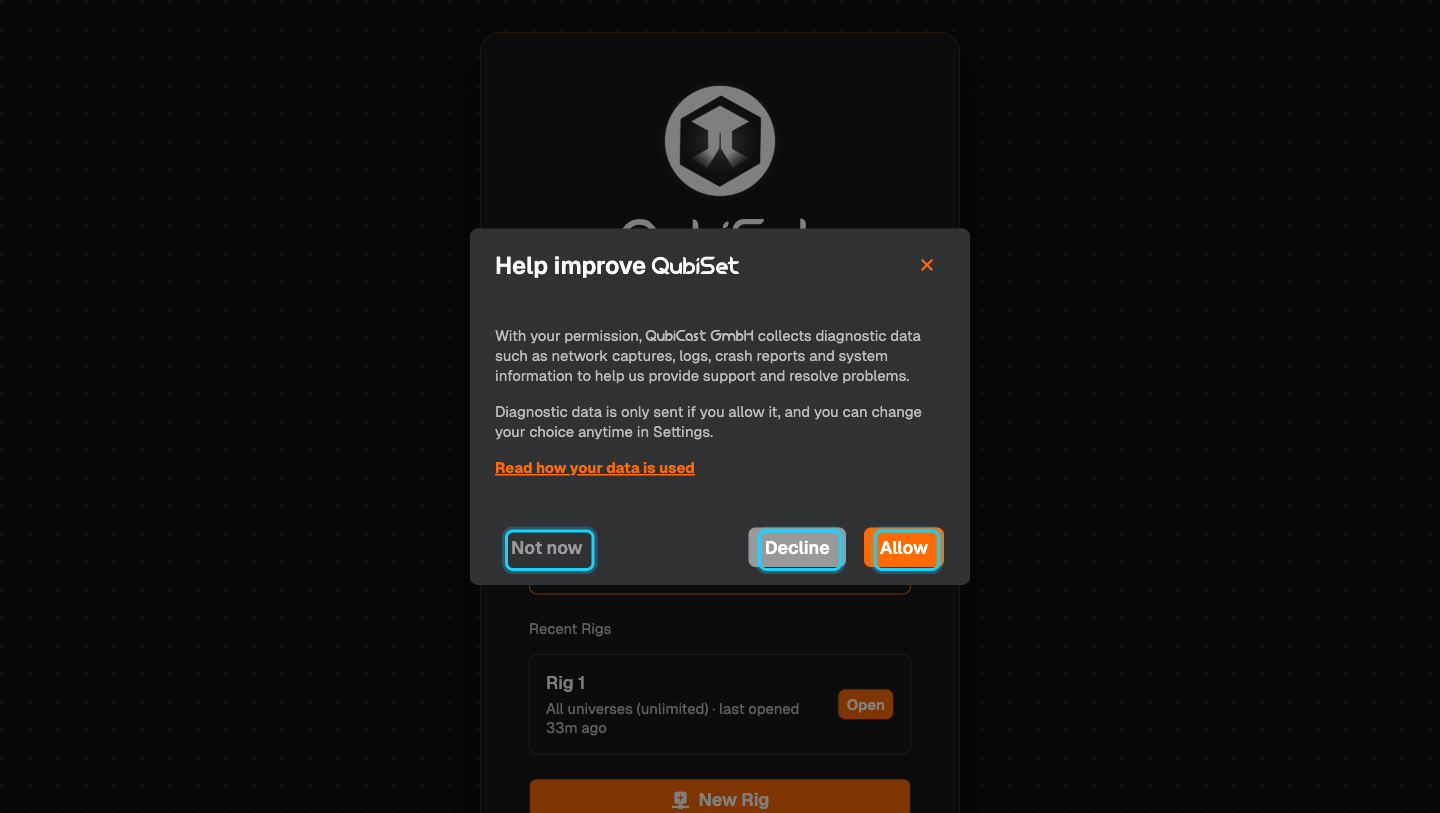
Decide about diagnostics. The first time, "Help improve QubiSet" asks whether diagnostic data may be shared. Choose "Allow", "Decline" or "Not now". You can change this later in Settings, Logs, "Share diagnostic data".
-
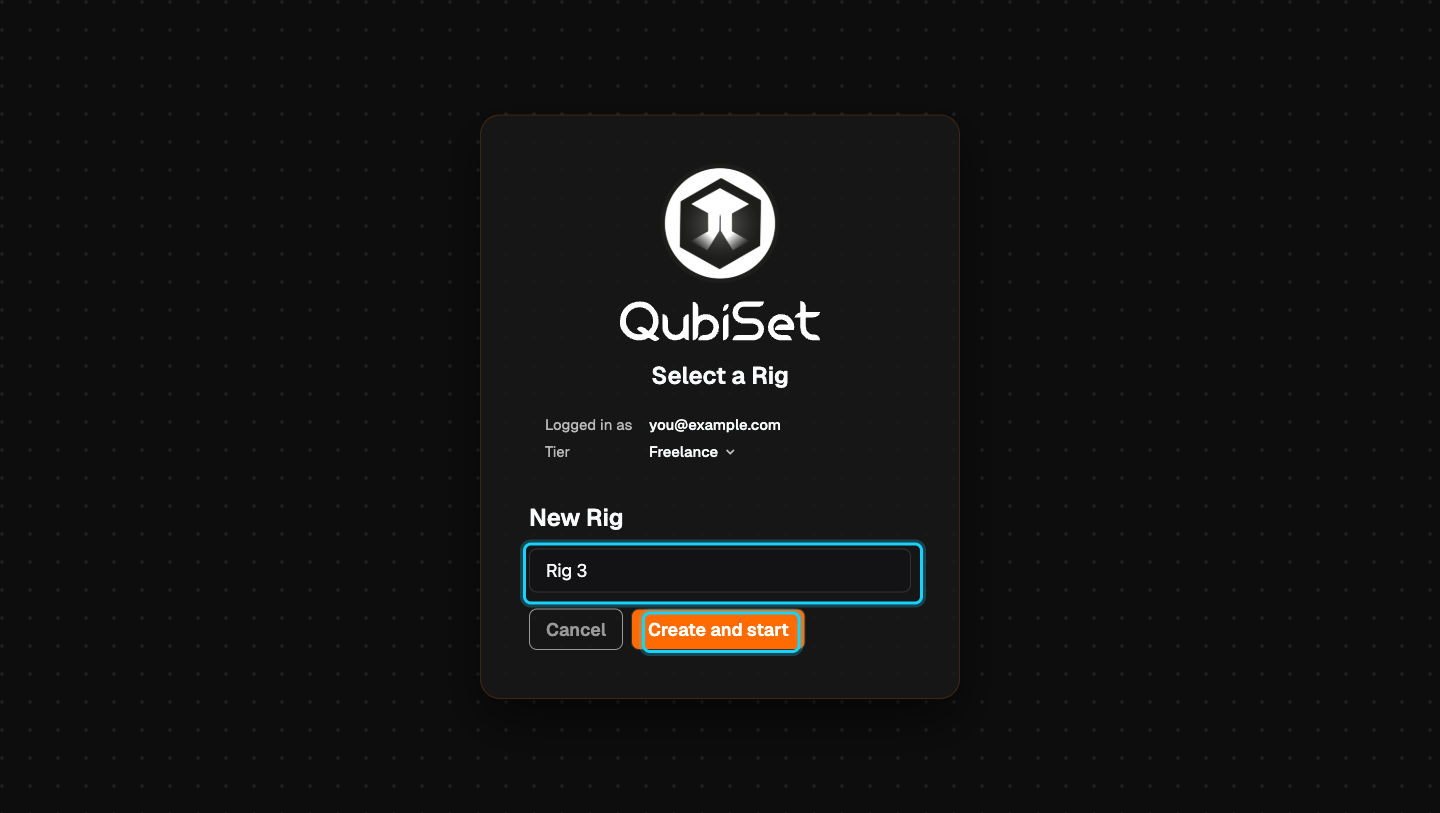
Create a Rig. Press "New Rig", type a name (for example the venue), and press "Create and start".
-
Watch devices appear. QubiSet opens the Network page and shows "Discovering...". Devices appear as they are found. The first sweep takes about a minute.
-
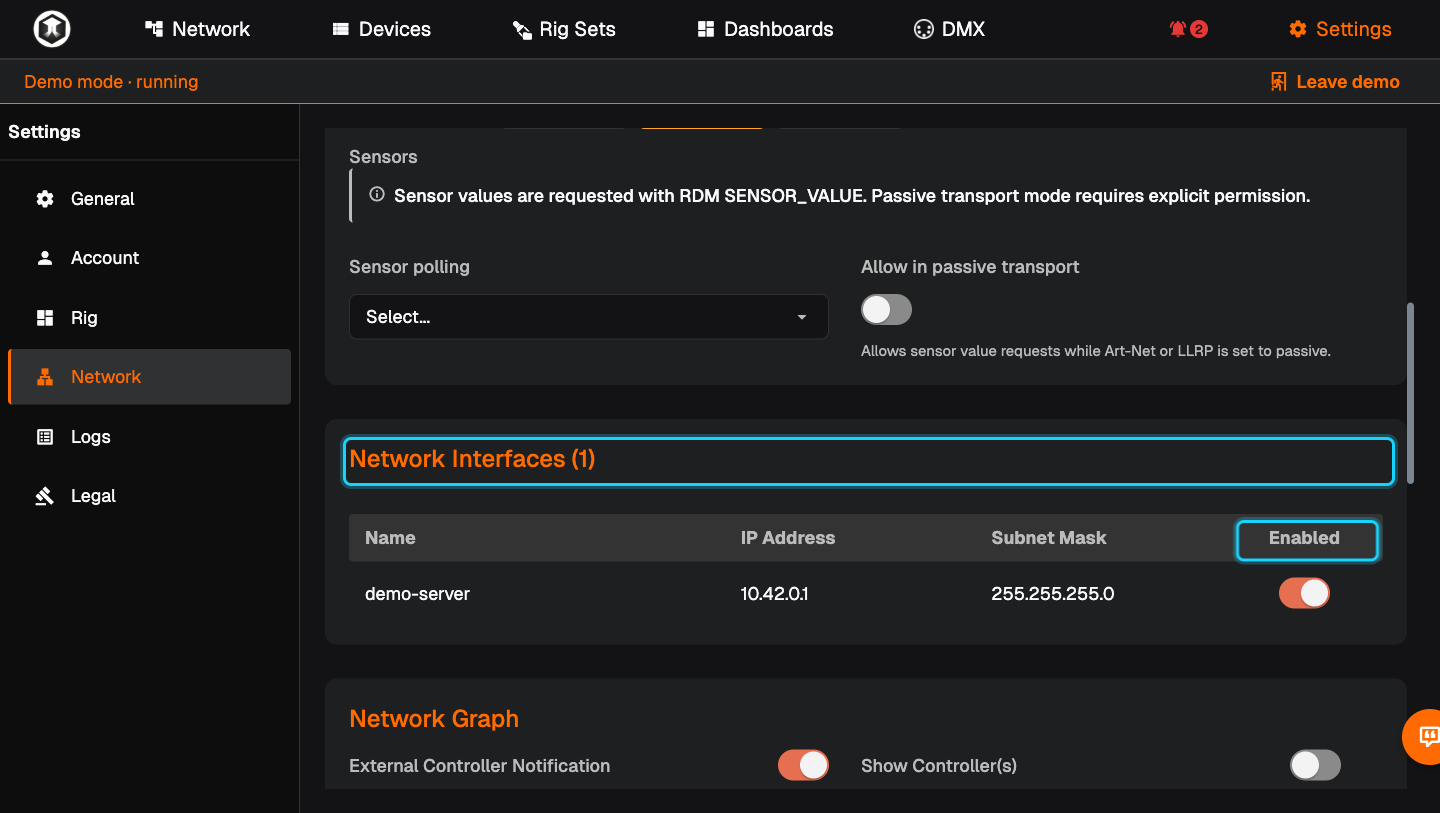
Check the network interface if nothing shows up. Open Settings, Network, and look at "Network Interfaces". Switch "Enabled" on for the interface that is connected to your lighting network.
-
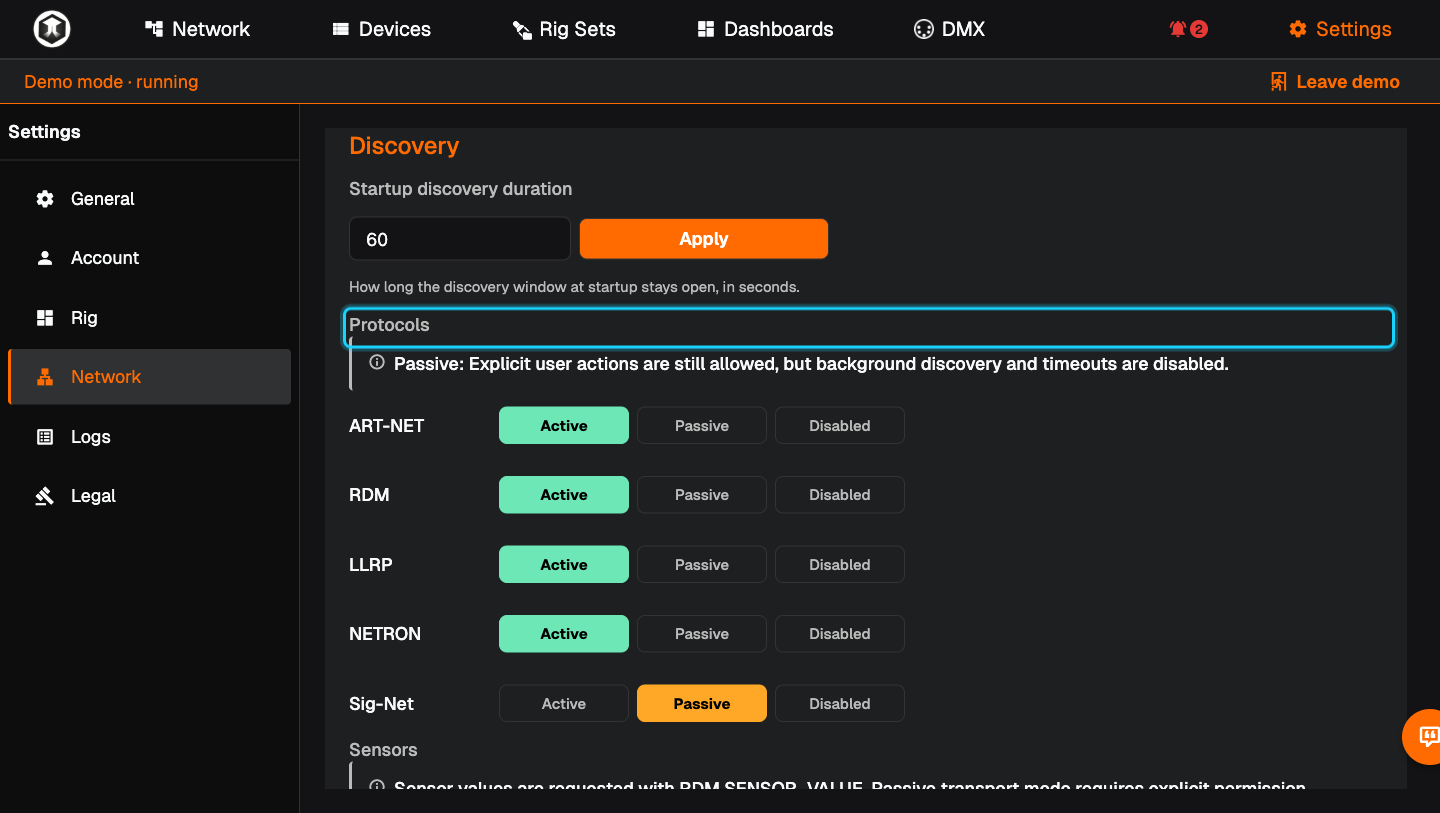
Choose the protocols. In the same place, under "Protocols", set ART-NET, RDM, LLRP, NETRON and Sig-Net to "Active", "Passive" or "Disabled". Passive means QubiSet only talks when you ask it to.
-
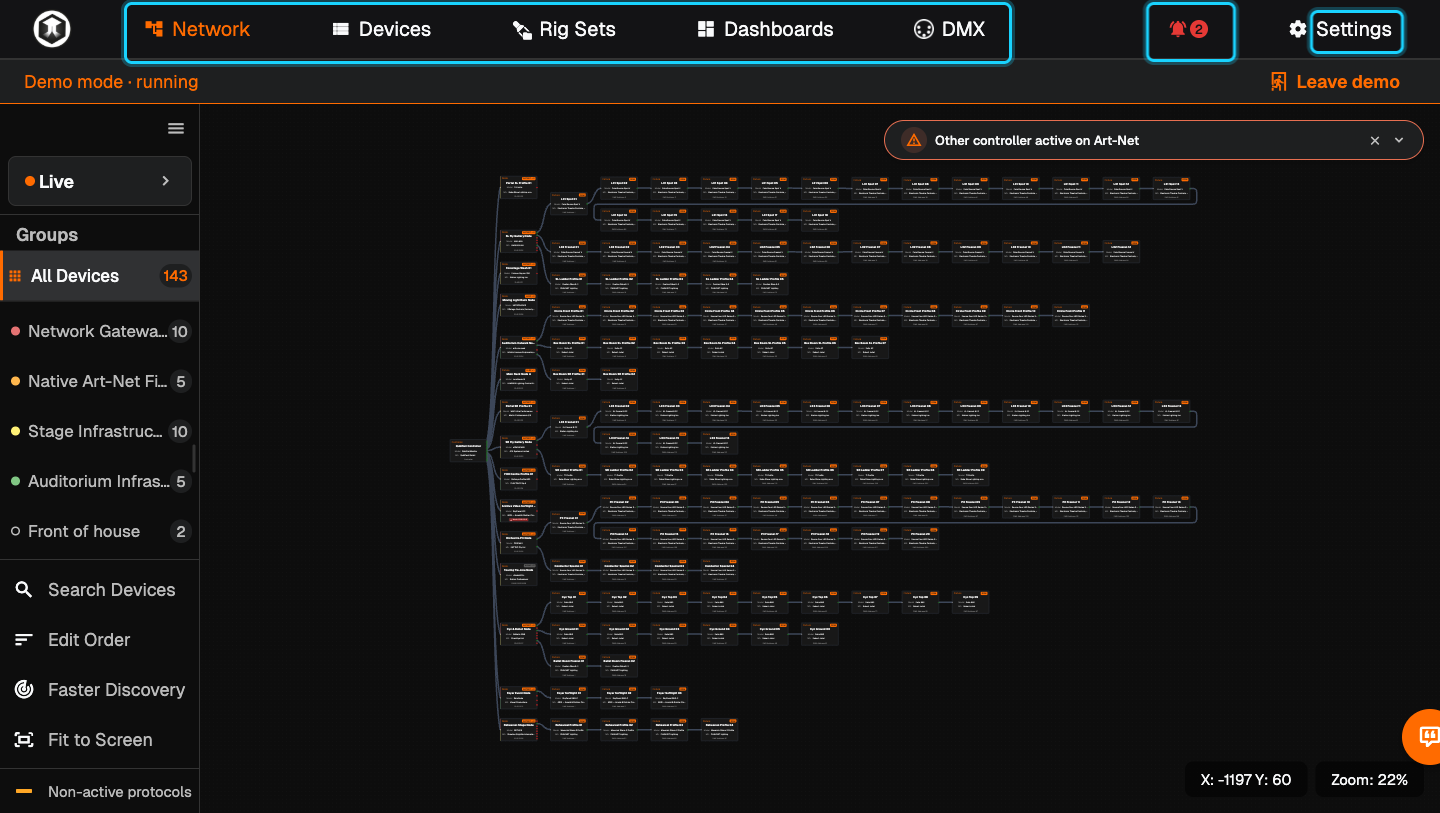
Look around. The top bar has Network, Devices, Rig Sets, Dashboards and DMX. The bell opens alerts. Settings is at the right.
-
Come back later. Next time, "Select a Rig" offers "Continue with" your last Rig. Tick "Always continue with the selected rig" to skip this screen. To switch, use Settings, Rig, "Change Rig".
Limit a Rig to certain universes
A new Rig watches all universes. To narrow it:
-
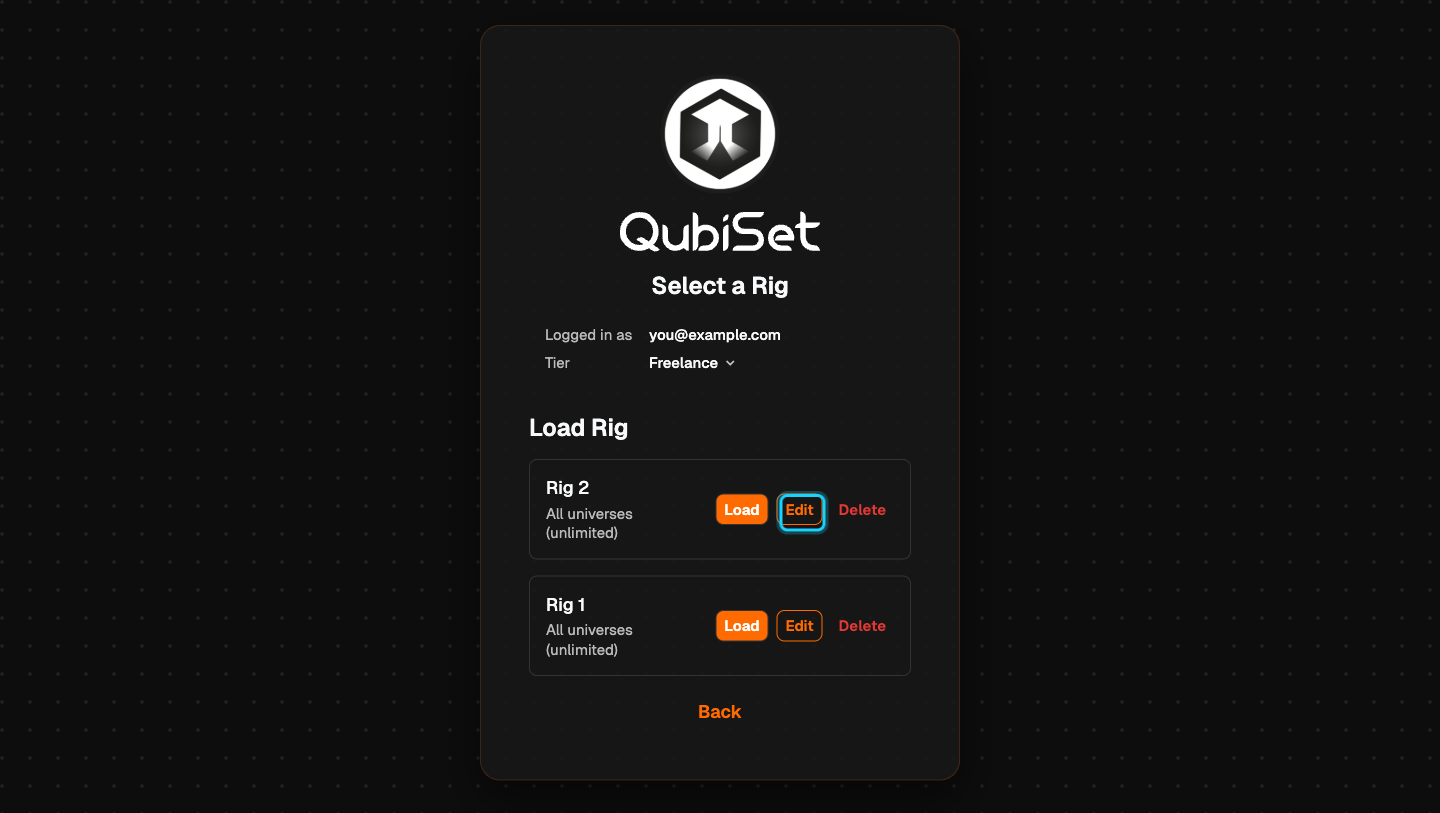
Open the Rig list. On "Select a Rig", press "Load Rig". This button only appears once you have two or more Rigs.
-
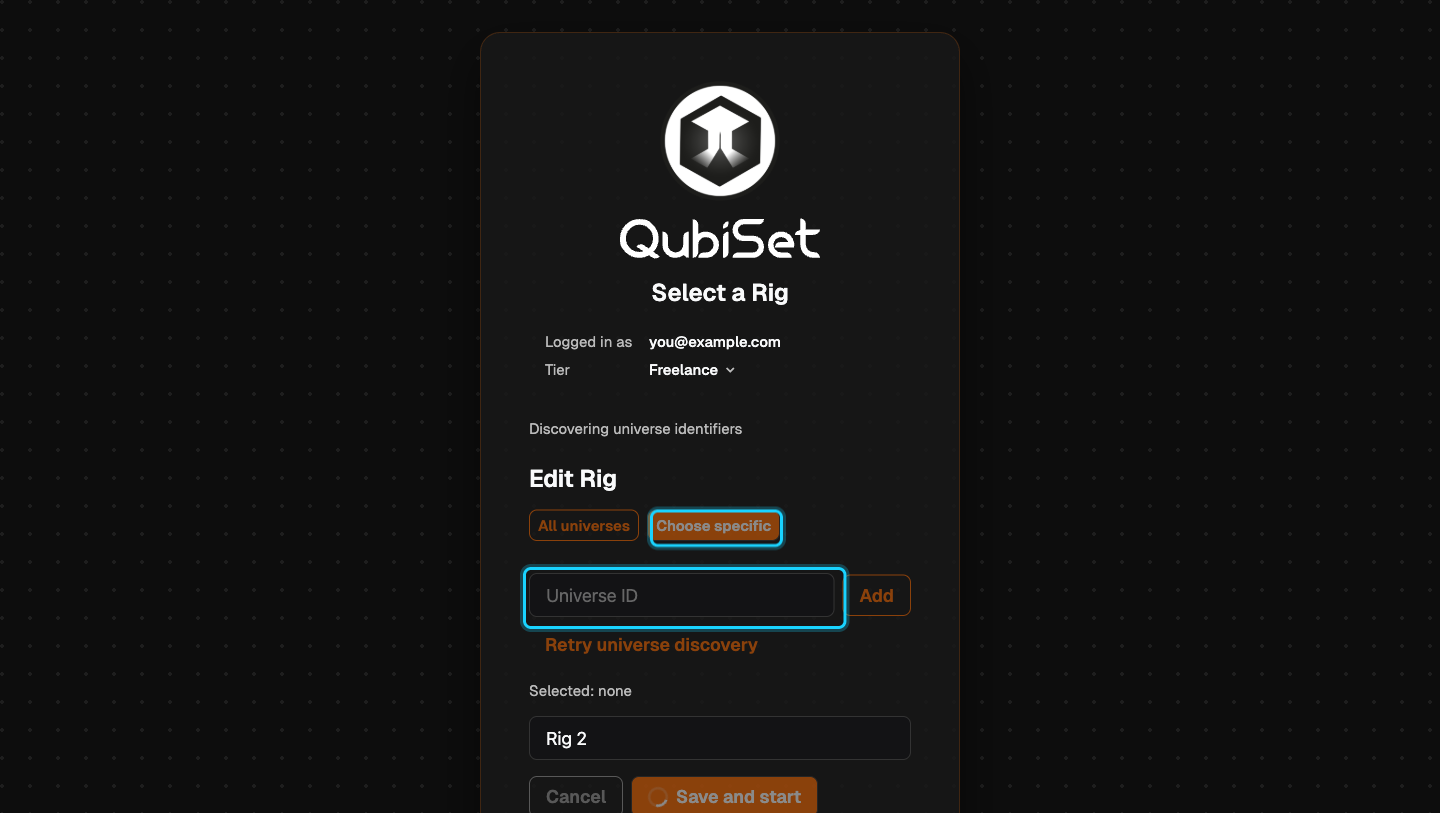
Edit the Rig. Press "Edit" next to the Rig, then "Choose specific".
-
Pick universes. Tick the universes QubiSet found, or type a number into "Universe ID" and press "Add". If the list is empty, press "Retry universe discovery".
-
Save. Press "Save and start".
If something is not as expected
- "Discovering..." stays and no device appears. The wrong network interface is enabled, or your computer is in a different IP range than the devices. Check Settings, Network, "Network Interfaces".
- "Other controller active on Art-Net" appears. Another console or tool is sending on the network. This is information, not an error.
- "Demo Rig · unavailable". The Demo Rig needs a signed-in account with a verified email address.
- There is no "Load Rig" button. You have only one Rig. See the note above.
Related guides
Still stuck?
Ask us on Discord or write to support@qubicast.com. Tell us what you did and what you saw, and we will help.